To activate geofencing in QuickBooks Time so your employees can clock in at the appropriate location, go to Company Settings, Maren. I’ll guide you through the steps.
Note: Geofencing is only available with the QuickBooks Time Elite plan or a similar high-tier subscription.
Here's how:
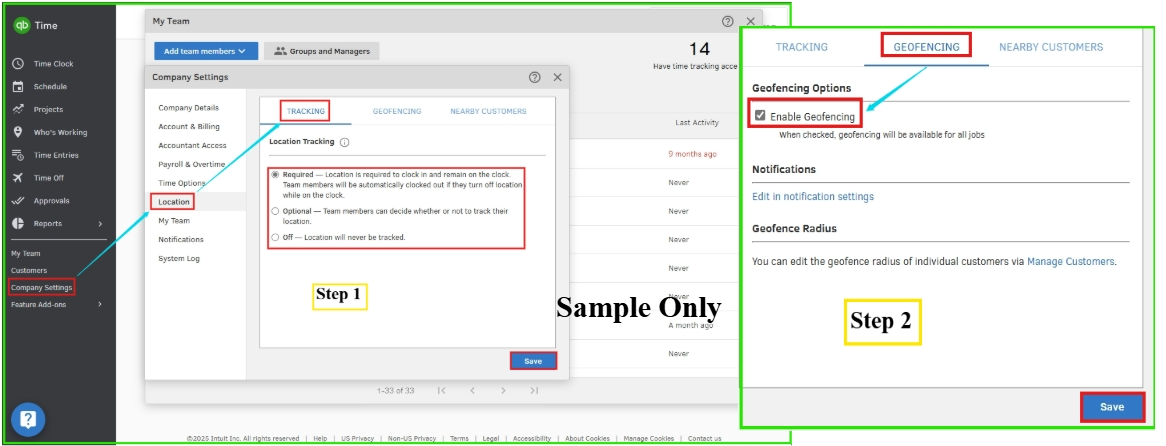
Step 1: Enable Location Tracking
- Open QuickBooks Time and go to Company Settings.
- Select Location, then choose TRACKING.
- Set Location Tracking to Required (recommended) or Optional.
- Hit Save.
Step 2:
- In Company Settings, next to TRACKING, click GEOFENCING.
- Check the box to Enable Geofencing.
Step 3: Add a Geofence to the Work Location.
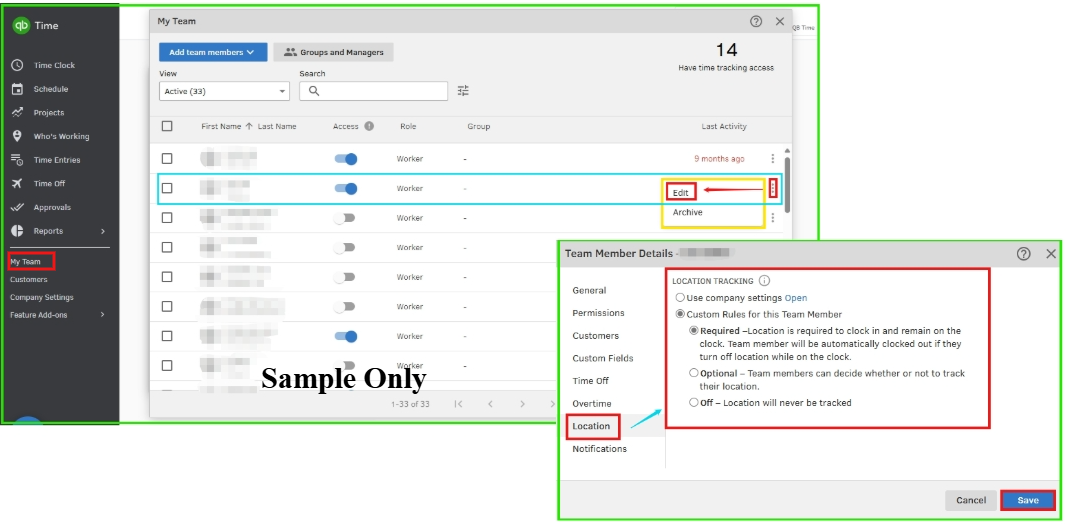
- Go to the desired Job or Customer in QuickBooks.
- Click Edit.
- Select Location and enter the address or latitude/longitude coordinates.
- A location icon will appear once the address is recognized by Google. Choose from Google’s suggestions to ensure accuracy.
- Set geofencing status to Required, Optional, or Off for the job/customer.
- Save the Job/Customer details.
For more information, see the article: Use geofencing in QuickBooks Time.
Need more help with bookkeeping or navigating QuickBooks? Our QuickBooks Live Expert Assisted team is ready to help with a wide range of business tasks.
Feel free to revisit this post if you have more questions about geofencing or QuickBooks.


