We appreciate you reaching out to us regarding the error your partner encountered when trying to clock in to QuickBooks Time/Workforce, Trevor.
It's possible that the employee submitted their timesheets for approval on a current or future date. Once a day is marked as submitted and approved, it locks the date range and prevents any changes or creation of timesheets before that date. This could be why your partner is unable to clock in, while you're not experiencing the issue.
To fix this, they'll need to work with their manager or admin to have them approve or reject their submission.
If you're an admin, here's how you can do this:
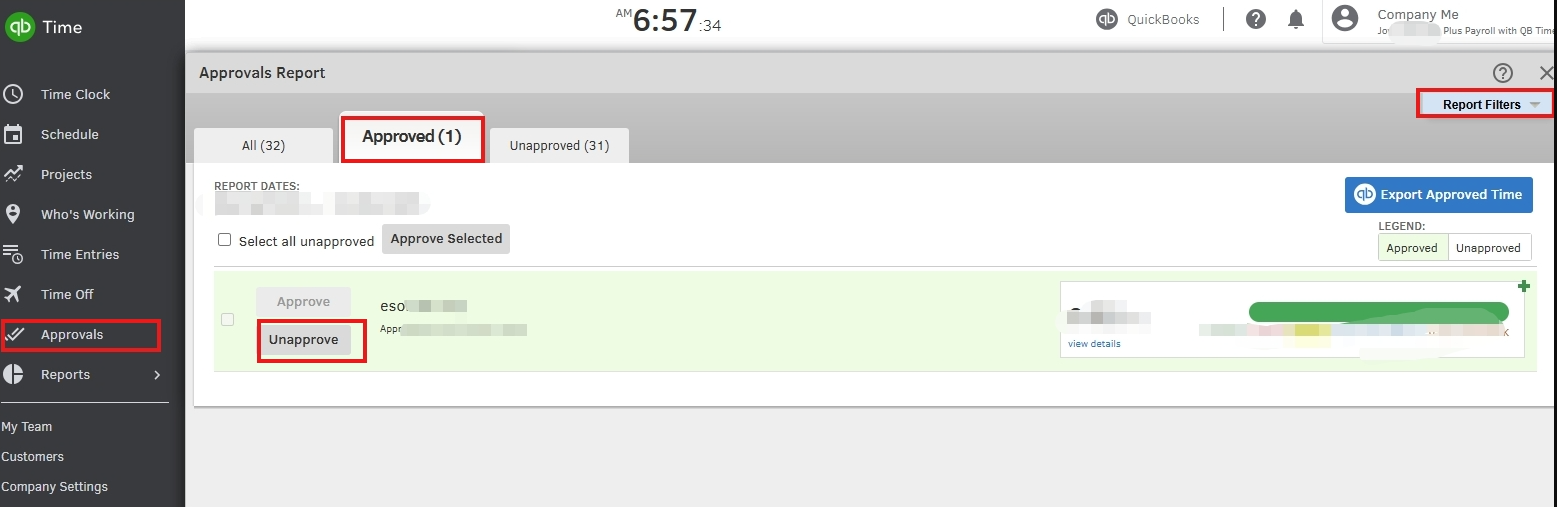
- Navigate to the Approvals menu.
- Under Approvals Report, select the Approved tab.
- Click the Report Filters drop-down.
- Select the specific Team member and adjust the Report Dates to include the future date mentioned above.
- Click Run Report.
- Locate the timesheet entries for your partner and click Unapprove.
Once the timesheets are unapproved, your partner should be able to clock in and create timesheets without encountering the error.
If you have other questions, please don't hesitate to add a reply.


