We have multiple ways to delete bills, jodbro55, and I'm here to guide you.
We can go to the Expense Transactions list, the Accounts Payable register, or from a report (Bill Payment List). Once you delete a bill will be permanently removed from your QuickBooks, and this action cannot be undone. Also, if the bill payment is linked to a vendor, the vendor's outstanding balance will increase since the payment is no longer considered.
To delete the bills from the expense transactions list, here's how:
- Open the bill to delete using one of these methods:
- Go to Expenses, then choose Expenses.
- Select the appropriate bill from the Expense Transactions list.
- In the Accounts Payable register in the Chart of Accounts, locate and select the bill.
- Select the bill from within a report.
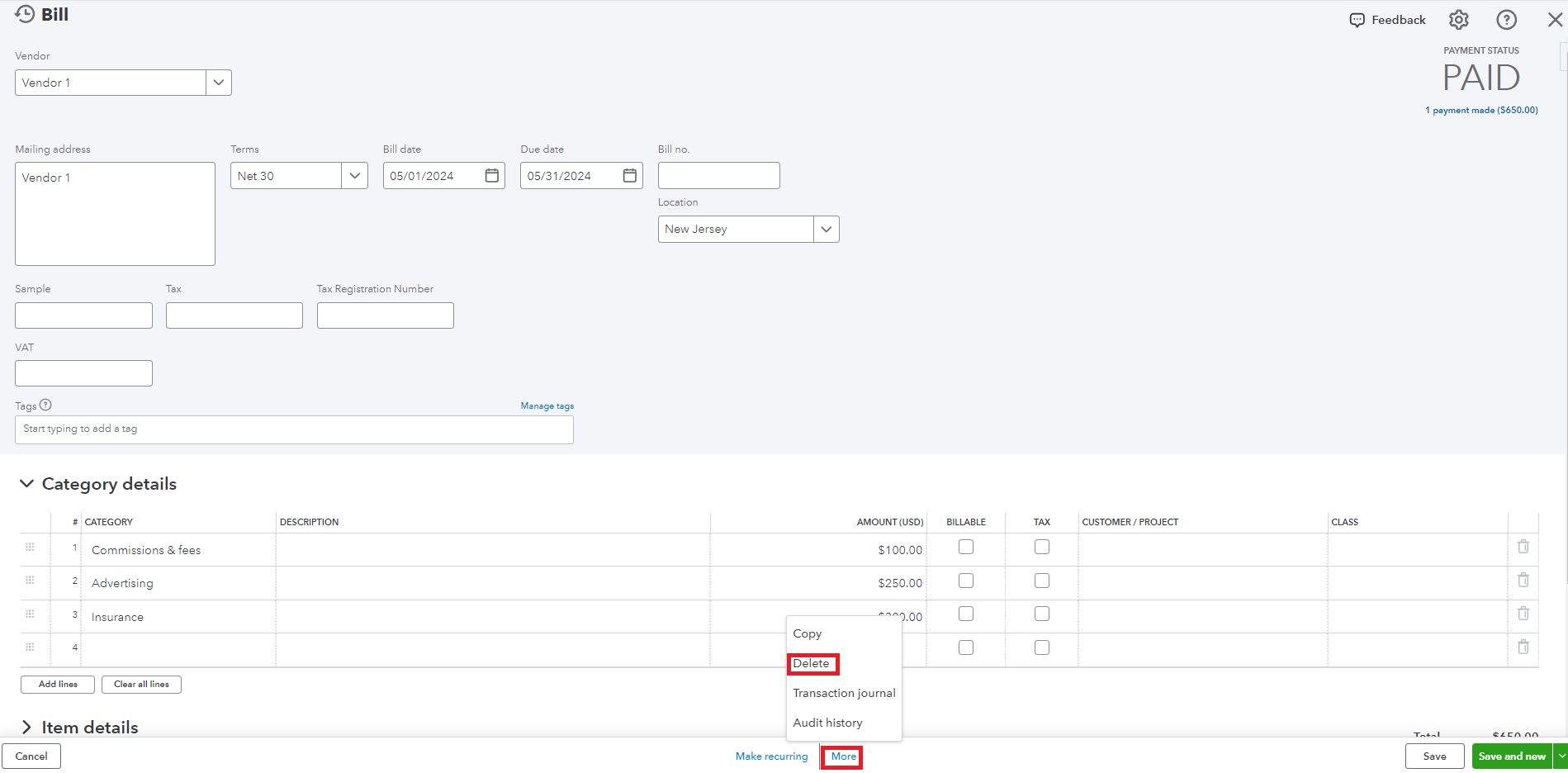
- In the Bill window, select More at the bottom of the screen and select Delete from the pop-up menu.
- When prompted, select Yes to confirm that you want to delete the bill.
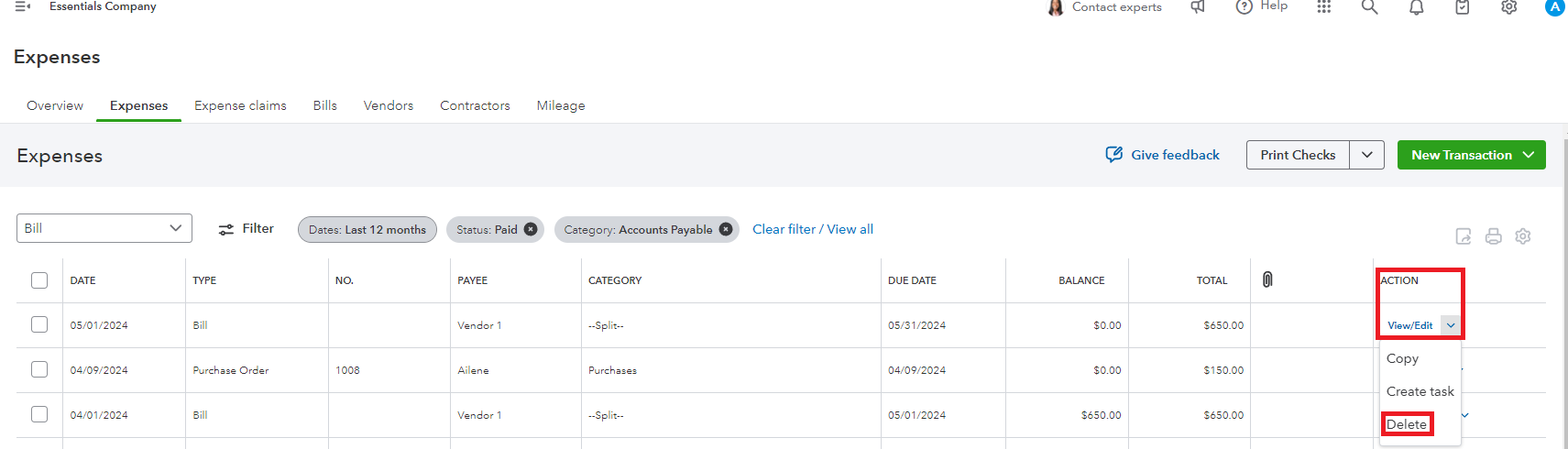
Delete the bill without opening it. You can access the bill from the expenses page and delete it without opening the bill:
- Click the Expenses, then choose Expenses.
- Locate the bill to delete.
- In the Action column, tap Delete from the dropdown menu.
- When prompted, click Yes to confirm that you want to delete the bill.
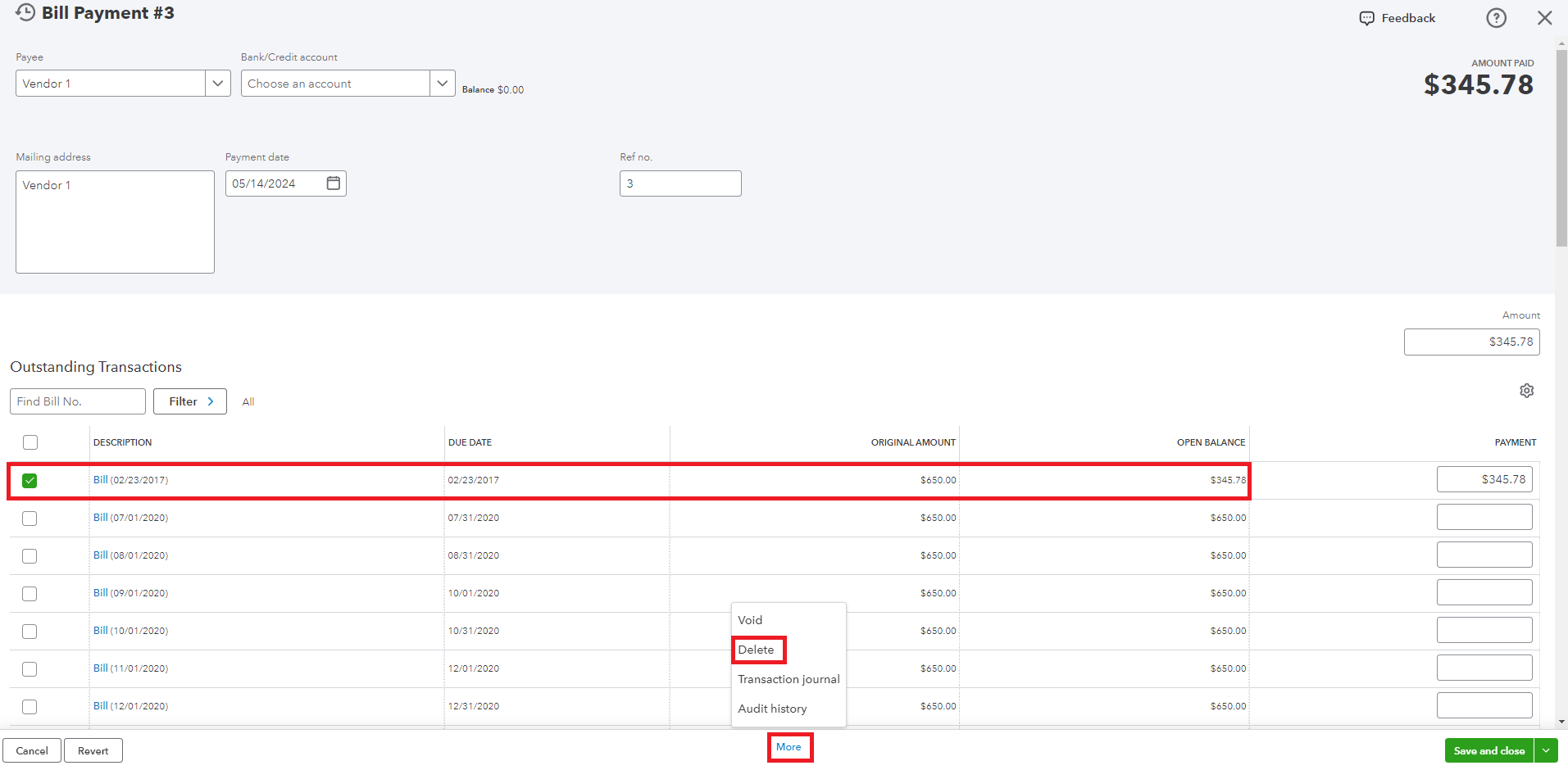
Then, from the Bill Payment List repost. Here's how:
- Click the Reposts, and choose Reposts.
- Enter the Bill Payment list in the search bar.
- Customize the information needed.
- Select the transactions to open it.
- Tap More, and select Delete.
For more details, check out this article: Delete a bill in QuickBooks Online.
Additionally, I've added these guides that provide information about managing business expenses and handling bills to the program:
We look forward to having you here again if you need further assistance deleting your bills from the program. We'll be around to help you out again. Have a good day!




