
Get 50% OFF QuickBooks for 3 months*

Buy now
Switch to QuickBooks and 70% off for 3 Months
December 16, 2019
Solved

Multiple currencies

  • December 16, 2019
  • 4 replies
  • 4 views

Hello,


i am dealing in 7-10 Currencies fr my boss, i want to use QBO but i couldn;t found any option of recoding Expense, Income, Stock, Current Assets and Liabilities in multiple currencies although i can enter data

Best answer by MikiD

Good job on turning on your multi-currency feature successfully, accountantaTfirm.


I’d like to share some information why ledgers are still in home currency. The main reason is because this feature will apply only to your upcoming accounts, customers, vendors and transactions.


The ones already created will follow the home currency information. You might want to recreate these accounts to assign a the new currency. Please refer to this article for additional reference: About Multicurrency
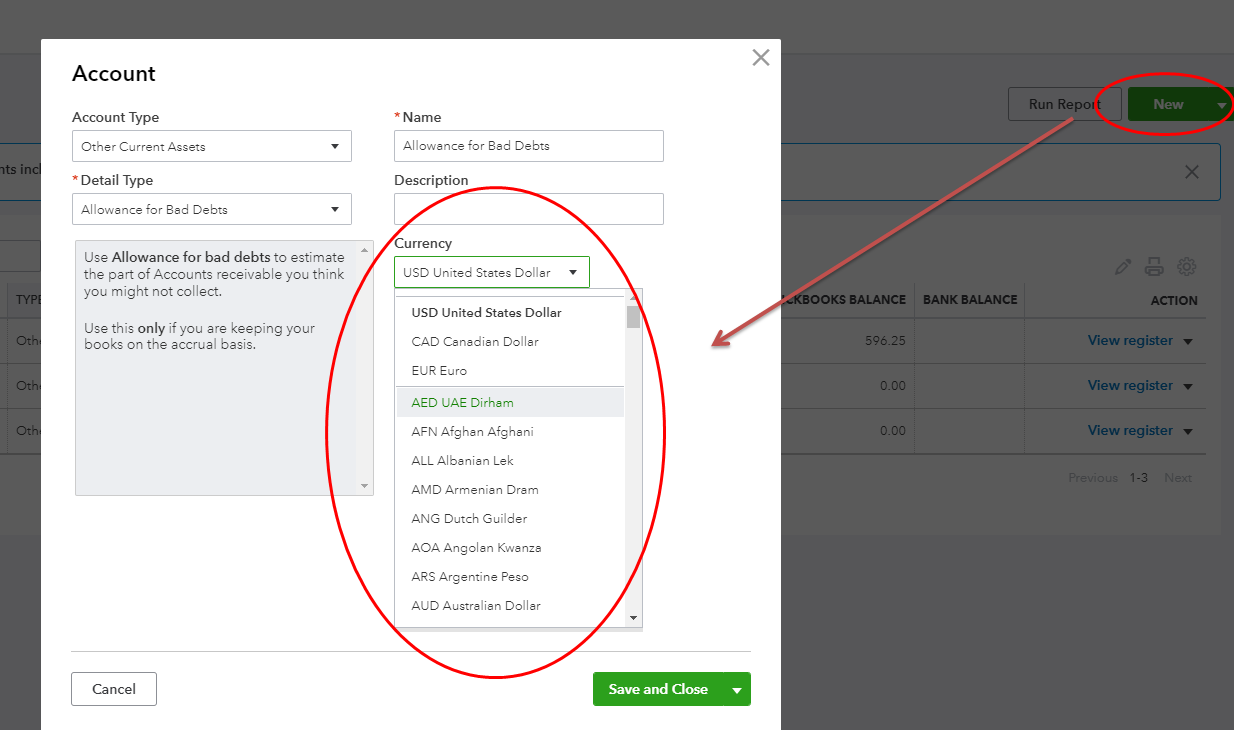


Come back here if you have anything else to ask. I'll be around to help. 

4 replies

Fiat Lux - ASIA
Level 14
December 16, 2019

Just to make sure, did you turn the multi-currency feature on?

December 16, 2019

Hello, 

Yes I did. But still the ledger is in home currency. Is there anyway I can get the accounts ledger in their related currency? 

MikiD
MikiDAnswer
December 16, 2019

Good job on turning on your multi-currency feature successfully, accountantaTfirm.


I’d like to share some information why ledgers are still in home currency. The main reason is because this feature will apply only to your upcoming accounts, customers, vendors and transactions.


The ones already created will follow the home currency information. You might want to recreate these accounts to assign a the new currency. Please refer to this article for additional reference: About Multicurrency


Come back here if you have anything else to ask. I'll be around to help. 

MJoy_D
QuickBooks Team
December 16, 2019

You can use the multicurrency feature, @accountantaTfirm


This will let you add transactions in foreign currencies. However, once you turn multicurrency on, your Home currency is set and cannot be changed.


You can manage foreign currencies and rates for your customers and vendors by going to your All Lists from the Gear icon. From here, you can add and delete currencies. 


After turning on the feature enter some currencies, you can now add an account that uses a foreign currency. 


See this article for detailed guidance: Turn on Multicurrency.


Keep in touch if you still have questions about handling transactions in other currencies. I'm always here to help. Have a good one!

April 26, 2021

Took me a while to find out that I was using the starter package that didnt have this feature... The multicurrency feature and foreign currencies are available in QuickBooks Online Essentials, Plus, and Advanced... 


Fiat Lux - ASIA
Level 14
April 26, 2021

@CROWWARDjm 

QBO Simple Start doesn't offer the multi currency feature. You may have these options to deal with multi currency transactions and integrate it with your QBO.

https:// veem.grsm.io/veems

https:// wise.prf.hn/l/64dl92k


June 19, 2022

Hello,

did you ever resolve this query?  Did you find a workaround?  Or did you move to a different software that allows you to do this?

Thanks.

QuickBooks Team
June 19, 2022

Thank you for choosing QuickBooks as your business tool, @1949730. I'd be glad to walk you through how to handle different currencies in QuickBooks Online.


The Multicurrency feature lets you track transactions in different currencies and record them easily in QuickBooks Online. To use this, let’s make sure that the Multicurrency feature is enabled. 


You’ll need to create a vendor with the appropriate currency in order to pay a foreign vendor. When recording the payment, you can only use the bank account that corresponds to the bill's currency. To do so, you can transfer the funds from your bank account to a dummy one that is set up in the vendor's currency. 


Here’s how:


  1. Go to the Gear icon and choose Chart of Accounts.
  2. Select the New button.
  3. Enter the necessary details, then click Save and close.


See this article to learn how to move funds from one bank account to another: Transfer funds between accounts. Please know that this will be used when registering the payment moving forward. 


Next, let’s pay the vendor bill by following the steps below:


  1. Go to the +New icon and select Pay bills.
  2. Click the account under the Payment account field.
  3. Pick the vendor's currency.
  4. Choose the open bill/s, then input the amount.
  5. Once done, save the transaction.


In addition, these resources provide information about managing exchange rates and how you can enter them in QuickBooks Online:


Yes, we can only add expenses to your COA using your home currency. That’s why you’re unable to add them using a foreign currency. With this, I’d suggest sending feedback request to our product development team. I’ll show you how:


  1. Go to the Gear icon.
  2. Under the Profile column, click on Feedback.
  3. Share your feedback. Then, click Next.


You'll want to track your suggestion through this website. You can also visit our blog to keep up with all of our recent events and developments.


Once everything is settled, you’ll want to read through these articles to help you organize and ensure your book is accurate:


Keep in touch if you have additional questions about using Multicurrency in QuickBooks. I’ll get back to you to answer them. Have a great week ahead.