We appreciate your feedback about the new invoice template in QuickBooks Online, LaBelleBooks. I know that software changes can sometimes feel challenging, especially when you're used to a familiar workflow.
Let me walk you through the specific details to address your concerns about creating invoices using the new template.
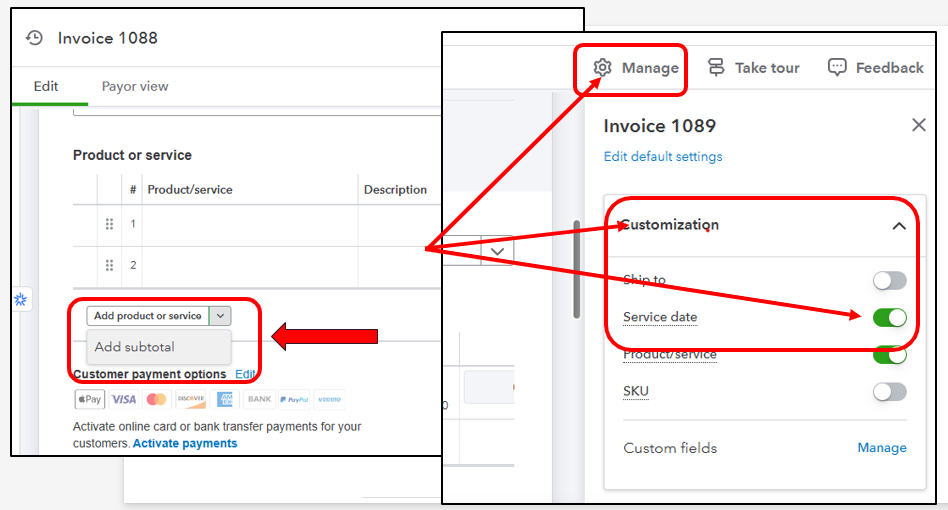
I'll start by sharing the steps for adding the Subtotal. Here's how:
- Open or create an invoice.
- Add all the items in the Product/service column.
- Click the drop-down list for Add product or service, then choose Add subtotal.
- Click Save and close.
For progress invoicing, make sure to add the Service date column so it's visible when creating the transaction. Here's how:
- Click Manage in the upper-right-hand corner of the invoice.
- Choose Customization.
- Enable Service date by sliding the bar to the right.
To show the progress details, you can follow these steps on how to include the Progress on line items column:
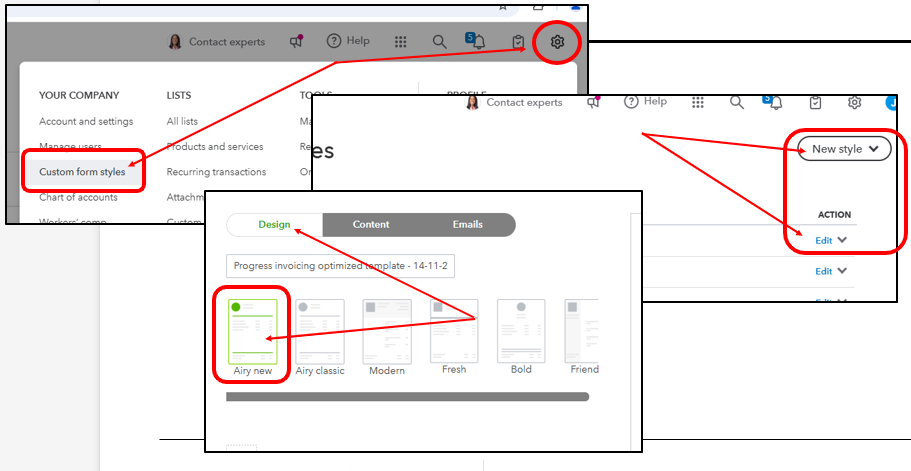
- Go to the Gear or Settings icon and select Custom form styles.
- Click New style and then Invoice to create a new invoice template. You can also update one of your existing templates by clicking Edit.
- Choose the Airy new template under the Design tab.
- Proceed to the Content tab, then click the table section of the form (the second section with Activity, Rate, and Amount).
- Click Show more activity options, then check the box for Show progress on line items.
- Choose Done, then click Save and close.


More details about editing templates are discussed in the Step 2: Create a progress invoice template section of this article: Set up and send progress invoices in QuickBooks Online.
Let me provide this article that covers all changes that come with the new layout: See what’s new with estimates and invoices in QuickBooks Online.
I'd also like to encourage you to send feedback about the recent changes to the invoice layout. You can send them directly to our engineers from your QBO account. Let me share this article as a guide: How do I submit feedback?
Lastly, I'll add two more articles in case you need more resources when using the new layout:
The entire Community is always available if you need further assistance. Whether you're working on sales transactions or navigating the platform, we're dedicated to providing you with the guidance and support you need.




