Thank you for turning to the Community about your reconciliation concern, tuckerkistner.
We'll have to match your downloaded transactions to the ones recorded in QuickBooks Online (QBO). Then, review the opening balance of the account and make sure it's the right one to ensure a smooth reconciliation process.
QuickBooks will look for matches, rules, and recognized transactions in your bank data. You can compare the bank feed transactions to existing ones in the online program as you review them. This links them together so you don't get duplicates. Here's an article that goes into detail about the process: Categorize and match online bank transactions in QuickBooks Online.
After you've matched the entries, double-check the opening balance for the account you're reconciling. Occasionally, transactions that were pending when you opened the account are not included in the opening balance. Follow these steps to find the opening balance:
- In your company, head to the Bookkeeping or Accounting menu on the left panel and choose Chart of accounts.
- Find the account on the list and tap the View register link to show all transactions recorded.
- Search for the opening balance entry and it should have "Opening Balance Equity" in the Account column.
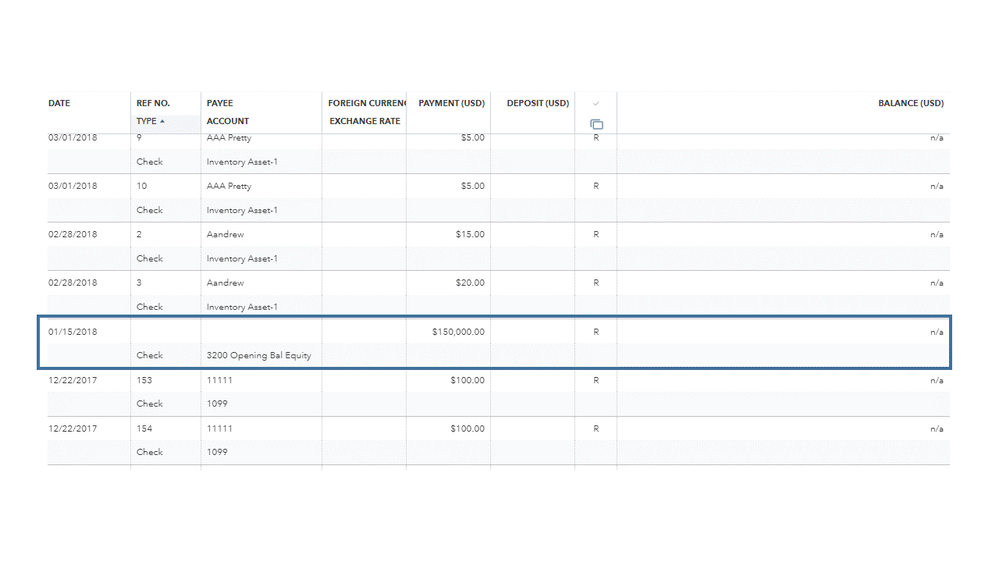
- Take note of the date and balance.
If you're unable to enter the opening balance, you can enter one later. Then, compare the opening balance to your actual account. You can compare the two balances by logging into the website of your financial institution (FI). Perform Step 2 in this article up until Step 3 for complete instructions: Fix issues the first time you reconcile an account.
Once done, you can reconcile your account. If you come across any discrepancies and other issues, these resources will guide you on how to troubleshoot them:
Additionally, you can bookmark the Community page in your browser for later use. It includes a list of topics that will help you manage your cash flow, payroll, taxes, and other accounting-related chores more effectively.
Keep me posted below you if have other banking concerns or questions about the product. I'd be delighted to respond to them.




