Turn on suggestions
Auto-suggest helps you quickly narrow down your search results by suggesting possible matches as you type.
Showing results for
Get 50% OFF QuickBooks for 3 months*
Buy nowI have created 2 case budgets, each using different accounts from the total accounts. When I choose a monthly report of revenue and expenses (actual vs budget) how do Ilink it to one of the case budgets?
Solved! Go to Solution.

Thank you for your response, Krug. I will help clarify how you can link a case budget to your reports.
A budget created without the Customer Job level prevents QuickBooks from linking real-time income and expense activity to a specific case. The report will still run, but the numbers won't match up because QuickBooks doesn't know which case the budget belongs to.
If you want the report to show Actual vs. Budget for a specific case or job, the budget must be created by Customer Job.
To confirm this:
If your budget was set up without the Customer Job option, QuickBooks would not be able to retrieve your actual job-costed transactions for the report. To resolve this, you will need to create a new budget and select the Customer Job option at the start.
Please let us know if these steps resolved the issue or if you need any further assistance. We're always here to help.
Hi there, Krug.
QuickBooks automatically pulls the budget data included in the report. If you’re referring to the case budget as it relates to your customer, here’s how you can link the report to one of your case budgets:
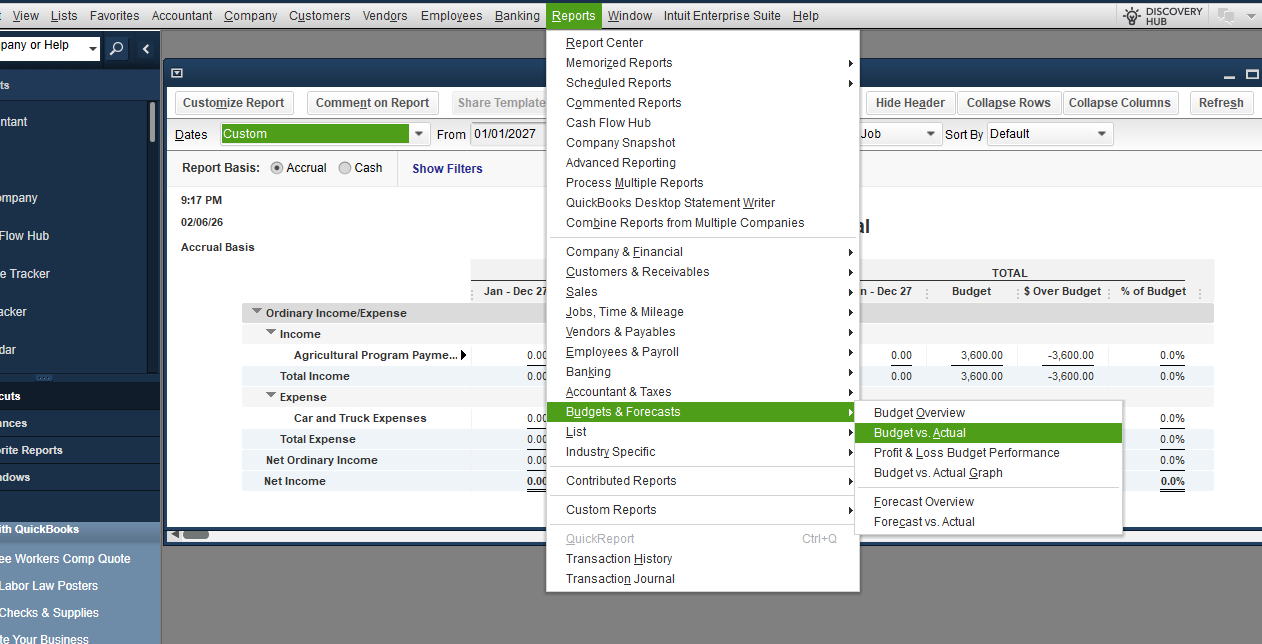
3. Click on dropdown and select Profit and Loss by Account and Customer Job.
4. Then hit on Next.
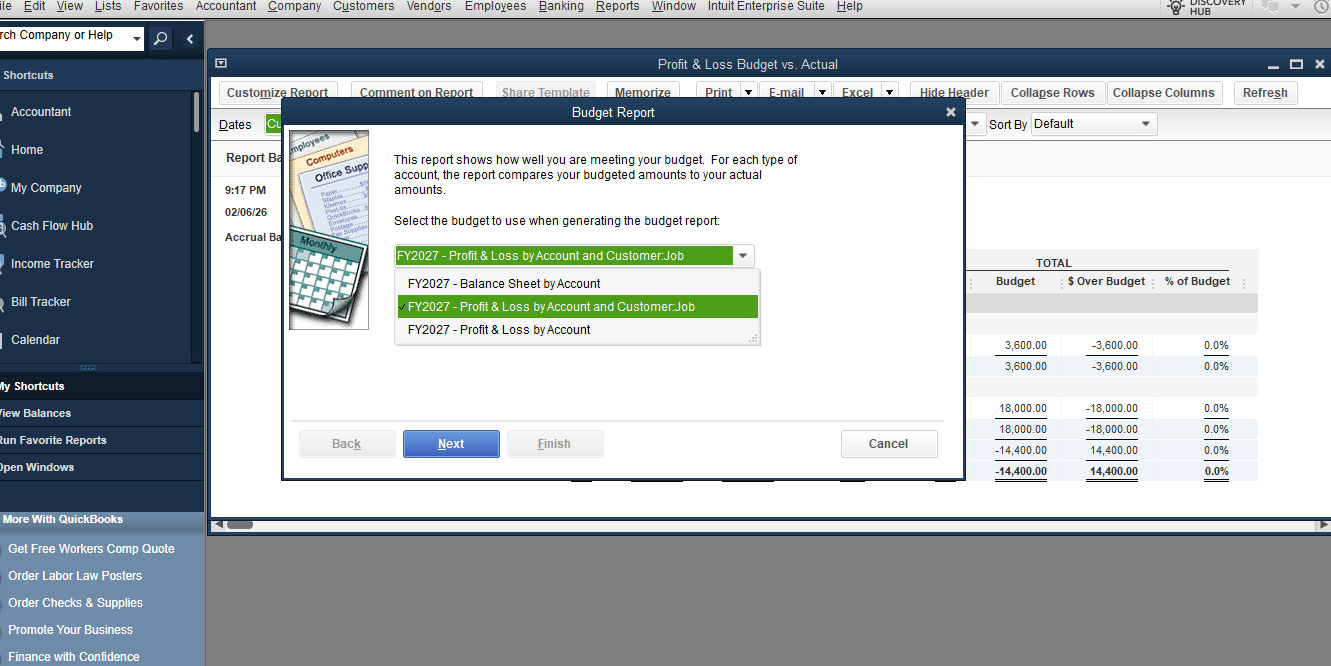
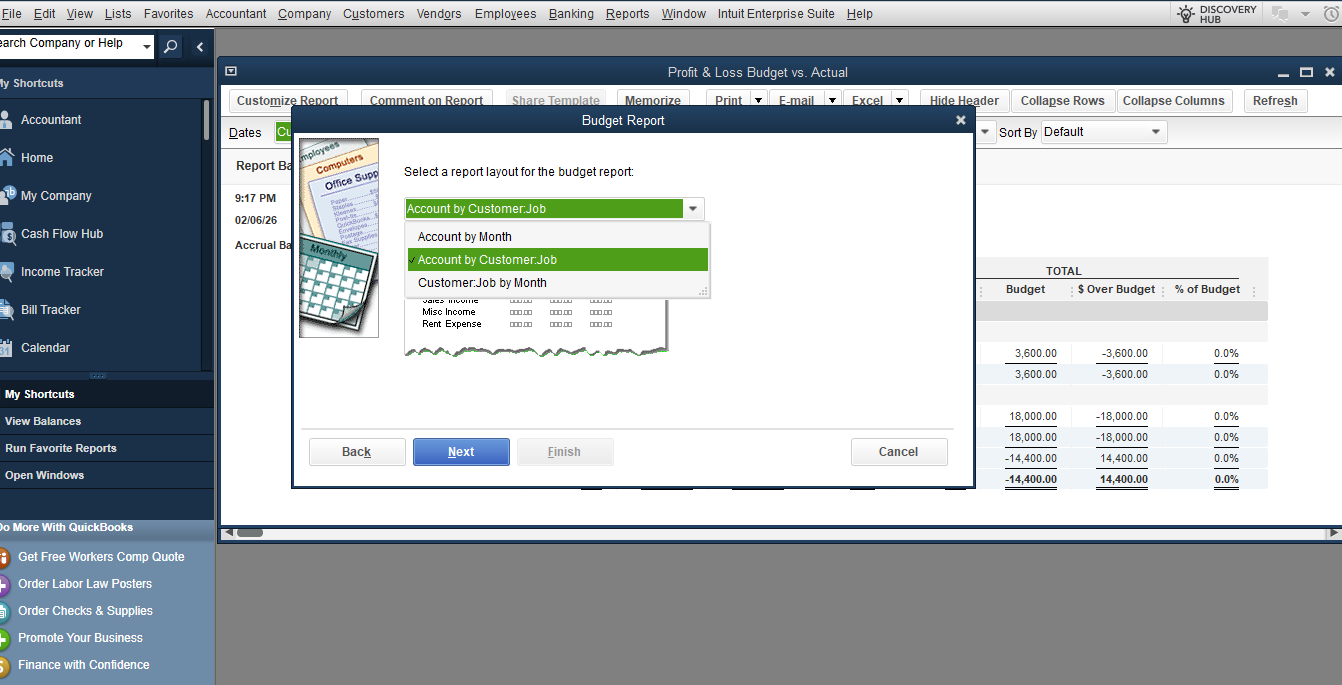
5. Click on dropdown, and select Account by Customer Job.
6. Hit on Next, then Finish.
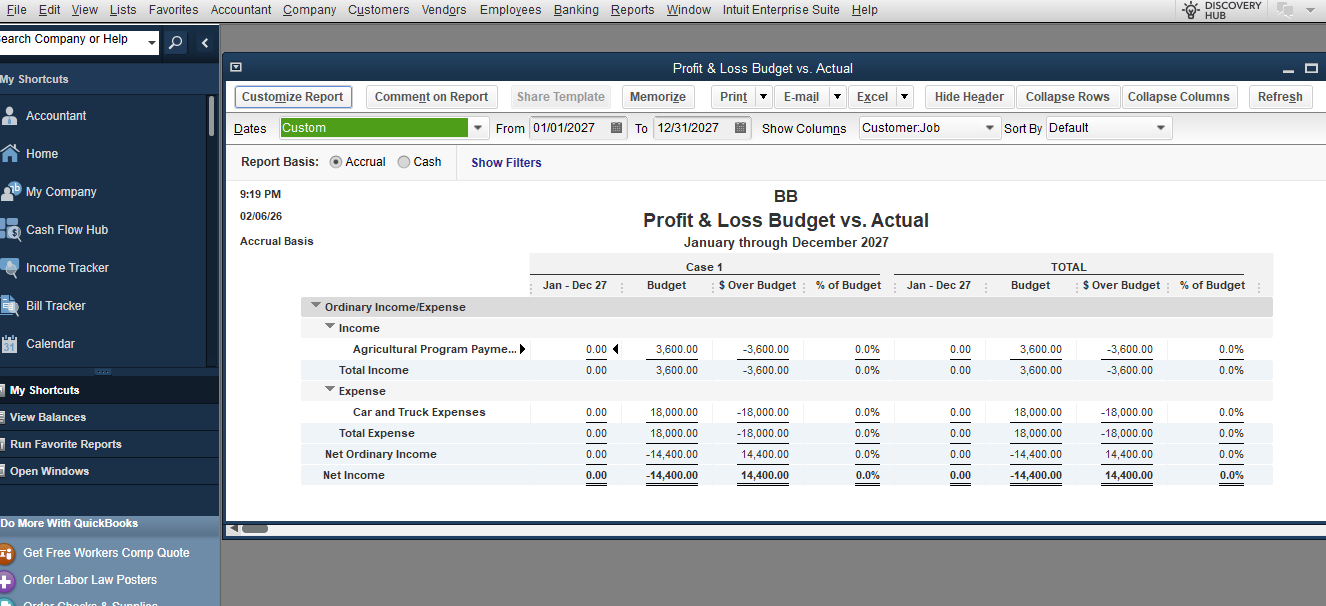
If you have any additional questions, please don’t hesitate to reach out. We're always here to assist you.
I'm not sure how that answers my question. I've been able to produce the results shown, but they don't seem to link to any of the real time data I enter for a months income and expense postings in producing a budget vs actual report....?
Thank you for your response, Krug. I will help clarify how you can link a case budget to your reports.
A budget created without the Customer Job level prevents QuickBooks from linking real-time income and expense activity to a specific case. The report will still run, but the numbers won't match up because QuickBooks doesn't know which case the budget belongs to.
If you want the report to show Actual vs. Budget for a specific case or job, the budget must be created by Customer Job.
To confirm this:
If your budget was set up without the Customer Job option, QuickBooks would not be able to retrieve your actual job-costed transactions for the report. To resolve this, you will need to create a new budget and select the Customer Job option at the start.
Please let us know if these steps resolved the issue or if you need any further assistance. We're always here to help.


You have clicked a link to a site outside of the QuickBooks or ProFile Communities. By clicking "Continue", you will leave the community and be taken to that site instead.
For more information visit our Security Center or to report suspicious websites you can contact us here


