Hi there, @profitboostbookkeeping.
Thank you for providing such a clear and detailed explanation about adding charts from the Performance center to Management reports or Custom reports. To fix this, we can export them separately and combine charts with the report using a tool like Microsoft Word.
Here's how to export the charts in the Performance center:
- On the left in the report page, next to Settings, click Export.
- Select the charts you want to export. Drag charts to change the order in which they appear in the document.
- Click Export again below to complete the process.

To export the Management reports, follow these steps:
- On the left side of your report page, click +Management reports.
- Fill in the relevant information on the screen.
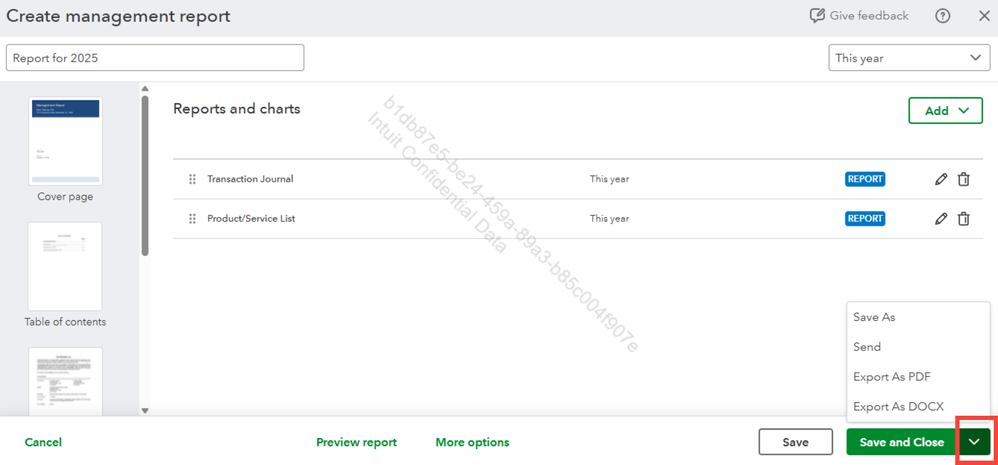
- Click the dropdown menu next to Save and close.
- And select Export As PDF.
Once done, use a document editing tool like Microsoft Word, Google Docs, or Adobe Acrobat to combine the exported Management report with the charts from Performance center.
If you still have additional concerns, please share them with us.




