Let me share some reports you can utilize in identifying which products have tax applied, @greene-gretchen-.
You can view all your products and services by pulling up the Product/Service List report. Then, add the Taxable column to see if you've set them up as taxable or non-taxable items.
- Go to the Reports menu.
- In the Find report by name field, type in "Product/Service List." Then, press Enter.
- Click the Customize button.
- Go to the Rows/Columns section.
- Click Change columns, then select the Taxable checkbox.
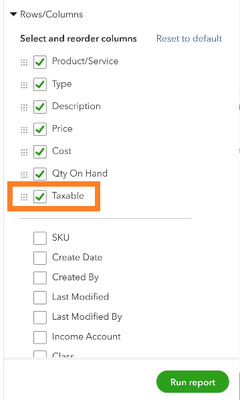
- Click Run Report.
Once done, you can edit your items and add the appropriate sales tax category if necessary.
Additionally, you can utilize the Sales by Product/Service Detail report to view all sales transactions. Then, customize it by adding the Taxable Amount, Tax Amount, and Tax Name columns. This way, you can verify if you've applied a tax to each of the items in all your transactions.
Here's how:
- Go to the Reports menu.
- In the Find report by name field, type in "Transaction List by Date." Then, press Enter.
- Click the Customize button.
- Select All Dates from the Report Period drop-down.
- Go to the Rows/Columns section, click Change columns.
- Select Taxable Amount, Tax Amount, and Tax Name.

- Click Run Report.
You can read through these links to learn which reports are available for your version in QuickBooks Online:
Additionally, you can export them to Excel to help give you the flexibility to use them. Simply click the Export icon and select Export to Excel.
Please let me know should you need further assistance with customizing your reports in the way your business needs. I'm always here to assist. Have a wonderful day.