We can start by reviewing your Invoice Template settings, Taylor. QuickBooks Online allows customization of templates, and this is often where formatting issues can arise.
Here's how we can check your Invoice template settings:
- Go to Settings (Gear Icon), choose Custom Form Styles.

- Select your Invoice template and click Edit and ensure that your Balance Owed field is added to the invoice.

- On the Design, you can resize the margins by going to Page Margins.

- You can also change the Font size of the Footer to the lowest font by going to Content.
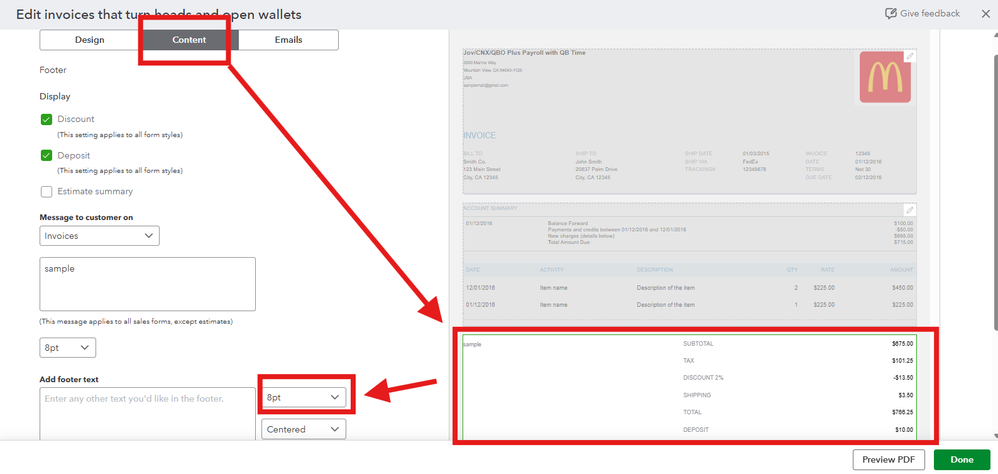
- Then, confirm the layout settings to make sure the Balance Owed appears properly and isn’t overlapping text or pushed to another page.
- Hit Done to save changes.
- On your Invoice, go to Manage, select Design and choose the template that you have customized.

- When you print the invoice, check the Print Preview on the Print or download to confirm the layout before printing.
For more information on customizing invoices, you can visit this article: Customize invoices, estimates, and sales receipts in QuickBooks Online.
If the issue persists, we can do some simple browser fixes. The stored data and cookies in your browser can sometimes cause pages in QuickBooks to make unusual behavior. You can clear this data by following the steps outlined in this article: Troubleshooting browser problems.
Also, did you know you can schedule a free consultation with our QuickBooks Live Expert Assisted? They can offer tips and guidance about managing your QuickBooks Online account.
Feel free to reach out if you need additional help. The Community space is available 24/7.




