Turn on suggestions
Auto-suggest helps you quickly narrow down your search results by suggesting possible matches as you type.
Showing results for
Get 50% OFF QuickBooks for 3 months*
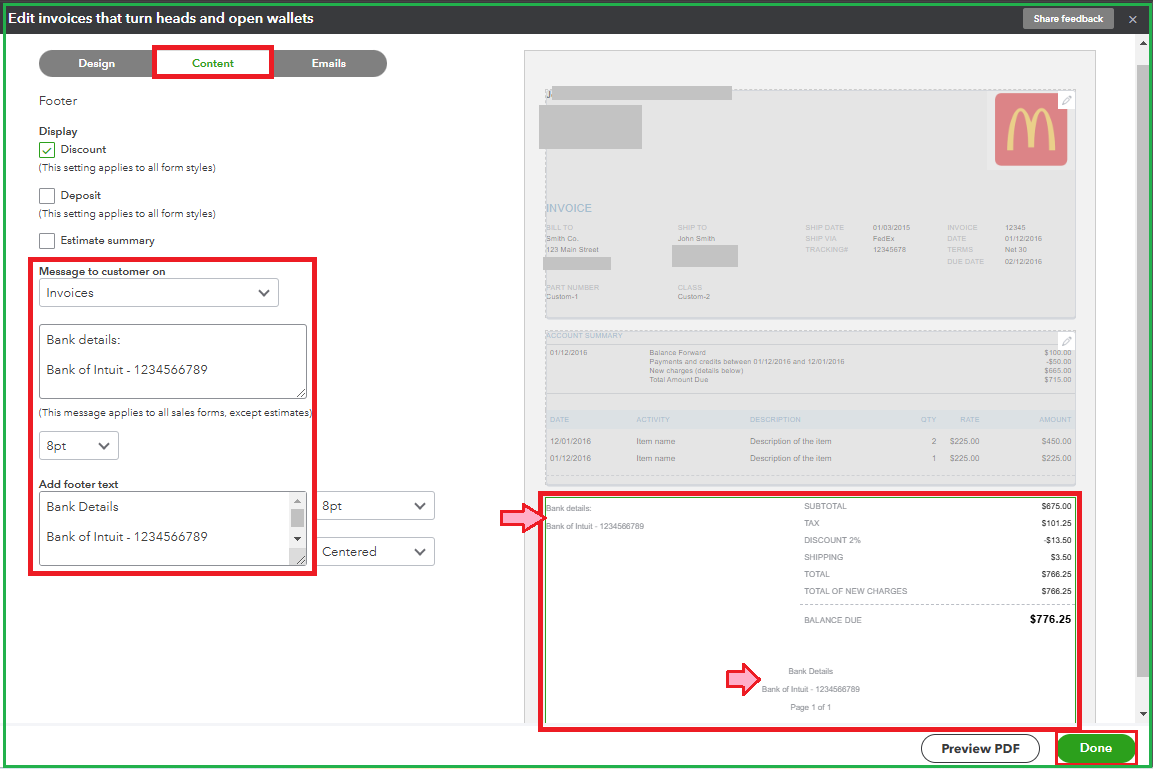
Buy nowCongratulations on gaining a new customer, Carol. Adding direct deposit information to facilitate payment collection is convenient indeed. Let me walk you through personalizing the invoice template to include these details automatically when sending an invoice.
We can input a message to your customer and add text to the footer of the invoice form to enter your bank details. I'll show you how.
Once done, you can go to the Emails tab to review how the template after the modifications. I'm adding a screenshot below.
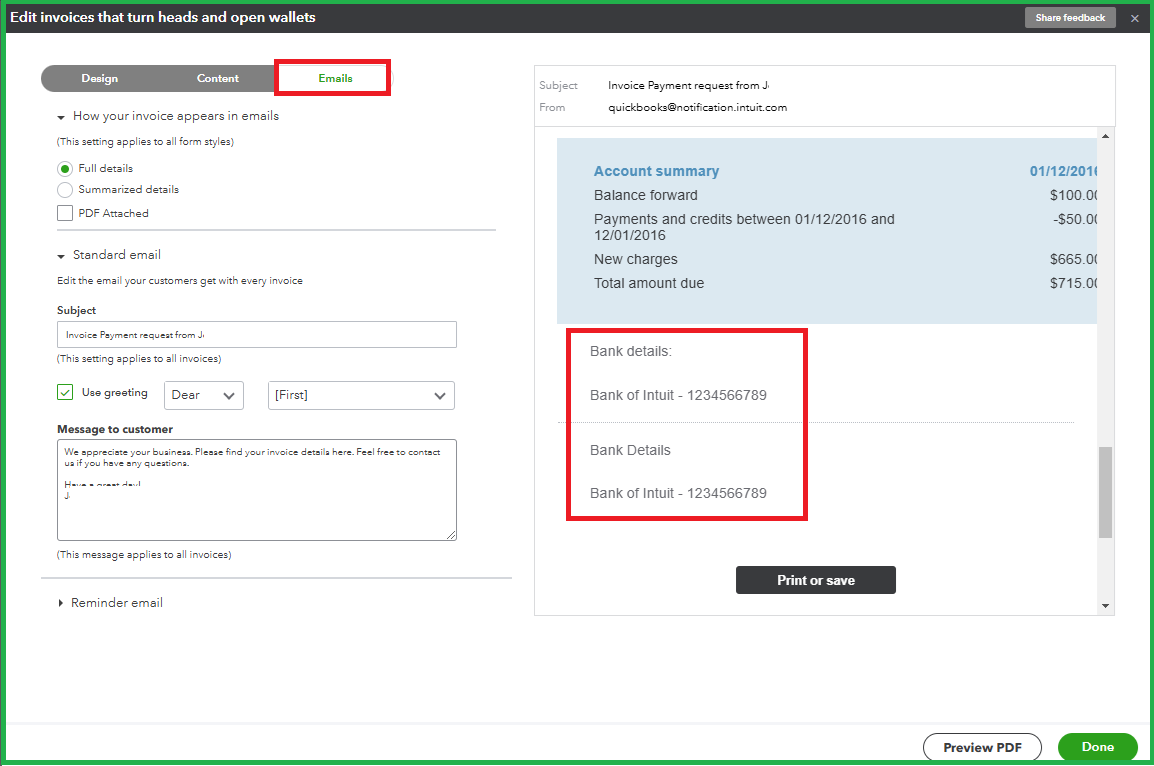
Additionally, please note that the change will only apply to newly created invoices after the invoice customization is applied.
Moreover, refer to this article for more ways of tailoring the appearance and layout of sales forms: Customize invoices, estimates, and sales receipts in QuickBooks Online.
Furthermore, check out this guide to document the deposits made by your customers: Record invoice payments in QuickBooks Online.
Do you need help tracking your sales and ensuring they're on the correct account? Speak now with a QuickBooks Live Expert for more personalized service.
Altering the form to allow your customer to pay their invoices quickly is my pleasure. Add a response below for more questions about managing sales transactions. We'll be here to address them.

