Turn on suggestions
Auto-suggest helps you quickly narrow down your search results by suggesting possible matches as you type.
Showing results for
Get 50% OFF QuickBooks for 3 months*
Buy nowYou need to update your employee's payroll schedule to reflect the correct pay period, shariimpel. Just revise all upcoming payroll schedules from the Edit Payroll Schedule window.
I'll walk you through the process:
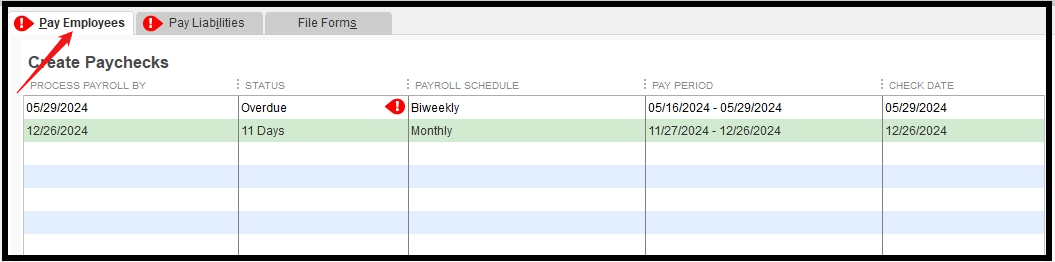
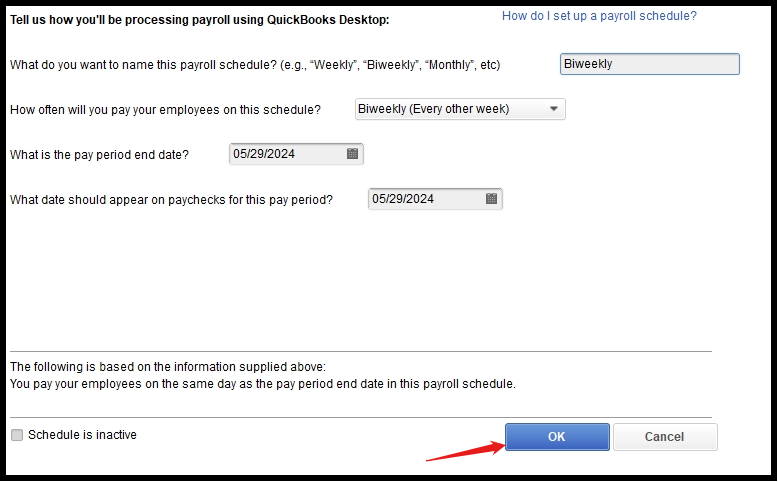
To view the new payroll periods based on the updated pay schedule, navigate to the Transactions tab in the Employee Center and select Paychecks. QuickBooks will automatically adjust your employees' compensation and taxes to reflect the new payroll period.
Additionally, you can remove or delete a scheduled payroll liability in QuickBooks Desktop Payroll. However, you cannot remove tax liabilities from the payroll schedule once they have been set up in QuickBooks Desktop.
You can always get back to us if you need more help with payroll. Just click the Reply button below so we can assist you promptly.

