Turn on suggestions
Auto-suggest helps you quickly narrow down your search results by suggesting possible matches as you type.
Showing results for
Get 50% OFF QuickBooks for 3 months*
Buy nowThis is literally the perfect response. I followed your directions and bam, done. Great advice. Thank you
@IamjuViel wrote:
You’re on the right track, @eas22487.
Let’s first delete the bill and ensure to record the vendor refund so you’ll be able to apply it as credit.
To delete the bill:
@IamjuViel
- Go to Vendors.
- Choose Vendor Center.
- Select the vendor's name.
- Double-click the bill payment, bill or credit.
- Press Ctrl and D at the same time to delete.
- Select OK to confirm.
Once deleted, let's record the vendor refund. Here's how:
- Click Banking.
- Choose Make Deposits.
- Select the specific Deposit To bank account where the funds were initially posted.
- Type in the name of the vendor in the Received From column.
- Choose Accounts Payable as the account affected.
- Enter the payment method and the amount of the refund.
- Click Save and Close.
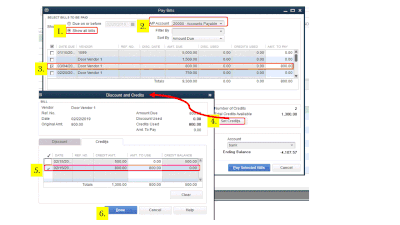
Once recorded, recreate the bill and apply the credit, here's how:
- Go to Vendors.
- Choose Vendor Center.
- Click New Transaction drop-down.
- Select Pay Bills.
- In the Pay Bills window, select Show all bills.
- Choose the specific AP account.
- Put a check mark on the deposit you've recorded.
- Click Set Credits.
- In the Discount and Credits window, choose Credit tab.
- Put a check mark on the credit that you've created.
- Click Done.
- Hit Pay Selected Bills.You can now see a zero balance in your Open Balance Report.
Also, you can check these articles for additional insights:
- Void or delete a bill or bill payment check
- Record a vendor refund in QuickBooks Desktop
- Pay bills in QuickBooks Desktop
Always feel free visit us here in the Community if you have other questions. I’m always here to help.