Turn on suggestions
Auto-suggest helps you quickly narrow down your search results by suggesting possible matches as you type.
Showing results for
Get 50% OFF QuickBooks for 3 months*
Buy now
I want to ensure this is taken care of, @mike-truesdell.
When removing the duplicate account, we can either merge or make the other account inactive in QuickBooks Online (QBO).
Merging the accounts will combine both transactions. Ensure to save the reconciliation reports before doing so.
Here's how:
When making the account inactive, if it has a balance, QuickBooks will create a journal entry to zero it out. Please know that the transactions in the account will remain on your records and will still affect your reports. I'll guide you on how.
To review the inactive accounts, click the mini Gear icon above. Place a checkmark in the Include inactive checkbox.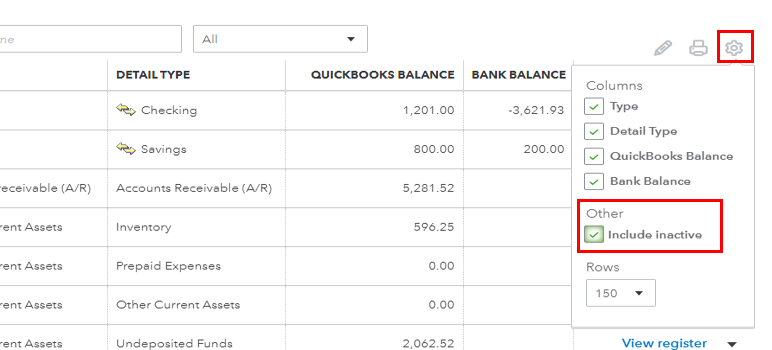
I've added this link if you want to keep track of your activities in QuickBooks: Use the audit log in QuickBooks Online.
Further, check out these articles on how to reconcile and manage a chart of accounts in QuickBooks:
Let me know if you have other concerns with your account in QuickBooks. I'm always happy to help.
Making the duplicate account inactive doesn't fix the issue with having the duplicate transactions on my reports like Profit and Loss. There must be a way to exclude inactive accounts from reports so my reports are accurate.
Hi there, @ToddBaum1.
Let me help you exclude the inactive accounts in the Profit & Loss report.
We must select the Non-zero in the Show non-zero or active only field so the inactive accounts won't show in the report. Note: This feature is unavailable in QuickBooks Online (QBO) Simple Start.
Here's how:
You can read this article for more info and ways how to exclude duplicate accounts in the Profit & Loss report: Remove deleted accounts from reports in QuickBooks Online.
If you want to save a particular report customization, you can read this article: Memorize reports in QuickBooks Online.
For additional questions about customizing your reports, leave a comment below. I'll be willing to lend a hand. Keep safe and have a good day.


You have clicked a link to a site outside of the QuickBooks or ProFile Communities. By clicking "Continue", you will leave the community and be taken to that site instead.
For more information visit our Security Center or to report suspicious websites you can contact us here


