Turn on suggestions
Auto-suggest helps you quickly narrow down your search results by suggesting possible matches as you type.
Showing results for
Get 50% OFF QuickBooks for 3 months*
Buy now
Has an update to fix this problem been issued? When I run payroll it is showing 1.5 of total hours the employee worked, not a dollar amount of the overtime that needs to be tracked.
Sadly, No. Not yet. And, you're correct. The Qualified OT Tracking only displays hours; and, even those are wholly incorrect. We will offer that QB Support was unaware that the Calculations they rolled out with the Qualified OT Tracing wasn't remotely accurate. The DID understand see the error. The group we spoke to didn't really know how to fix it; but, agreed... it must be fixed.
Thanks, did they happen to recommend manually fixing the tracking line to reflect the dollar amount of qualified OT wait for an update?
The QOT Tracking "can" be manually entered; and, the Reporting (appears) to be accurate based on the in-house testing we did in our Office. That said, if QOT Tracking has to be completed manually, we've decided we're either going to Ignore it and make one manual entry for each/every employee at year-end; OR, look for another accounting software solution.
Some businesses have very, very, complex OT Rules by employee type, by shift type, by day of the week, etc. Just in our business, an Employee can earn three different types of OT in a single pay period.
We're ignoring this issue, for now, until the next QB update.
We have the same situation as well. Planning to ignore it for now (and do one time manual entry) until they come out with an update. Thanks for your input.
Good morning,
Update your payroll program make sure you are using the most recent version. Tax Table 22602 & Payroll Version 12310259. I am finding that the program is working.
Below is my example and how it is set-up.
I have not tried multiple overtime rates for a single employee for a pay period yet. Multiple overtime rates was not working last week. I may just print more than one paycheck for a person when that scenario arises.
Thank you, I do have that table and version. Maybe it is the way the payroll item is set up. What did you check for 'Calculate based on quantity' and 'Default Rate and Limit'?
Thanks for Sharing. Agreed, that it works. However the Q OT should not be under Company Summary.
Also, on the payroll summary report QOT adds ups as "Employer Taxes and Contributions" which is not correct. When went to Pay Liability, that QOT amount is not there, which is good.
But in our case, WE use the "Employer Taxes and Contributions" amounts every quarter to calculate the Oregon Corporate taxes. So, in my case that QOT under employer taxes (as COGS) will be incorrect amount(s). And that is only the Problem. Yes I can always subtract that amounts every quarter, but there are and will be chances of being overlooked the QOT amounts
Could you please tell me how you set up the payroll item QOT? What do you have checked under 'calculate based on quantity' and 'Default Rate and Limit'? This may be where my mistake is being made??
Hello,
I have it set up as they set it up originally with the update and that is calculated item based on quantity at the top on the top option selected and the next screen default rate limit is set at 0.00 with an annual restart each year at the bottom.
My system shows hours BUT the employees paycheck shows totals only and not hours and only the employees with live paychecks shows that there and employees with direct deposits shows nothing for the QOT information. They have this all so messed up.
I never set that myself, Quick books ask (prompted) me to add. That added. I ran Sample payroll, that is when I saw. I called support also. I was replied on the same comment in community to edit the QOT payroll item to neither. Changing to Neither , make QOT to go away from paycheck and Payroll Summary. But not sure that doing so , the QOT will appear on w2 2026 or not ?? Using Neither means manual entry on Line 14 of w2 at the of year. To do that run Payroll Summary by OT, Export to excel, Divide gross by 3 for each employee and than Overide Line 14 on w2 to insert the amounts , and on and on
Also at Edit for QOT has 3 Choices , Based on quantity, Bases on Hours and Neither. Now I know IRS do want QOT on w2 by amount and not hours, That means Only choice has to be Based on Quantity , which than it will still circle back to the Original Question
If I am Correct the idea behind QOT, is to insert the amount on Line 14 on w2, so an employee take benefits of taxes, I am not sure having based on hours will reflect correct amount on w2
My understanding is that it should be set to hours.
It should be set to Hours and do NOT check the box for sick and vacation
I hope someone from QB is reviewing these posts. In addition to the different issues brought up in this post, there are 2 more issues that have not been mentioned yet.
1. The directions being given do not seem to cover double time. I don't see any way that the one Pay Item is going to work for OT and DT
2. The "no tax on overtime" law is based on the FLSA week. In states like California, where daily overtime is a thing, the current methods are not going to calculate the amount correctly if the person has daily overtime but did not have 40 hours of regular time for the week.
I hope this is going to be addressed in the coming update.
If I understand it correctly, the numbers in the Other Pay area (I believe that is the correct name) should be the OT premium rate, followed by the number of OT hours. Then, in the bottom box, company items, it will multiply those 2 and put the total in there.
The Qualified OT Tracking should appear under company Contributions: Edit it. Everything is set properly until Calculate based on hours, do not mark include sick and vacation as those don't allocate to Overtime hours. the rate is 1.5 with no limit.
Then add Qualified OT tracking to each employee: Payroll info tab: Under Additions, Deductions and company contributions add Qualified OT Tracking.
In the Additions and deductions it should show the hours total 45.
Currently it is not calculating correctly it should half the employee's Regular rate of pay times the overtime
If the employee makes
Hourly Rate is $20.00
They have 5 hours overtime
$10.00 x 5 In company contributions the amount should calculate $50.00
Until QB updates and the calculation is fixed delete the hours and manually add the QOT dollar amount
I want to correct myself on one part of this. I forgot that FLSA does not have double-time pay, so there is no need to calculate DT pay at a higher rate than OT. DT would be calculated at the same rate as the OT.
Small payroll here, but I have found that if my employee only has 2 Earn Codes (i.e. Hourly Regular and Hourly OT), then the Qualified OT Tracking computes perfectly on it's own. I did change the pay item setup to calculate based on HOURS and I left the rate and limit black. Also, I DID NOT have to add the pay item under each individual employee "Payroll Info: Additions, Deductions and Company Contributions."
I found that if any of my employees had more than one "regular hourly" earn code (i.e. Hourly Regular, Hourly Maintenance and Hourly OT), then their OT would not compute in the Qualified OT Tracking.
I set it up like you suggested. Here is the first overtime pay of the year. If I am understanding correctly, the QOT should be 5 hrs of OT x the half time of $15.00 = $75 which is not the calculation here. What exactly should the columns have for other payroll items in rate and quantity as well as company summary quantity?
am i understanding this correctly, if we only use the standard overtime rate i do not need to do anything or add any new payroll item?
Do i need to set up a new payroll item for standard overtime
how do you track Double time for employees for the qualified overtime compensation tracking
Hello there. I can help you track double time for your qualified employees who are eligible for overtime compensation in QuickBooks Desktop.
Before anything else, it is essential to create a payroll item specifically for tracking your employees' double time. These are the steps:
1. Go to the Lists menu and select Payroll Item List.
2. Click the Payroll Item and select New.
3. Toggle the Radio button beside Custom Setup. It gives you more control over qualified tracking, and click Next.
4. Select Wage and click Next.
5. Choose Hourly Wages, then select Overtime and click Next.
6. In the Enter name for overtime item field, and then click Next. For the multiplier, enter 2.0.
7. Select the specific expense account where this compensation should be recorded. If you're unsure, you can work with your accountant to ensure your records are accurate.
8. When you're ready, click Finish.
Once done, assign the newly created payroll item to your employee's profile. Here's how:
1. Go to the Employee Center and double-click the employee's name.
2. Navigate to the Payroll Info tab.
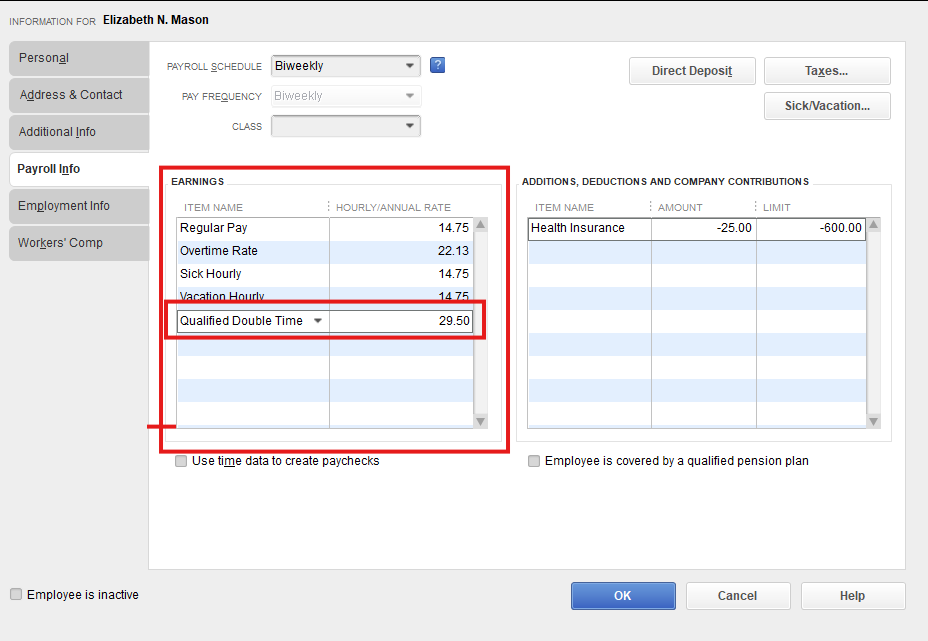
3. In the Earnings table, add the double time item you created.
4. If the employee has a standard double-time rate that differs from $2 \times $ their base, you can enter it here. If not, leave it to calculate automatically.
5. Click the OK button.
For reference, see the screenshot below:
After setting up the payroll item and adding it to your employee's profile, you can utilize Job Costing and Classes to track the qualified status. It depends on the specific project or type of work that the employees rendered.
If you decided to use classes for tracking a qualified class, you can review the Profit & Loss report. When choosing to track it through Job Costing, running the Job Profitability report would be your next move.
For other questions about QuickBooks, please don't hesitate to leave a message below.

You have clicked a link to a site outside of the QuickBooks or ProFile Communities. By clicking "Continue", you will leave the community and be taken to that site instead.
For more information visit our Security Center or to report suspicious websites you can contact us here


