Glad to see you here in the Community, @alfaflyer.
I'd like to share some insights about the user restrictions in QuickBooks Desktop.
QuickBooks Desktop Enterprise allows you to set a role for your users and modify the areas that they can access. You just need to select the sections that you want them to access.
To do that:
- Go to the Company menu and select Users.
- Select Users and Roles.
- Click the Role List tab.
- Select a role and then select Edit to review its permissions.
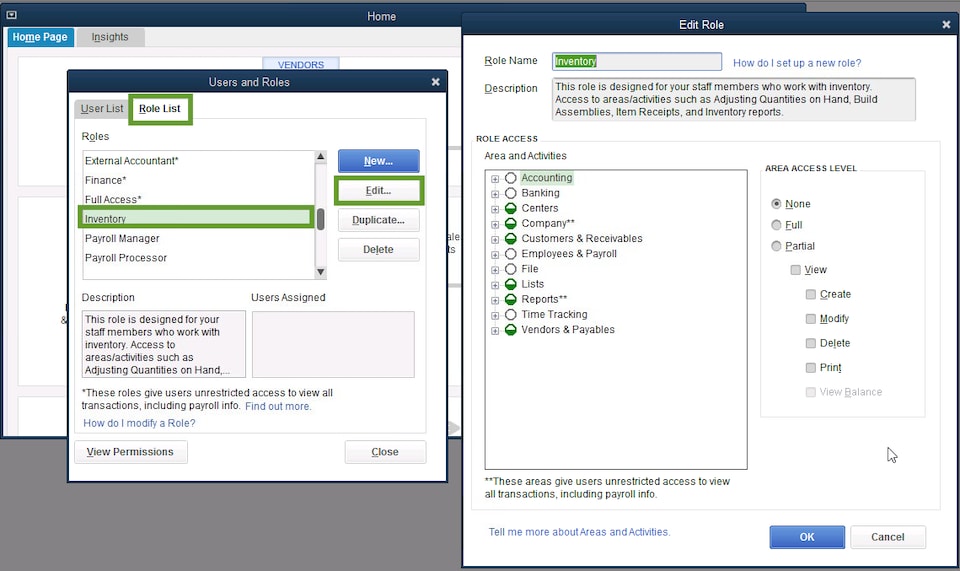
- In the Area and Activities section, select an area of your accounts. If you want, you can select None, Full, or Partial to set the access level.
- Once you set the permissions, select OK to save.
To learn more about this process, please see this link: Learn how to adjust user roles in QuickBooks Desktop Enterprise.
If you're using the Pro or Premier version of QuickBooks, being able to block them from the Chart of Accounts isn't available.
You have the option to choose selected areas of QuickBooks when setting up your user's access. You can customize the restrictions for different areas of the company file by selecting No Access, Full Access, or Selective Access.
For more information about the access that you can give to your users in QuickBooks Pro and Premier, you can read through this article: QuickBooks Desktop Users and Restrictions.
Please let me know if you have any additional concerns. I'll be right here to help. Wishing you and your business continued success!


