Turn on suggestions
Auto-suggest helps you quickly narrow down your search results by suggesting possible matches as you type.
Showing results for
Get 50% OFF QuickBooks for 3 months*
Buy nowI recently upgraded several computers from Enterprise version 2023 to version 2024. Is there any documentation that shows what firewall exceptions need to be added on the application(database) server that stores the company files and runs the database tools? The only information I've been able to find is related to the Desktop software. The software worked fine after upgrading the application server and a few computers, and after working through several issues with the process, including a useless webpatch file that does absolutely nothing as far as updating the software. The next day though, the desktop computers could not access the company files and there was a warning about the firewall settings on the server. I temporarily turned off the Windows firewall for the domain network to get the software working, but need to enable it. I can't do this though until I know what exceptions I need to create for the software to function correctly.
Thanks

Thanks for taking the time to reach out to the QuickBooks Community, @brorob.
I hope you're doing great today.
You're right with your thinking. Creating new exceptions will help resolve this issue. I'm including some steps below and a list of firewall exceptions you can add manually.
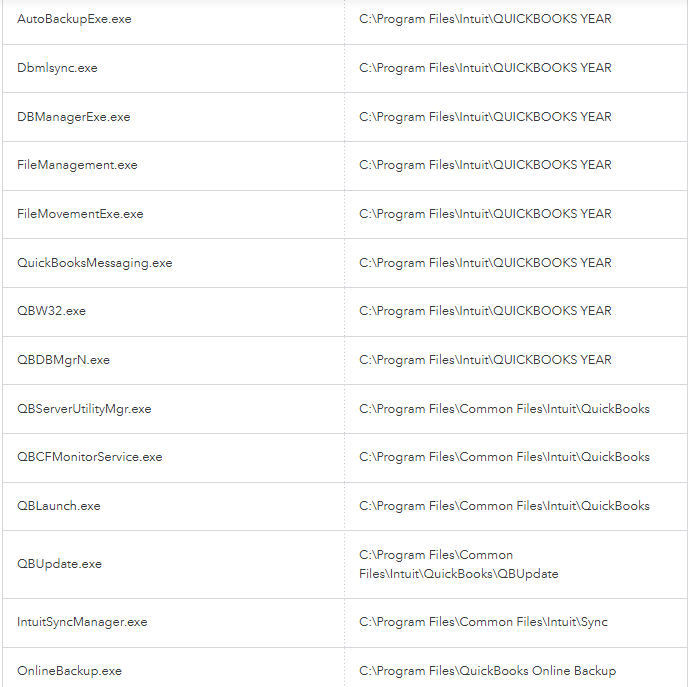
For additional information about setting up the firewall, port numbers, exceptions, etc. check out Set up firewall and security settings for QuickBooks Desktop.
That should do the trick. Please don't hesitate to let me know if you have any additional questions or concerns. I'm happy to assist anytime. Take care!
Thanks, @Tori B. Are these all of the exceptions that are needed on the application/DB server to allow the desktop computers to connect to the company files on the server? I've seen specific ports that need to be allowed on the server, but haven't found any information for this version. Also these look like executable files that would be used by the desktop software since the software isn't really run from the application server.
Thanks
Yes, those are the firewall exceptions for QuickBooks programs, Brorob. QuickBooks Desktop uses this executable files to perform tasks and connect company files.
For the ports, you’ll need to enter 8019, XXXXX for your QuickBooks year version. To guide you through configuring your firewall manually and adding these exceptions, please proceed to Step 3 in this article: Set up firewall and security settings for QuickBooks Desktop.
If you have further questions, feel free to let us know. We’re here to help.
@AntoniettaE @Tori B So are those exe files necessary to be added to the application/database server if the server is only being used to host the company files that other computers are accessing? I can't believe Intuit doesn't have a document showing what needs to be allowed on a Windows Server that runs the database for this program. All of these look like they refer to the Desktop program, but the program is not being run on the server. If there is no documentation of this, then the software development team needs to create one.
Also, I ran the Tool Hub utility and it was no help at all. Why would the Check your network and Check your file and network options be greyed out?
Hi there, brorob. Even if you don't open the QuickBooks Desktop app on your server, the .exe programs (like the Database Manager) act as traffic controllers to share your files. If your firewall blocks them, your workstations get completely cut off.
Regarding the ToolHub, the greyed-out network is expected behavior on a file-hosting server. Since your server only has the Database Manager installed, the Tool Hub realizes the visual files are missing and automatically disables the tests because it cannot run them. For this, we'll need to manually configure the firewall on your Windows Server, which requires taking note of your dynamic port number for the firewall port exceptions first.
You can do this by going to the Windows Start menu > QuickBooks Database Server Manager > Port Monitor tab > take note of the Port number.
Then, follow the steps shared by my colleague Tori B on what needs to be allowed on your Windows Server's firewall exceptions. After this, scan your company files to allow the Windows Server to host your company files over your network. Refer to this article for the detailed steps: Use QuickBooks Database Server Manager.
If you have follow-up questions, feel free to revisit this thread.
Thank you for the detailed explanation, @LouiseG. I did add the .exe exceptions already and the TCP port listed so I will enable the firewall and do some testing.
There are two of the files you have in the exception list that I have not been able to find on my QB's Desktop Enterprise 2024 version. QBW32.exe and OnlineBackup.exe. The only options that show for the first mentioned is QBW.EXE and QBWEnterpise.exe. The C:\ProgramFiles\QuickBooksOnlineBackup does not show up in my files for the last one I mentioned. Is this a new change on the last update or am I missing something?
Please rest assured, your system is functioning correctly. These discrepancies are simply a result of how QuickBooks Desktop Enterprise 2024 has evolved, rather than a missing file or an issue with your installation.
The transition from QBW32.exe to QBW.exe or QBWEnterprise.exe is a standard update for the 2024 version, not a system error. Similarly, the OnlineBackup.exe folder only appears if that specific feature is installed and active. Use the QuickBooks executable that's currently present on your computer for your exception list. There is no need to worry about the backup file unless you decide to activate that specific service in the future.
Feel free to go back to this thread if you have more questions.


You have clicked a link to a site outside of the QuickBooks or ProFile Communities. By clicking "Continue", you will leave the community and be taken to that site instead.
For more information visit our Security Center or to report suspicious websites you can contact us here


