I appreciate you checking your employee's permission, Bhinz. Given that the timesheet rounding feature is enabled but isn't applying to the new worker, I recommend reaching out to our live support team.
While I'm eager to assist you directly, this case requires a more detailed one-on-one examination by our live experts to ensure the rounding settings are applied correctly for the new employee.
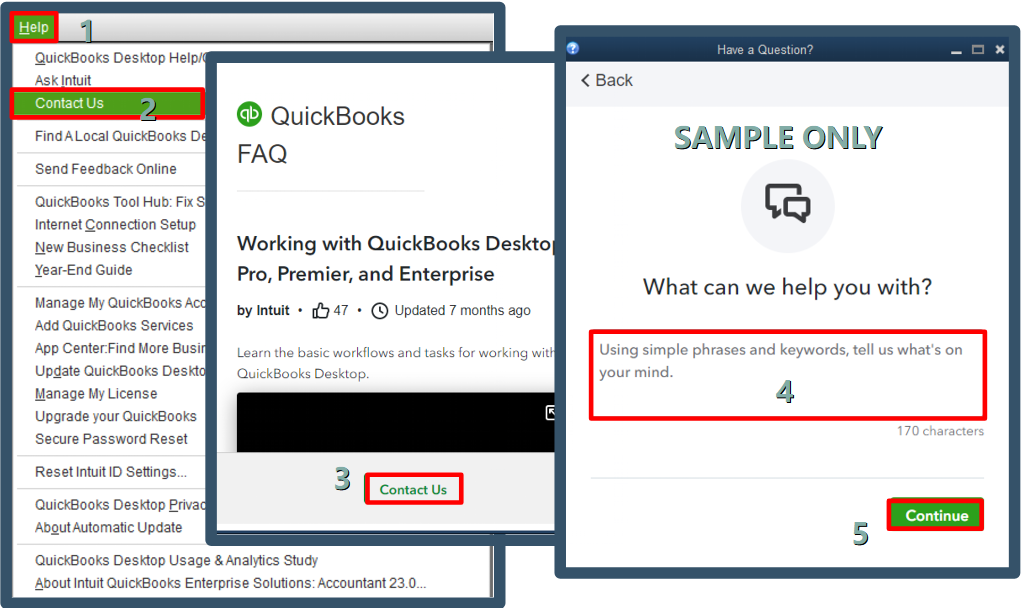
Here's how to reach them:
- Go to the Help menu and choose QuickBooks Desktop Help/Contact Us.
- Select Contact Us.
- Type a short description of your issue and concern in the box provided, then click Continue.
- Sign in to your Intuit account, select Continue, and then Continue with my account.
- You'll receive a single-use code in your email; enter the code and select Continue.
- Click Have us call you.
For successful communication, refer to our support hours detailed in this article: Get help with QuickBooks products and services.
As you connect with our live experts, you can opt to manually update the clock-in and clock-out times for the employee to correct the records.
We're always here to help if you need any further assistance in managing your employees' time.


