Great having you join us here in the Community, @Tabok. I’m here to walk you through the steps on how to record a billable expense in QuickBooks Online.
First, turn on the billable expense tracking. Here’s how:
- Go to Settings ⚙, then select Account and Settings.
- Go to the Expenses tab.
- From the Bills and expenses section, select Edit ✎.
- Turn on the following:
- Show Items table on expense and purchase forms
- Track expenses and items by customer.
- Make expenses and items billable.
- Enter Default bill payment terms.
- Select Save.
From there, you can now enter a bill to a customer for an expense. Let me guide on how:
- Select + New.
- Select the transaction (Bill, Expense, or Check) you want to create.
- Select the payee.
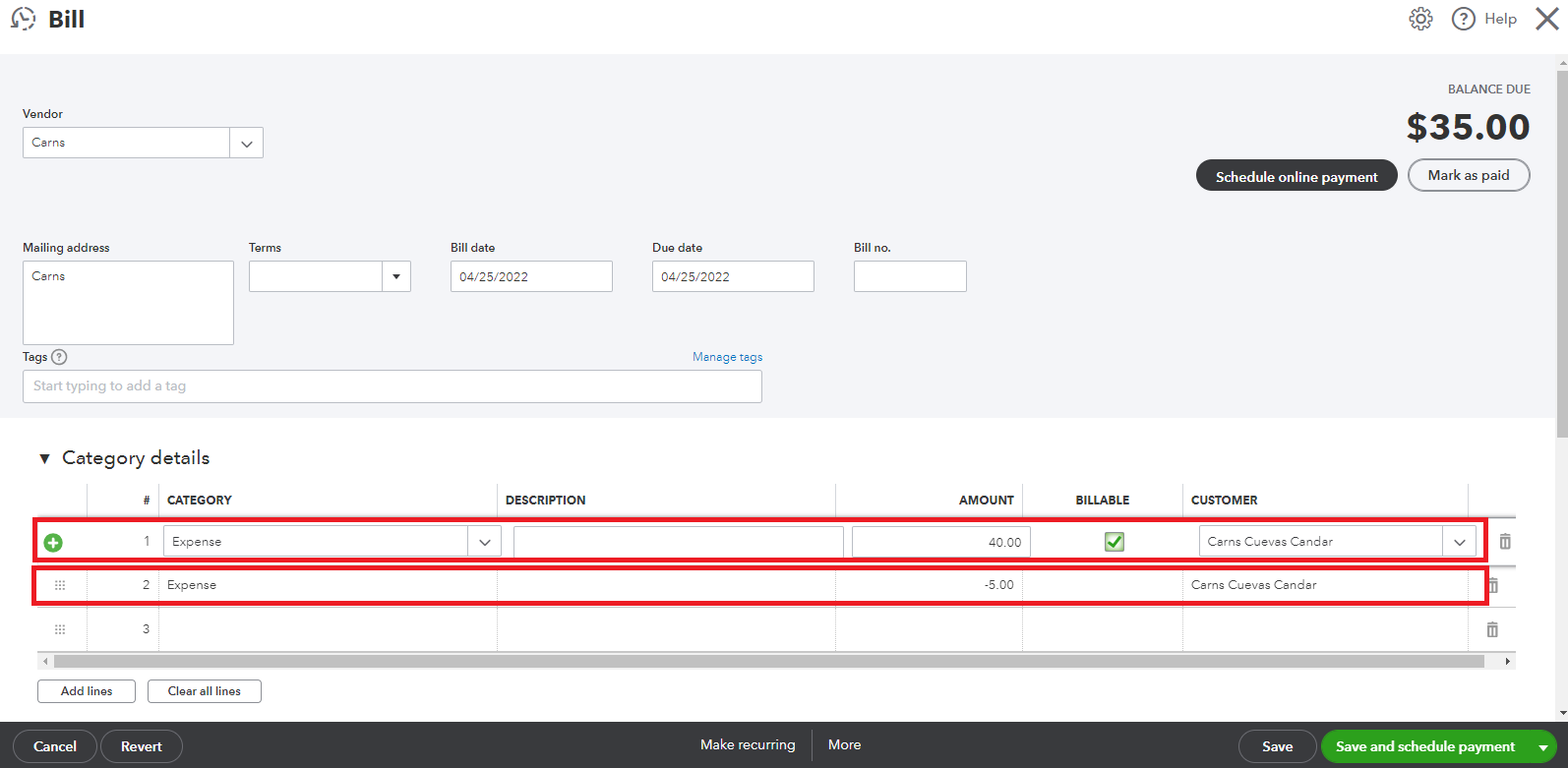
- In the Category column, select the expense account for transaction.
- Enter the billable account amount of $40 the expense, then select the Billable checkbox.
- Then, enter the same account amount of -$5 (not Billable).
- In the Customer column, select the customer you want to bill for this expense.
- (Optional) Enter or make sure the markup % is correct, then select the Tax checkbox or choose a tax agency if you want to charge tax.
- Select Save and close.
You can check this article for more for more information and detailed steps: Enter billable expenses.
In addition, I've got this helpful resource to guide you further if in case you want to delete a billable expense charge in the system: How to remove a billable expense charge.
I'll be around if you need further assistance about managing your vendors in QBO. I'm very eager to help. Take care!




