We're thrilled to have you in our Community, Dino! Let’s jump right in and discover how easy it is to attach a statement to your reconciliation report in QuickBooks Online (QBO).
Here's how you can manually attach a bank statement to a reconciliation report:
- Follow the steps to reconcile the account.
- Once you're done, select Finish now.
- Then, click Attach statement to add a statement.
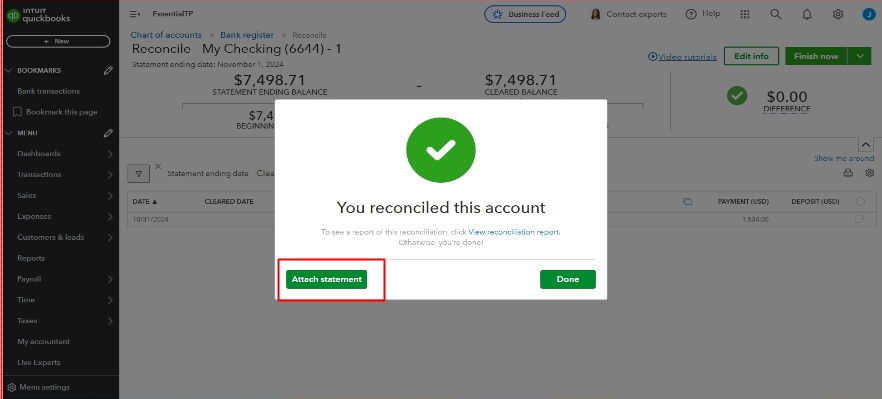
After you attach a statement to the reconciliation report, here's how you can view it:
- Go to the Transactions menu, and select Reconcile.
- Click on History by account.
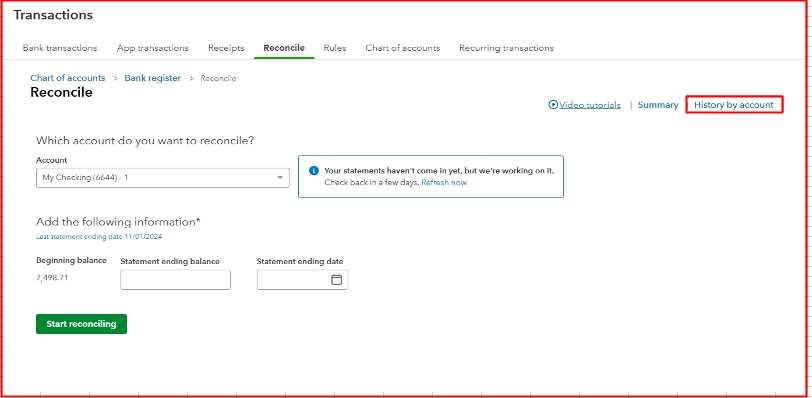
- Look for the statement you attached.
- Select Attachments under the Statements column to open the statement.
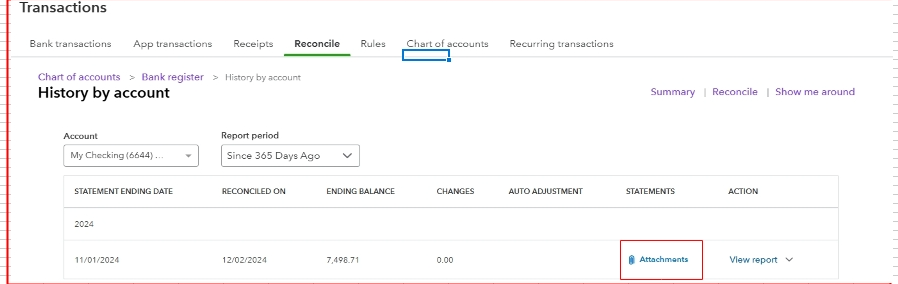
By following these steps, you’ll easily add and access the statements attached to your reconciliation report.
If you encounter any issues with accounts you reconciled in the past, you can refer to this article: Fix issues for accounts you've reconciled in the past in QuickBooks Online.
Don’t hesitate to reach out if you encounter any difficulties with your reconciliation reports or have other questions about QBO. Just leave a comment below, and we’ll be more than happy to assist you.




