Thanks for taking the time to reach out to us here, WN1962.
I'll share some information and steps on how to set up your new company. Let's start by adding a customer to record your money in transactions.
Here's how:
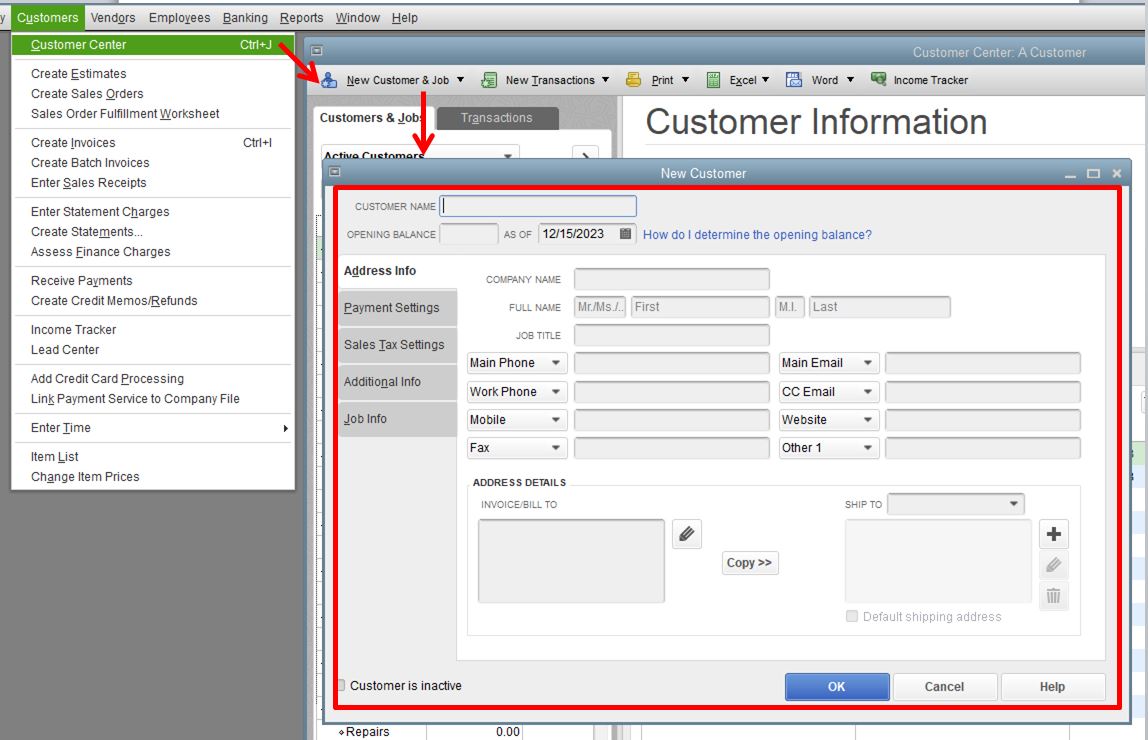
- Go to Customers > Customer Center.
- Click the New Customer & Job button.
- In the New Customer window, enter all of the customer details
- Hit OK.
Please see this sample screenshot for a visual guide:
Once done, we can proceed in the creating the vendor by following these steps:
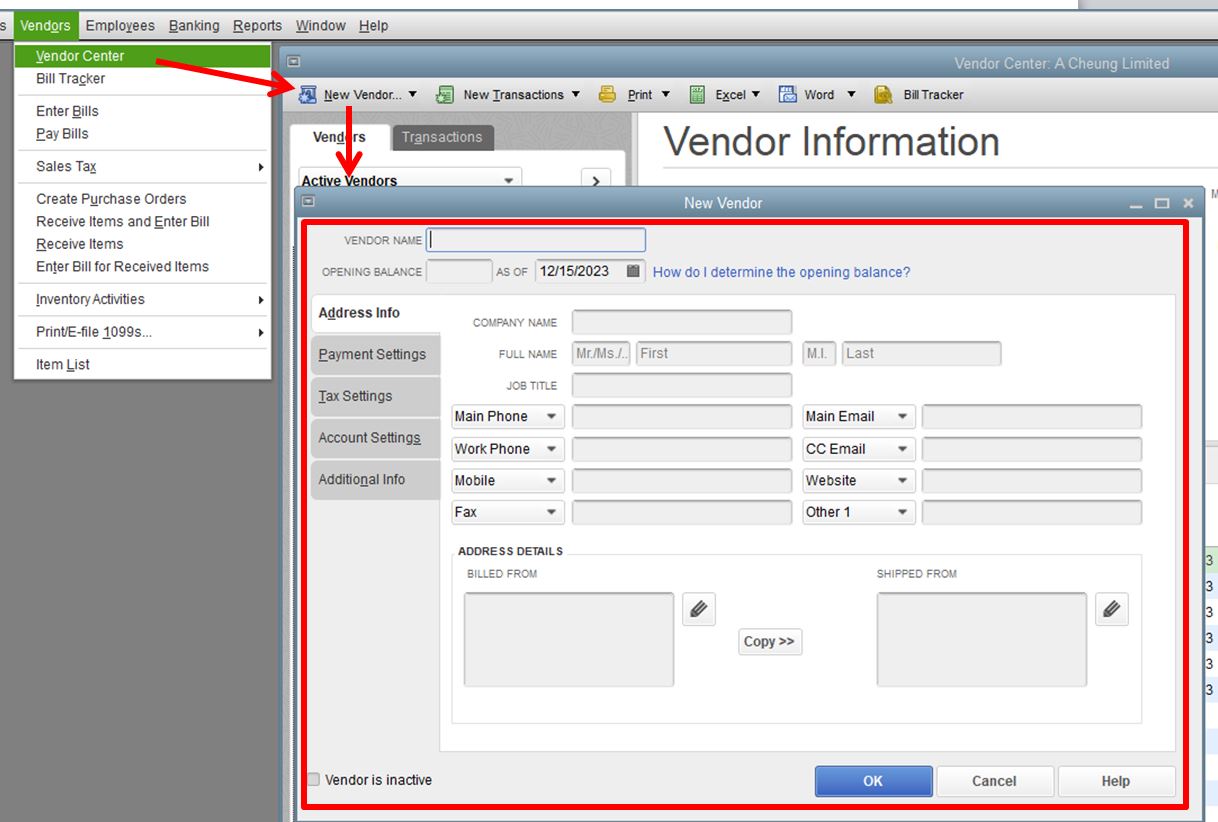
- Go to Vendors > Vendor Center.
- Click the New Vendor button.
- In the New Vendor window, enter all of the vendor details
- Hit OK.
With regard to recording the revenue, you can create an open invoice.
Here are the steps:
- Go to Customers > Create Invoices.
- Select a customer from the Customer: Job drop-down.
- Fill in the relevant information at the top of the form like the Date Invoice #, Bill to/Sold to, and Terms.
- In the detail area, select the item/s. Note: When you select or add an item, the description and amount are automatically populated based on the description and unit cost entered when it was set up. You can delete or modify this when creating invoices.
- Click Save & Close.
For more details, you can read this article: Create an invoice in QuickBooks Desktop.
In adding payments to reflect on the 1099 form at the end of the year, you can create bills or write a check. To write a check, go to Banking > Write Checks. When you're ready to prepare the 1099 form, you can check out this article: Prepare and file 1099s with QuickBooks Desktop.
I also recommend consulting your accountant before doing the steps above to make sure you have the correct setup.
Feel free to read this article for guides: Get started with QuickBooks Desktop.
I'm always available if there's anything else you need with QuickBooks Desktop. take care and stay safe.


