Turn on suggestions
Auto-suggest helps you quickly narrow down your search results by suggesting possible matches as you type.
Showing results for
Get 50% OFF QuickBooks for 3 months*
Buy nowSetting up Quickbooks for our business and wanted to get some advice / recommendations on how to approach multiple units of measure. We are running QuickBooks Enterprise Premium so should have all of the possible functionality for Inventory Management.
We have a lot of products as a wholesaler and because of the variety of products we sell we also have a large variety of U/M. The issue I am unsure of how to address is with large variety within unit quantities such as Box (BX), Case (CS), Package (PK), etc. For example a large number of our products are sold as a box, however the EA count of the boxes varies between products and product lines. For example a box can have a # of EA of: 3, 6, 10, 12, 20, 25, 36, 50, or 100. What is the best way to create these varying U/M? This is the case with virtually all of our U/Ms except EA (of course). Outside of just counting everything in EA, rather than using BX/PK/CS etc. I am unsure of how to reasonably approach these without ending up with a U/M abbreviation that is annoyingly specific (i.e. BX003, BX006, etc). The issue I foresee with counting in EA is ensuring that the correct Qty is always selected (i.e. some products we will never sell out side of Qty 12 or Qty 100).
Any thoughts, experience with something similar, or recommendations would be greatly appreciated!

Thanks for reaching out to the Community, @mkaethe.
Setting up EA count for boxes in QuickBooks Desktop (QBDT) varies between product lines. Thus, you can only set up a specific number of box per EA. Since you multiples boxes, you need to set them one individually as a workaround.
Before doing so, ensure that you already enable the multiple units of measure in the Preferences. Here's how:
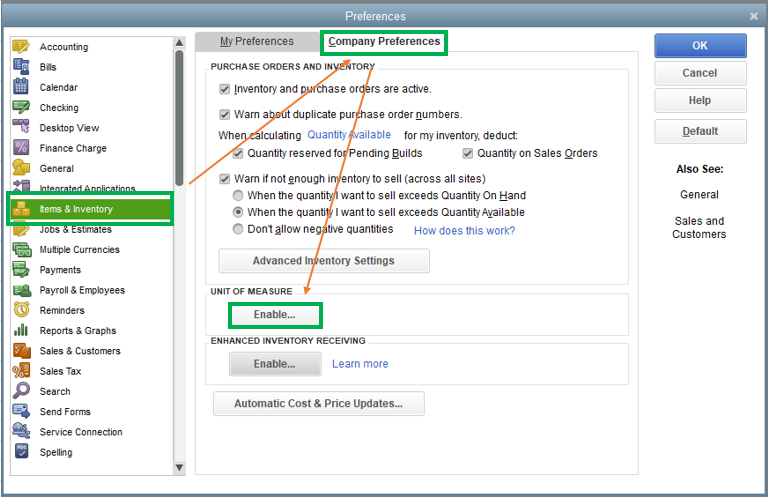
Once done, here's how to set it up:

To learn more about the unit of measure (U/M) in QBDT, I suggest checking out this article: Use single and multiple units of measure for items.
Please know that I'm only a post away if you have any additional questions, I'll be happy to answer them. Have a great day!
Hi John,
Thank you for your response. Units of measure is enabled and multiple units of measure is already setup.
The issue is then that I need unique identifiers for each of these boxes as I can't us the same abbreviation (i.e. "BX"). In the end I will have hundreds of units of measure which is less of an issue than now having 5 digit character codes for each "type" of box. How is it recommended to address this? Is there a recommended format (i.e. BX1, BX2...BX37)?
My concern is that this will be unnecessarily cumbersome and confusing to customers when listed on an invoice ("I ordered 5 BX, what is a BX10?").
Hello @mkaethe,
We don't have any format that you can follow in setting up your inventory unit of measure. It is recommended you name them uniquely so that you and your customers can recognize them easily.
That being said, consider reading through the articles included in the response shared by my colleague to learn more about how you can utilize the unit of measure for your inventory.
Additionally, I've got you this helpful reference for a compilation of articles you can use while working with us: Help Articles for QuickBooks Enterprise.
If you have any other questions, please let us know by leaving any comments below. Stay safe!
I read your post, Can you help me out. Under "Unit of Measure" the "enable " tab is grayed out.
How do I enable the tab?/
Thank you in advance
Kirk
Hi Kirk,
The Enable option in the Unit of Measure will be grayed out if your QuickBooks or the edition you selected doesn't this option.
Here is the list of QuickBooks products and editions that support single and multiple units of measure per item:
Therefore, the QuickBooks Pro product is not supported because it's not on the list. But, how can you check which edition you're running if you're using the QuickBooks Premier product? Here's how:
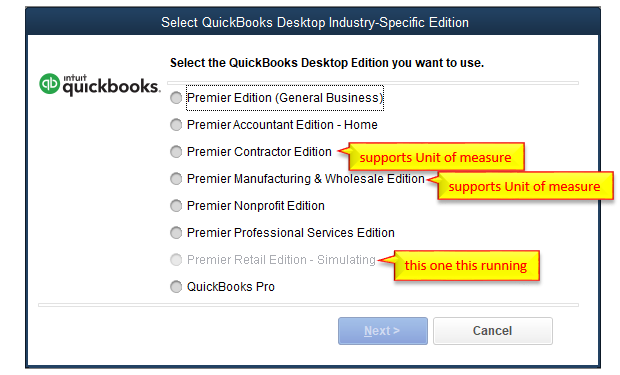
You can select other editions if that fits your company. However, there are features on one edition that are not available to others. You can check them using the hypertext products below.
Let me know if you have other questions about the Unit of measure or anything about QuickBooks. Have a good one!
I am currently running into the same issue and can't believe there isn't a better way to do this. I'm beginning to think using multiple units of measure will be more of a headache than it's worth.


You have clicked a link to a site outside of the QuickBooks or ProFile Communities. By clicking "Continue", you will leave the community and be taken to that site instead.
For more information visit our Security Center or to report suspicious websites you can contact us here


