Turn on suggestions
Auto-suggest helps you quickly narrow down your search results by suggesting possible matches as you type.
Showing results for
Get 50% OFF QuickBooks for 3 months*
Buy now
Why does my invoice and estimate template change when I use QuickBooks online?
I have changed it at least ten times, and half the time, it prints the template I saved, then goes back to one with the description margins small and everything jammed in a row to the left.
Hello there, @bbarbee.
I understand that you are facing an issue with your invoice and estimate template in QuickBooks Online (QBO) where the description margins appear small, and everything is jammed in a row to the left.
This issue might be due to a printing problem. I suggest performing a nozzle check function to ensure that the print head nozzles are working correctly. This function allows you to print a nozzle check pattern and identify if any color fails to print or if printing becomes faint. Additionally, you can check with your IT to ensure the proper guidance in the functioning of the print head nozzles.
Moreover, if the issue persists, I recommend contacting our customer care support. One of our QBO Support Specialists can use tools like screen sharing and double-check what’s causing the issue. Once they’ve identified the cause and found a fix, our phone support will guide you through the step-by-step process to take care of the problem.
Additionally, you can check this article, to get help with common printing issues when using QuickBooks Online on a browser for Windows. Also, to learn more about importing custom form styles:
You can ask follow-up questions or submit new ones if you need anything else in handling your invoices and estimates in QuickBooks Online, @bbarbee. The Community is always ready to help you all the time.
What does the "gear" icon look like?
I'd be delighted to help you through identifying the Gear icon in QuickBooks Online, @Sdhelo. It looks like a small cogwheel or sprocket, located on the upper right corner of your screen next to your company name. Let me show you.
Below, is the screenshot of what the Gear icon looks like and its location.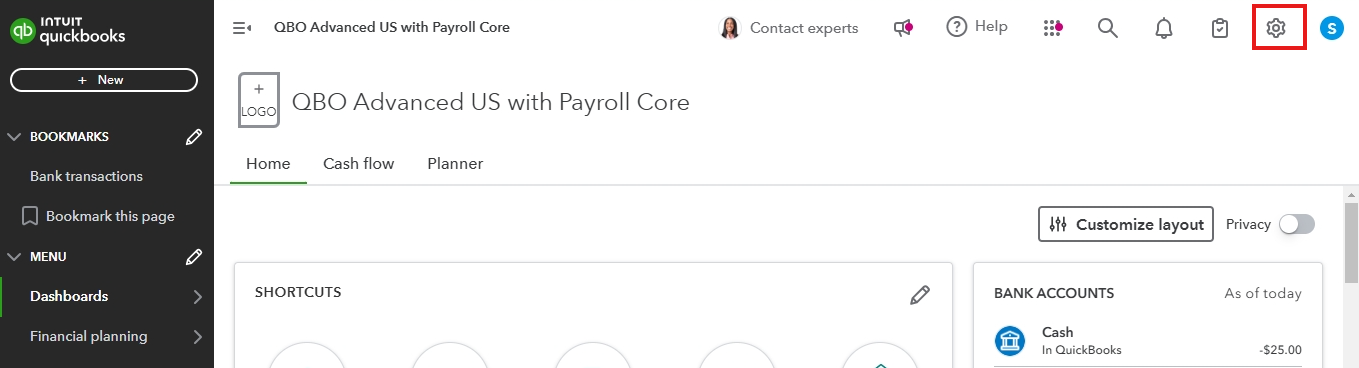
In addition to this, I recommend exploring this resource: Understand the navigation menu in QuickBooks Online. This guide thoroughly This guide covers every aspect of the QuickBooks Online navigation menu, offering in-depth insights into its features and functionalities.
Furthermore, I'm thrilled to share an exclusive offering that might be of great interest to you—QuickBooks Live. If you're looking for expert guidance or need additional support with financial management, particularly during tax season, QuickBooks Live could be the perfect fit. To explore how this service can enhance your QuickBooks experience, feel free to schedule a free consultation at a time that suits you best.
If you're still having difficulty locating the Gear icon or if you have any questions, please don't hesitate to provide more details in your response. My team and I are here and ready to assist you every step of the way to ensure your experience with QuickBooks Online is as smooth as possible.
You can customize your QuickBooks Online invoice template from inside any invoice or from your settings — here's how to do both.
Option 1: Edit while working on an invoice
Open a new or existing invoice, then select ⚙ Manage on the right side of the form. From there:
Changes you make here apply going forward and are visible when you select Print or download to preview.
Option 2: Create or edit a template in Custom Form Styles
How to set a default template
The modernized template is the default in QuickBooks Online. To switch your default to the standard template:
Note: Only the standard template can be set as a default. Other custom templates can be selected per invoice using the Design dropdown under ⚙ Manage, but they won't apply automatically to every new invoice.
How to adjust column widths and names
How to add custom fields to your invoice
How to update your logo and company info
Note: Changes to your company info affect all future invoices and estimates, and update your customer information across QuickBooks.
A few important things to know
Helpful resources:
Got more questions about invoice templates? Drop a reply below, we're happy to help.


You have clicked a link to a site outside of the QuickBooks or ProFile Communities. By clicking "Continue", you will leave the community and be taken to that site instead.
For more information visit our Security Center or to report suspicious websites you can contact us here


