Turn on suggestions
Auto-suggest helps you quickly narrow down your search results by suggesting possible matches as you type.
Showing results for
Get 50% OFF QuickBooks for 3 months*
Buy now
Handling invoices and credits can indeed become complex, lp_mi. I want to ensure you have the skills and knowledge to navigate these scenarios. Let's delve into the process of accurately applying credits to invoices together.
In QuickBooks Online, you can apply a credit memo to an invoice without simultaneously requiring payment from the customer. Hence, you have the flexibility to use a credit memo to reduce the balance of an invoice, even if the amount of the credit differs from the total.
Also, QBO allows you to modify the invoice amount when applying for a credit, giving you flexibility in managing your accounts.
Given that you're experiencing difficulties applying and editing amounts, I recommend launching your QBO in an incognito window to rule out the possibility of a webpage issue. The accumulated cache file can sometimes interfere with how QuickBooks Online functions.
You can refer to these shortcut keys below to open an incognito window in all supported browsers:
Mozilla Firefox: CTRL + Shift + P
Microsoft Edge: CTRL + Shift + N
Google Chrome: CTRL + Shift + N
Safari: Command + Shift + N
After starting a new private browsing session, please log into your QBO account and check if this resolves the issue. If yes, proceed to clear your browser's cache to help the program run smoothly and eliminate technical issues. You can also use other devices and supported browsers as alternatives.
To learn more about credit memos in QuickBooks Online, I encourage you to check out this helpful article: Create and apply credit memos or delayed credits in QuickBooks Online.
Additionally, I’d like to provide you with some helpful resources that will assist you in accurately tracking payments received and in customizing your invoice templates to ensure they reflect your desired style and include all necessary information:
Count on the QuickBooks Community team as your ongoing ally in handling QBO queries. If you're still having trouble or something isn’t working as expected, please respond below for quick assistance. Our goal is to streamline your accounting procedures seamlessly.
Maybe you have a different version, but I did not find the dropdown to apply credit memo.
Hello, Breeeze. What version of QuickBooks are you using? Is it the Desktop or the Online one?
If it's QuickBooks Online, here’s how to apply a previously created credit memo to a customer:
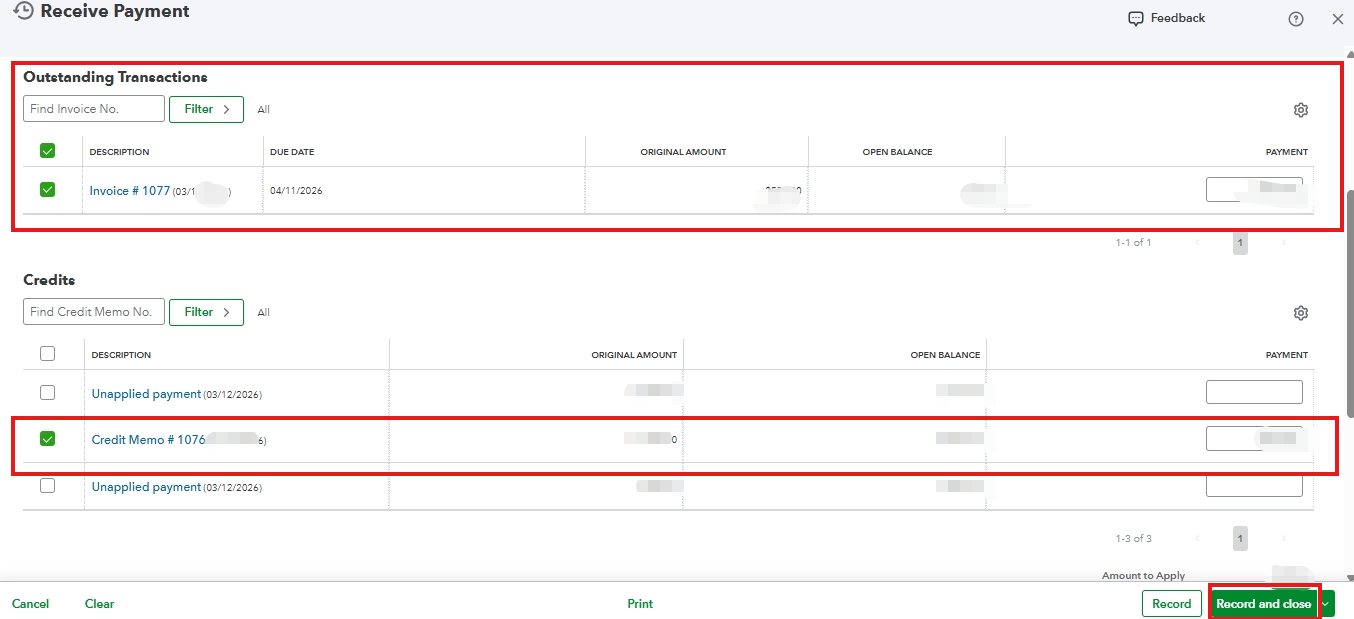
On the other hand, refer to this article if it's the QuickBooks Desktop for Windows version: Give your customer a credit or refund in QuickBooks Desktop for Windows.
Feel free to add a reply below if you mean something else.
To apply a credit memo to an invoice in QuickBooks Desktop for Mac or QuickBooks Online, the steps depend on which version you're using. Jump to the section that matches your product below.
QuickBooks Desktop for Mac
Step 1: Create the credit memo (if you haven't already)
Step 2: Apply the credit to an invoice
QuickBooks will apply the available credit to the customer's open invoices in date order. A few things to know about how this works:
If the "Apply Existing Credits?" checkbox isn't showing up, make sure you're accessing Receive Payments through Customers > Receive Payments — not through the Receive Payment button on the invoice itself. The option only appears through the Customers menu path.
For more details, including how to write a refund check instead of applying a credit, see: Create and apply credit memos in QuickBooks for Mac
QuickBooks Online
In QuickBooks Online, you can apply a credit memo to an invoice manually, or let QuickBooks apply it automatically.
Optional: Turn on automatic credit application
If you'd like QuickBooks to automatically apply credits to a customer's oldest unpaid invoice, turn on the Automatically apply credits setting:
When this setting is on, QuickBooks applies the credit to the oldest unpaid invoice and closes it if the credit covers the full balance. Any remaining credit carries over to the next oldest invoice. If there are no open invoices, the credit memo status shows as Unapplied.
Step 1: Create the credit memo
Step 2: Apply the credit memo to an invoice manually
If you have Automatically apply credits turned off, here's how to apply the credit yourself:
For more, see: Create and apply credit memos or delayed credits in QuickBooks Online
Have more questions? Drop a reply below. We're happy to help.


You have clicked a link to a site outside of the QuickBooks or ProFile Communities. By clicking "Continue", you will leave the community and be taken to that site instead.
For more information visit our Security Center or to report suspicious websites you can contact us here


