QuickBooks Blog
A person sitting at a desk with a laptop computer.
Invoicing

Free professional invoice template: PDF, Excel, & Word downloads

QuickBooks Blog

Whether you’re selling products, managing projects, or offering expert services, a seamless billing process is behind every successful business. A professional invoice turns completed work into clear communication, ensuring payments arrive on time and relationships stay strong. Use a free template or robust invoicing software to create a detailed invoice that builds client and customer trust and helps you maintain a healthy cash flow.

Jump to:

Downloadable professional invoice templates

Excel / Word / PDF

Proforma invoice

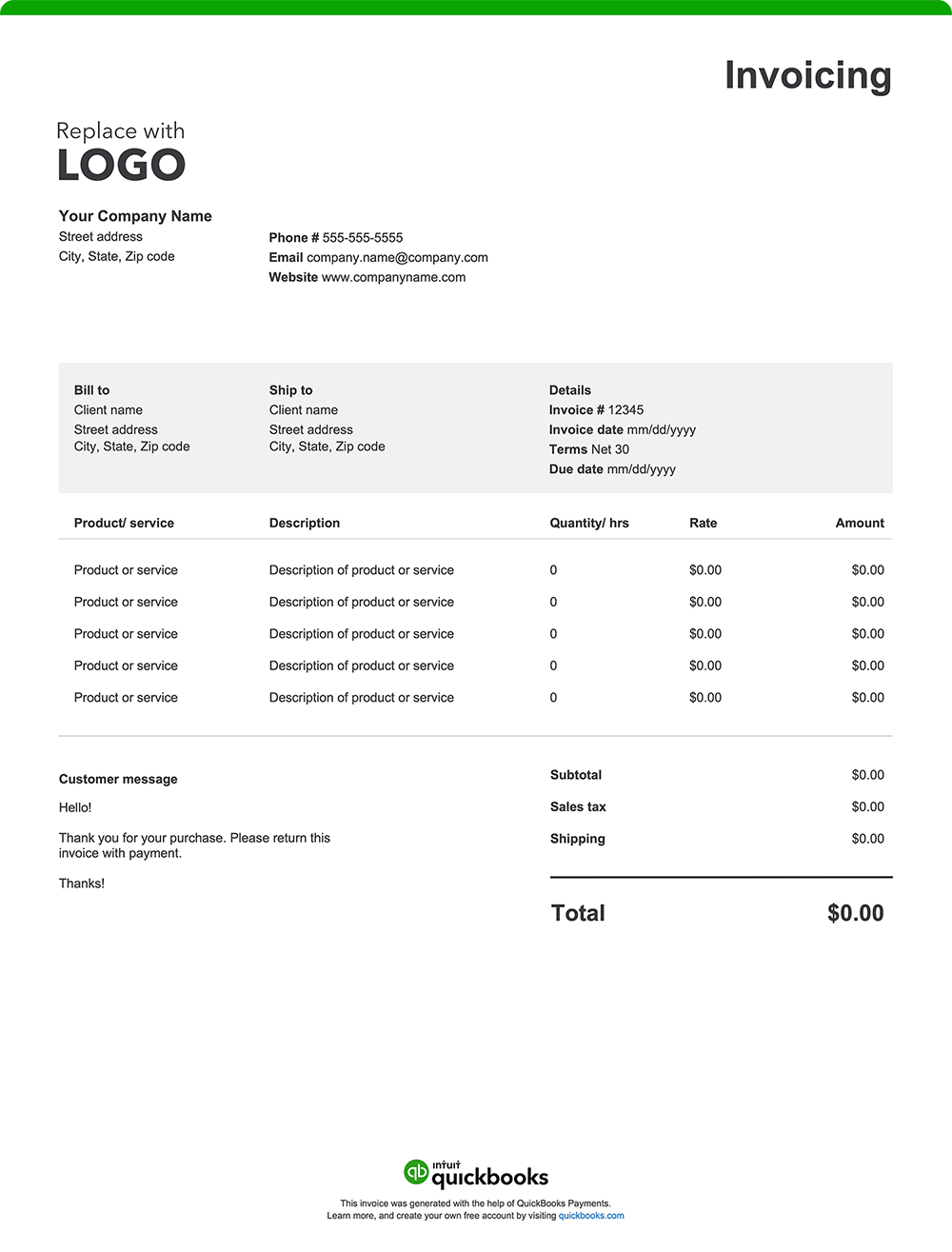
9 things professional invoices should include

Projects and client work vary widely across industries—from product sales and creative services to construction, logistics, or long-term contracts. Regardless of the type of work, an invoice is essential to justify costs, maintain transparency, and protect your business. Here are nine key elements every professional invoice should include.

1. Your business and contact information

Include your business name, address, phone number, and email. Adding your logo creates a strong visual identity and reinforces your brand’s professionalism with every bill you send.

2. Client information and reference details

To facilitate recordkeeping for both parties, include your client’s name, contact information, and a reference, such as an order/invoice number, account ID, or project title.

3. Invoice date and service period

List the date the invoice was issued and outline the timeframe for the work completed. If the project includes multiple service dates, note each one or summarize the range covered. Including this information helps clients connect the invoice to the specific work performed and keeps billing records accurate.

4. A detailed breakdown of goods or services

Provide a breakdown of what was sold or completed. Instead of a single vague line, list each product or task separately with a brief description. This clarity helps clients see the value you provided and reduces the likelihood of billing questions.

5. Rates, quantities, and fees

Show how you arrived at the total. Include quantities, unit rates, or flat fees for each line item so the math is straightforward and easy to verify.

6. Reimbursable or additional expenses

If you incurred costs on behalf of a client—such as shipping, materials, or third-party fees—list them separately. Attach receipts when possible for added transparency.

7. Other applicable charges

Include any additional costs that fall outside your standard rates, like rush orders, extra revisions, or late fees from previous invoices.

8. The total amount due

Sum up all products, services, and expenses, including applicable taxes, to display a subtotal and final amount due. Highlight the balance prominently so it’s easy to find.

9. Specific payment terms and instructions

Straightforward payment terms are essential for maintaining your cash flow. Here’s a breakdown of what to include in this section:

Payment timeframe: Specify when payment is due. “Due upon receipt” or terms like Net 7–15 days are common for short-term engagements. For larger consulting projects or legal retainers, you might schedule payments around project milestones or phases (e.g., “50% upfront, 50% at project completion”).

Accepted payment methods: List all payment types you accept, such as direct bank transfer, check, credit card, or secure online payments.

Deposit or progress payments: If you require a retainer or deposit before work begins or bill in stages for lengthy projects, explain these terms clearly. “A deposit of $1,000 is required before commencement of legal services,” or “Progress payment due after each deliverable is submitted.”

Payment details: Provide all necessary instructions based on the method chosen—include your mailing address for checks, an account number for transfers, or a direct link to your payment portal.

Late payment penalties: State the penalty if payment is overdue, such as “A 1.5% monthly finance charge applies after 30 days past due” or “$50 late fee for missed installment.”

Early payment discounts: If you offer incentives for prompt payment, note the specifics. For example, “A 2% discount applies if payment is received within 10 days.


Professional invoice best practices

No matter your business, industry, or company size, a professional invoice reinforces your credibility. Good invoicing habits improve cash flow, reduce client friction, and simplify financial management. Here are a few best practices to keep in mind when creating and customizing your invoices.

Add your business branding

Incorporate your logo and use company colors and on-brand fonts. Consistent branding across all your client communications, including invoices, presents a cohesive and trustworthy image. You can also add your social media channels to your invoice, such as LinkedIn, Instagram, or Facebook, to make it easy for clients to connect with and follow your business.

Use clear project and service descriptions

Avoid jargon and use language your client will understand. Connect each line item to a specific product, service, or outcome so your customer can easily see what they’re paying for and the value your business provided.

Attach supporting documents

Relevant paperwork, such as purchase orders, estimates, or receipts, gives clients a clear record of what was agreed to and what’s being billed for.

Set expectations early

Agree on payment terms before starting any work, then restate them on every invoice. Consistency reduces confusion and supports timely payments.

Double-check every detail for accuracy

Before sending, take a moment to review the invoice for any errors. Incorrect client information, math errors, or typos can delay payment and reflect poorly on your attention to detail. A quick proofread can save you time and maintain your professional reputation.

Save and send invoices as PDFs

Sending your invoice as a PDF ensures its formatting remains intact across all devices and platforms. A PDF is a secure, uneditable format that protects the integrity of the document for your records.

Professional invoice template vs. QuickBooks software

While templates are a helpful starting point, most business owners need more than a static form. Managing multiple clients, billable hours, and expenses is easier with a system that automates repetitive tasks and supports organized billing and recordkeeping. QuickBooks invoicing and accounting software streamlines the process. Explore some of the tools and features that make invoicing with QuickBooks faster, smarter, and more efficient.

Customize invoices without constant manual entry

Templates can appear sufficient, but they require you to re-enter client and project details every time. With QuickBooks, you can create customized professional invoice templates that automatically pull in saved client information, service descriptions, and rates, saving you valuable time.

Streamline your entire billing workflow

Your billing process should be as efficient as the work you do. QuickBooks helps you automate tasks and keep your finances organized with powerful features:

  • Progress invoicing: Bill customers for different stages of a project, like initial setup, milestones, and final completion, to maintain steady cash flow.
  • Automatic payment matching: QuickBooks automatically records payments and matches them to the correct invoices, saving you time and reducing errors.
  • Batch invoicing: Send multiple invoices at once to customers with recurring orders or ongoing services.

Monitor and forecast your cash flow

QuickBooks offers a real-time dashboard of your income and expenses. Instantly see what’s been billed, what’s been paid, and what’s still outstanding. This visibility helps you forecast and manage cash flow, plan for upcoming expenses, and make smarter decisions to grow your business.

Track mileage

The QuickBooks mileage tracker enables easy logging of job-related travel, helping you maximize that valuable tax-deductible expense.

Get paid anywhere

Create and send invoices from your phone or laptop, so you can get paid anywhere your business takes you. Clients can pay by card, ACH, PayPal, Venmo, and more.

Organize your records for tax season

QuickBooks organizes your invoices, deducts expenses, and prepares what you or your accountant needs to file.


What is the best software for invoicing?

The best invoicing software depends on your business needs, but QuickBooks is a top choice for many businesses. It lets you create and send customized invoices, automate reminders, track payments, and sync everything with your accounting—saving time and reducing errors.

Try our free professional invoice generator powered by AI

Create a custom professional invoice online with our free generator. You can autofill project details, add your branding, and send a polished invoice in minutes. For those who prefer a downloadable option, our printable templates for Word, Excel, and PDF are ready to use.

For business owners looking for a more powerful way to manage billing, QuickBooks offers a complete solution. Our software automates invoice creation, integrates with expense tracking, and centralizes your financial management. This streamlined approach simplifies tax preparation and gives you the insights you need to grow your business with confidence.


Recommended for you

Mail icon
Get the latest to your inbox
No Thanks

Get the latest to your inbox

Relevant resources to help start, run, and grow your business.

By clicking “Submit,” you agree to permit Intuit to contact you regarding QuickBooks and have read and acknowledge our Privacy Statement.

Thanks for subscribing.

Fresh business resources are headed your way!