Space for pervasive banner when authenticated

Keyboard shortcuts for QuickBooks Online


Using keyboard shortcuts to speed up navigation within QuickBooks Online is easy. These shortcuts will work in the following browsers:
Internet Explorer
Firefox
Chrome (except where noted)
| Note: Mac users can try these shortcuts using the CMD ⌘ key instead of Alt or CTRL when noted below. |
 If you need help using QuickBooks, you can partner with a dedicated bookkeeping expert to feel more confident. Find out more about QuickBooks Live.
Keyboard shortcuts reference guide: Download or Access from within QuickBooks You can download and print a copy of the QuickBooks Online Keyboard Shortcuts reference guide. QuickBooks Online Keyboard Shortcuts for PC and Mac Users.
Note: This reference guide is available in English only.
You can access the quick reference guide within QuickBooks Online: To access this screen, simply hold Control + Option (Alt) + ? (for Mac).
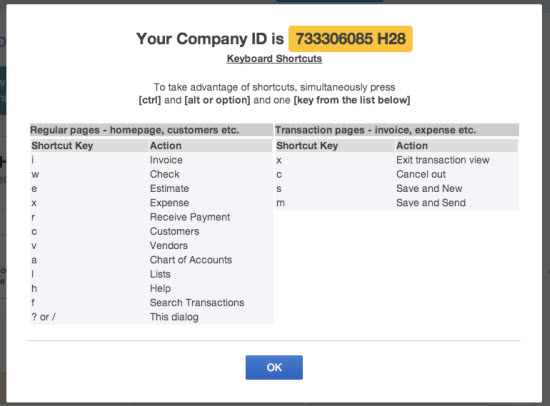
Keyboard shortcuts available in QuickBooks Online
How to open a second window
For Internet Explorer: Press Ctrl + N. (Note: You will be signed in to the existing company on both windows.)
For Firefox: Press Ctrl + N. (Note: You won't be signed in to the second window but will remain signed in to the first one. The second window will allow you to log in to the existing company so that you may work using both screens.)
For Chrome: Press Ctrl + N. (Note: If you go to QuickBooks Online in that window you will be signed in to the existing company.)
How to search for text in a window
CTRL + F (works in Internet Explorer, Firefox, and Chrome, and Internet Explorer) will bring up a pop-up window to do the search.
Firefox opens a Find toolbar on the bottom of your screen.
Chrome opens a search field at the top right of the screen.
How to enter dates
Next day + (plus key)
Previous day - (minus key)
Today T
First day of the Week W
Last day of the week K
First day of the Month M
Last day of the month H
First day of the Year Y
Last day of the year R
Press Alt+down arrow to open the pop-up calendar icon to the right of a date field.
How to calculate amounts and rates
In any Amount or Rate field, enter a calculation. When you press Tab, QuickBooks Online calculates the result.
Add + 1256.94+356.50
Subtract - 48.95-15
Multiply * 108*1.085
Divide / 89.95/.33
Group ( ) 13.95+(25.95*.75)
How to move around fields on most forms
Use the Tab key to go forward.
Use Shift+Tab to go back.
Use the Space Bar to check a check box field.
How to choose items in dropdown lists
Press Tab until you reach the field.
Press Alt + down arrow to open the list.
Press up arrow or down arrow to move through the items in the list.
Press Tab to select the item you want and move to the next field.
If you don’t want to open the whole list, but just want to scroll through the items in the text box, press Ctrl + down arrow or Ctrl + up arrow.
How to choose items in a list that has sub-items
To jump to the list of sub-items, type the first few characters of the sub-item until it is selected.
Press Alt + down arrow to open the list of sub items, and then press down arrow or up arrow to scroll through the sub-items
Press Tab to select the item you want and move to the next field.
How to save forms
From any form, press Alt + S instead of clicking Save.
In Firefox and Chrome, you must use Alt + Shift + S. For Mac users it is Option + Control + S.
How to respond to messages
Hold down the Alt key. If the button names have underlined letters, you can keep the Alt key held down and type the letter to select the button you want.
What to do when the Ref # field is selected
Press + to increase the Ref #.
Press - to decrease the Ref #.
Type T to enter To Print in the Ref # field for a Check, Bill Payment (from a checking account), or Paycheck.
How to save or edit a selected transaction
Press Alt + S to save. Alt + Shift + S (for Firefox and Chrome).
Press Alt + E to edit a saved transaction. This opens the transaction form.
How to move between transactions within the register, selecting the date field as you go
Press up arrow to select the transaction above.
Press down arrow to select the transaction below.
How to adjust print alignment
Select the Vertical or Horizontal field, and then press "+" to raise the number or "-" to lower it.
You must use the keys on the numeric keypad.
How to run payroll
After you sign in to QuickBooks Online or Intuit QuickBooks Workforce or QuickBooks Desktop Payroll, you can press CTRL + ALT + U to run payroll. (CONTROL +OPTION + U for Mac)
For multiple pay schedules, this shortcut navigates to Select a pay schedule for this payroll.
If you have one pay schedule, this opens the page to review employee pay info before you run payroll.
Note:
If you have a payroll subscription but still need to finish setting it up, we'll direct you to the payroll overview page to finish the setup process.
If you don't have a payroll subscription, we'll direct you to learn more about our payroll product.
That's it. You now know the keyboard shortcuts available in QuickBooks Online.
Sign in now for personalized help
See articles customized for your product and join our large community of QuickBooks users.
Call Sales: 1-800-365-9606




