







QuickBooks Blog
A person fixing a ceiling fan in a garage.
accounting

Free estimate templates: PDF, Excel, & Word downloads

Ready to turn a conversation or consultation into a concrete plan? An estimate is a great starting point. It sets the foundation for a successful client relationship by outlining the scope of work, associated costs, and project timeline. No matter your industry, a well-crafted estimate can help you win work and build client trust and alignment. Use a free template or dedicated estimating software to create a detailed estimate that showcases your professionalism and helps you secure your next project.

Jump to:

Downloadable estimate templates

Excel / Word / PDF

Proforma invoice

Tools plus experts, together

Confidently manage your finances with QuickBooks experts by your side.*

9 things every estimate should include

Whether you're pricing a construction job, a creative project, or a consulting engagement, a thorough estimate is crucial for justifying costs and managing client expectations. It protects your business by clearly defining the work to be done and the price to be paid. Here are nine key elements every professional estimate should include to avoid confusion and launch projects on the right foot.

1. Your business and contact information

Display your business name, address, phone number, and email. Including your company logo adds a professional touch that reinforces your brand identity and makes your estimate instantly recognizable.

2. Client information

Address the estimate directly to the potential client by including their name and contact information. This personalization shows attention to detail and helps ensure the document reaches the right person.

3. Estimate number and date

To facilitate tracking and recordkeeping, assign a unique estimate number to each quote you send. This number makes it easy to reference in future communications or when converting the estimate to an invoice. Be sure to include the date the estimate was issued as well.

4. A detailed description of work

Break the job into specific line items. Instead of a single vague description like “Project Work,” list each component—for example, “Initial Planning,” “Material Setup,” or “Final Testing.” This helps customers see exactly what’s included and what they’re paying for.

5. Pricing and rates

For each line item, show how you calculated the cost. Specify quantities, unit prices, hourly rates, or flat fees. Transparent pricing makes it easy for clients to see the value you're offering and reduces the chances of questions or disputes later.

6. Projected timeline

Provide an estimated timeline for the project. This can include a proposed start date, key milestones, and an expected completion date. Managing expectations around timing is just as important as managing them around cost.

7. Terms and conditions

Outline any important conditions related to the estimate. Specify how long the quote is valid (e.g., "Estimate valid for 30 days"). You can also include your standard payment terms (like Net 30 or 50% deposit required), revision policies, or other conditions that protect your business.

8. Total estimated cost

Include the subtotal of all services and products, add any applicable taxes, and show the final estimated amount. Highlighting this total makes it easy for the client to find and review.

9. Next steps and call to action

Tell the client exactly what to do next to accept the estimate. This could be as simple as signing and returning the document, clicking an acceptance link, or scheduling a follow-up call to finalize the details and begin the project.

Who uses estimate templates?

Estimate templates are used by a wide range of businesses and professionals who need to quote prices before starting a job or project. They’re common across industries where work or pricing depends on time, materials, or project scope. Here’s a quick overview:

  • Contractors and tradespeople. General contractors, electricians, plumbers, painters, landscapers, and HVAC specialists.
  • Freelancers and consultants. Designers, writers, marketers, web developers, and business consultants.
  • Creative professionals. Photographers, videographers, event planners, interior designers, and advertising agencies.
  • Repair and maintenance services. Auto repair shops, appliance technicians, and cleaning companies.
  • Manufacturing and fabrication. Custom builders, print shops, and metal or wood fabricators.
  • Professional services. Accountants, IT providers, and legal or financial consultants.

How much should a contractor charge for an estimate?

For most smaller projects, contractors typically provide estimates for free as a standard cost of doing business. However, some contractors may charge a fee for estimating large, complex projects requiring extensive research, site visits, or detailed planning to create an accurate quote. If a fee is charged, it's a good practice to credit that amount toward the final project cost if the client decides to move forward. It’s important to communicate any fees for an estimate to the client upfront.

Estimate template best practices

A professional estimate can be the deciding factor in winning a new client. Implementing good estimating habits can improve your close rate, prevent scope creep, and simplify your workflow. Here are a few best practices to consider.

Brand your estimate

Incorporate your logo, brand colors, and consistent fonts in your estimates. A branded document appears more polished and credible, helping to build a cohesive and trustworthy image across all your client communications.

Be clear and specific

Avoid technical jargon and use language that your client will easily understand. Clearly connect each line item to a specific deliverable or outcome so your customer can see the value your business will provide.

Set an expiration date

Markets change, and so can your costs and availability. Including an expiration date on your estimate (e.g., "valid for 30 days") creates a sense of urgency and protects you from having to honor an old price long after your costs have increased.

Follow up promptly

After sending an estimate, don't just wait. A polite follow-up call or email a few days later can help answer any questions your prospect might have and shows that you are proactive.

Send estimates as PDFs

Sending your estimate as a PDF ensures the formatting remains consistent across all devices. PDFs are also a secure, uneditable format, which protects the document's integrity for both your and your client's records.

Estimate template vs. QuickBooks Software

Relying on downloadable estimate templates is a sufficient starting point. However, the estimate generation process can quickly become complex once your business begins managing multiple projects and clients. A dedicated system that automates tasks and organizes your project pipeline is often a better solution. For example, consider the many ways QuickBooks accounting and invoicing software streamlines the entire process from quote to cash.

Create custom estimates with ease

Templates require you to manually enter client details and project line items every time. With QuickBooks, you can save client information, service descriptions, and rates. This allows you to generate customized, professional estimates in minutes, not hours.

Convert estimates to invoices fast

Once a client accepts your estimate, QuickBooks allows you to convert it into an invoice automatically. All the details transfer over seamlessly, which saves you time, prevents data entry errors, and keeps your project records accurate and organized.

Get real-time tracking of upfront payments

Send estimates that include a deposit customers can pay online right away. Get notified when they view and pay. This visibility helps you forecast future work and manage your cash flow more effectively.

Can I get estimate templates for free?

Yes, you can find many free estimate templates online available for download in formats like Word, Excel, and PDF. QuickBooks offers free, downloadable templates that you can customize with your business information and branding to create professional-looking estimates.

Try our free estimate generator powered by AI
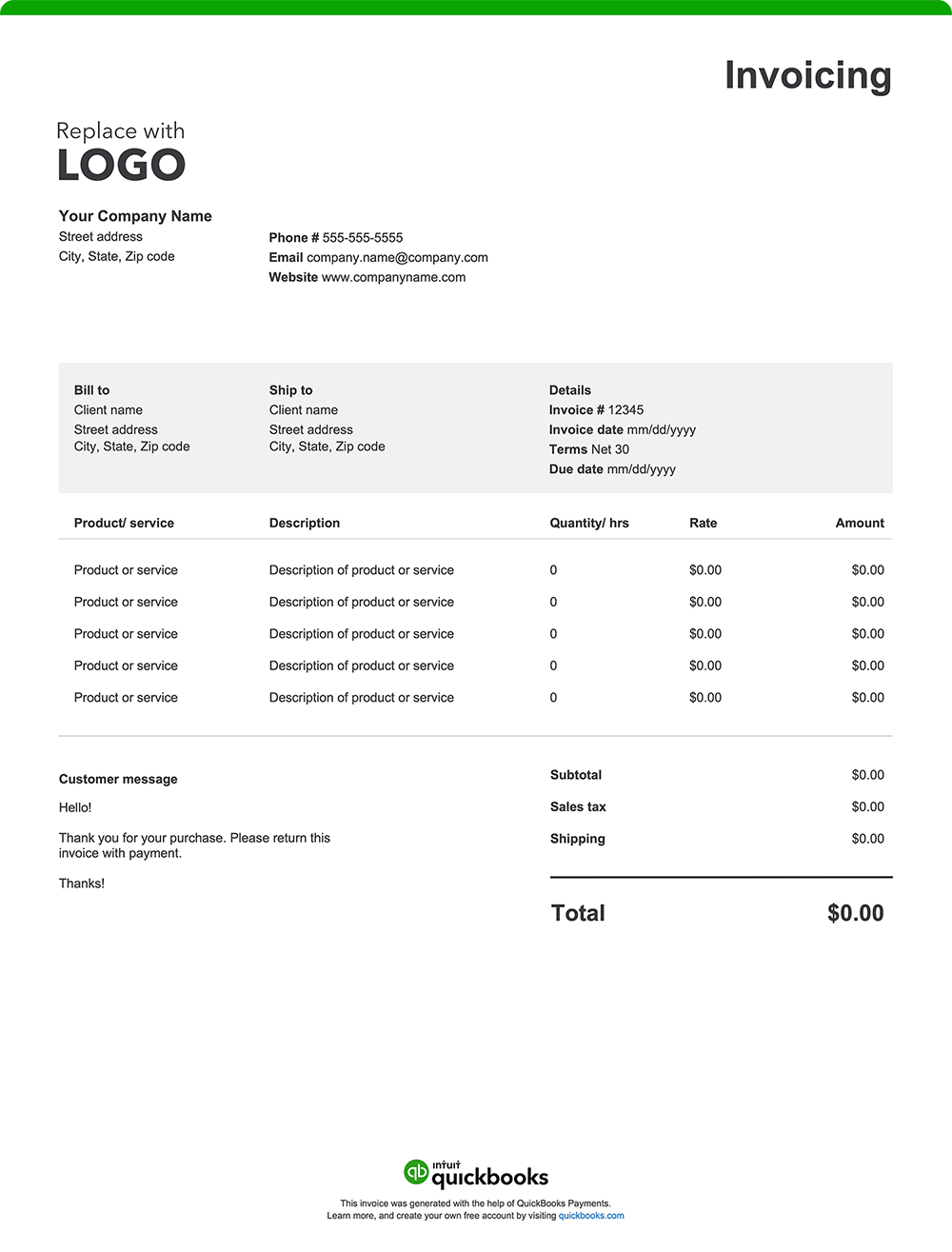
Create an estimate online with our free invoice generator — autofill job details, add branding, download, and send. Prefer a downloadable blank estimate template? Use our free printable estimate templates in Word, Excel, PDF, and other formats.

For an even faster way to manage quotes, QuickBooks estimating software makes it easy to create, send, and track estimates all in one place. Convert approved estimates into invoices, stay organized, and get a real-time view of your cash flow—all inside QuickBooks.


Recommended for you

Mail icon
Get the latest to your inbox
No Thanks

Get the latest to your inbox

Relevant resources to help start, run, and grow your business.

By clicking “Submit,” you agree to permit Intuit to contact you regarding QuickBooks and have read and acknowledge our Privacy Statement.

Thanks for subscribing.

Fresh business resources are headed your way!

Looking for something else?

QuickBooks

From big jobs to small tasks, we've got your business covered.

Firm of the Future

Topical articles and news from top pros and Intuit product experts.

QuickBooks Support

Get help with QuickBooks. Find articles, video tutorials, and more.