QuickBooks Blog
A person sitting at a table with a laptop.
Invoicing

Free consulting invoice template: PDF, Excel, & Word downloads

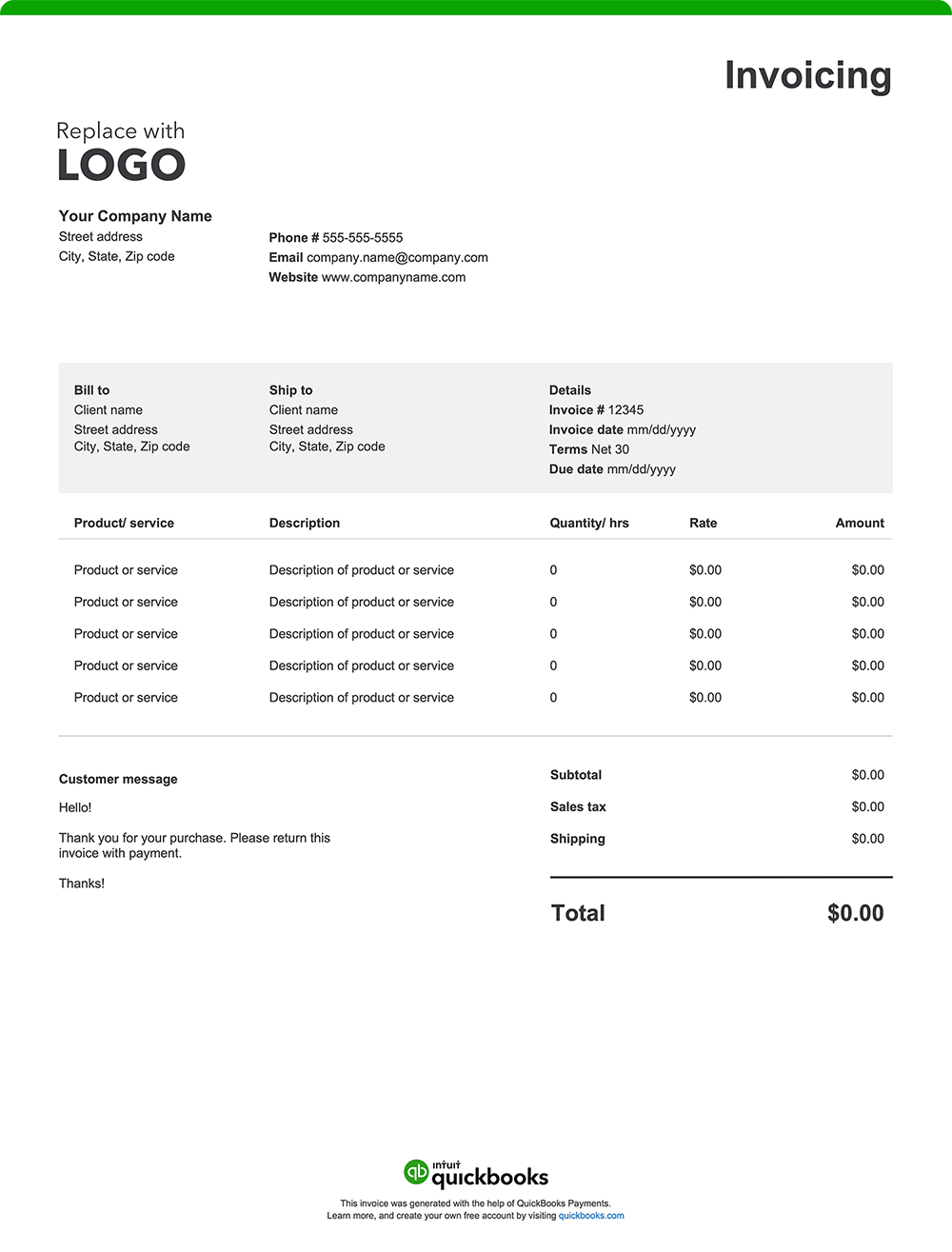
Whether you’re providing financial guidance, developing marketing strategies, or overseeing operational improvements, your invoice reflects professionalism, builds trust, and helps keep your cash flow steady. Provide transparency and help ensure accountability by creating an invoice using a free template or invoicing software for consultants. Download a free, customizable, and printable consulting invoice template from QuickBooks.


See invoice template | Generate free invoice

Jump to:

Downloadable invoice templates for consulting

Excel / Word / PDF


8 elements every consulting invoice should include

Your expertise has helped businesses grow, solve problems, and streamline operations—now it’s time to get paid for your work. An easy-to-understand invoice facilitates accurate billing and timely payments while upholding your professional image. Here’s what a standard consultant invoice format should include:

1. Company details

Your invoice should prominently display your or your firm’s name, address, phone number, email, and website.

Include a logo to enhance your brand recognition and professionalism. This information facilitates easy identification and reinforces your credibility as a qualified consultant.​

2. Client information

Ensure your invoice reaches its correct recipient by including your client's name, address, and contact details.​

3. Invoice number and date

Assign a unique invoice number and specify the issuance date. This information helps keep financial records organized, simplifies tax reporting, and allows for quick reference in case of disputes or audits.

4. Description of services provided

List the consulting services you performed. For example, a change management consultant may list organizational assessment and customized implementation strategies as separate line items. An IT consultant may specify tasks such as cybersecurity audits and IT training.

5. Service breakdown and fees

Itemize your consulting charges based on how you bill, such as:

  • Hourly rates
  • Flat rates for specific tasks or project phases
  • Retainer fees for ongoing support over a set period
  • Milestone payments tied to project progress or key deliverables
  • Partial fees such as upfront deposits

Breaking down costs adds transparency, especially for complex projects. For instance, a consultant may include separate charges for business process analysis, educational workshops, and onboarding. Clearly billing for each service helps your clients understand the value provided and can minimize potential conflicts over charges.

6. Any additional charges incurred

Account for supplementary costs that may arise during the project, such as:

  • Travel expenses
  • Courier fees
  • Printing and copying costs
  • Administrative costs
  • Rush fees
  • Software subscriptions

7. The total amount due

The "Amount Due" section of your invoice should outline the final total, incorporating:

  • The initial subtotal of services provided
  • Applicable taxes based on local requirements
  • Additional fees, such as travel costs or rush fees
  • Any discounts applied to the original cost, such as reductions for client loyalty or service bundling
  • Any other adjustments impacting the total amount owed

8. Payment terms and instructions

Set clear expectations for payment by outlining terms and instructions in the invoice. This ensures clients understand their obligations.

Here's what to include:

Payment terms

Specify the payment due date, such as "Net 30" (payment due within 30 days of the invoice date), "Due on Receipt," or any other agreed-upon payment terms.

Accepted payment methods

List all the ways your clients can pay you, such as check, credit card, online payment, or cash.

Payment details

Provide all the necessary information for each payment method, like your check mailing address or a link to your online payment portal.

Late payment penalties

If you charge penalties for late payments, state the penalty amount or percentage.

Early payment discounts

Mention any early payment discount available and how to qualify for it.

Consulting invoice template format best practices

Make sure your consulting invoice is professional, easy to understand, and encourages timely payment. Follow the best practices below.

Include your branding

Enhance your brand and increase credibility by adding your business logo and using your brand colors.

Add invoice number and date

A dated invoice with a unique invoice number is beneficial for both you and your customers. It helps with recordkeeping, tracking, and future referencing.

Customize

Personalize your template with your client’s name and applicable billing information.

Break down charges

A transparent invoice helps avoid misunderstandings. Itemize all provided services with your corresponding rates.

Set clear payment terms

Facilitate prompt payment by including payment due dates, accepted payment methods, and any special terms or conditions.

Proofread

Errors can slow payment and potentially cause confusion and disputes. Double-check all details to ensure invoice accuracy.

Save and send as a PDF

Once the invoice is finalized, save it as a PDF, which is a universally compatible format.

Common payment structures for consultants

Consultants typically use payment structures like hourly rates, flat fees, milestone payments, and retainer agreements. Hourly rates bill for time spent, while flat fees cover the entire project. Milestone payments are tied to project progress, and retainers ensure ongoing service payments. Some consultants also require upfront payments or results-based fees, where payment depends on achieving specific outcomes.

Standard payment terms for consultants

Consultant payment terms often include Net 30, Net 15, or Due on Receipt, defining when payment is due after invoicing. Some consultants require upfront deposits or milestone-based payments. Late fees may apply for overdue payments, while discounts can incentivize early payments. Direct payment terms help prevent delays and set client expectations.

Consulting invoice template vs QuickBooks

Like any professional service, consulting requires efficient invoicing to maintain steady cash flow and support timely payments. While basic Excel, Word, and PDF invoice templates can be a starting point for invoice creation, they often lack the functionality and automation that consultants need to manage their complex billing processes. A better option? QuickBooks invoicing and consulting accounting software.

Less manual entry means fewer errors

Traditional invoice templates often require manual data entry for essential details like client information and service descriptions. This process can be time-consuming and prone to errors, especially for consultants juggling multiple clients.

QuickBooks streamlines invoicing by automating much of this manual work. It automatically populates client details, service descriptions, and pricing information, saving you valuable time and reducing the risk of costly errors.

Automate invoicing

Managing numerous clients with diverse billing schedules can be challenging for consultants. QuickBooks offers automation features tailored to streamline your invoicing process:​

Batch invoicing

Quickly create and send multiple invoices at once, cutting down on manual data entry. With batch invoicing, you can generate invoices 37% faster.¹

Automated workflows

Set up customized workflows to automate tasks such as sending invoice reminders or approving invoices, ensuring timely communication and consistency. ​

Real-time tracking

QuickBooks lets you see when clients view or pay invoices, making it easy to follow up on overdue payments and streamline collections.

Invoice from anywhere

Whether you're remote or on-site with your clients, QuickBooks lets you create and send invoices from your mobile device or tablet. You can also attach important documents like contracts or scope of work quotes to promote clarity and keep everything in one place.

Manage cash flow throughout the project lifecycle

Consulting projects can have unpredictable payment schedules. QuickBooks integrates invoicing with bookkeeping so you can track outstanding invoices, monitor due dates, and forecast incoming payments.

Offer flexible payment options

Provide your clients with various payment methods, including credit cards, debit cards, ACH transfers, and popular platforms like Apple Pay, PayPal, and Venmo. This flexibility can expedite payments and enhance client satisfaction. ​

Send invoices through email or SMS

QuickBooks allows you to send invoices directly via email or SMS, catering to client preferences and ensuring prompt delivery. For recurring services, automated invoices can save time and ensure consistent billing. ​

How do I accept payments in QuickBooks?

You are in control of how you get paid. Accept payment options such as credit cards, bank transfers, checks, or even cash. Create invoices with a "Pay Now" button for instant online payments, or you can swipe cards on the spot with our mobile card reader. Payments will be tracked to the correct job, and funds will be deposited directly into your bank account.


Try our free consultant invoice generator

Create a custom consultant invoice online with QuickBooks—autofill job and project details, add branding, and send with ease. Prefer a blank template? Download free printable options in Word, Excel, or PDF.

When you’re ready for a simpler, time-saving alternative to manual invoice creation, consider QuickBooks. Our invoicing software automates your billing process, allowing you to create professional, instantly payable invoices with ease. Plus, it seamlessly integrates with expense tracking and other reporting tools, keeping all your financial management in one place. That means streamlined tax preparation, enhanced organization, and robust insights to support your decision-making.

QuickBooks has the tools you need to help your business thrive.

Claims

1. Batch Invoicing 37% Faster claim: Based on internal tests comparing QuickBooks Online regular invoice workflow with QuickBooks Online Advanced multiple invoice workflow. QuickBooks Online Advanced supports the upload of 1,000 transaction lines for invoices at one time. Number of invoices imported depends on number of transaction lines in the .CSV file. Customer received payment for participating in the tests.


Recommended for you

Mail icon
Get the latest to your inbox
No Thanks

Get the latest to your inbox

Relevant resources to help start, run, and grow your business.

By clicking “Submit,” you agree to permit Intuit to contact you regarding QuickBooks and have read and acknowledge our Privacy Statement.

Thanks for subscribing.

Fresh business resources are headed your way!

Looking for something else?

QuickBooks

From big jobs to small tasks, we've got your business covered.

Firm of the Future

Topical articles and news from top pros and Intuit product experts.

QuickBooks Support

Get help with QuickBooks. Find articles, video tutorials, and more.