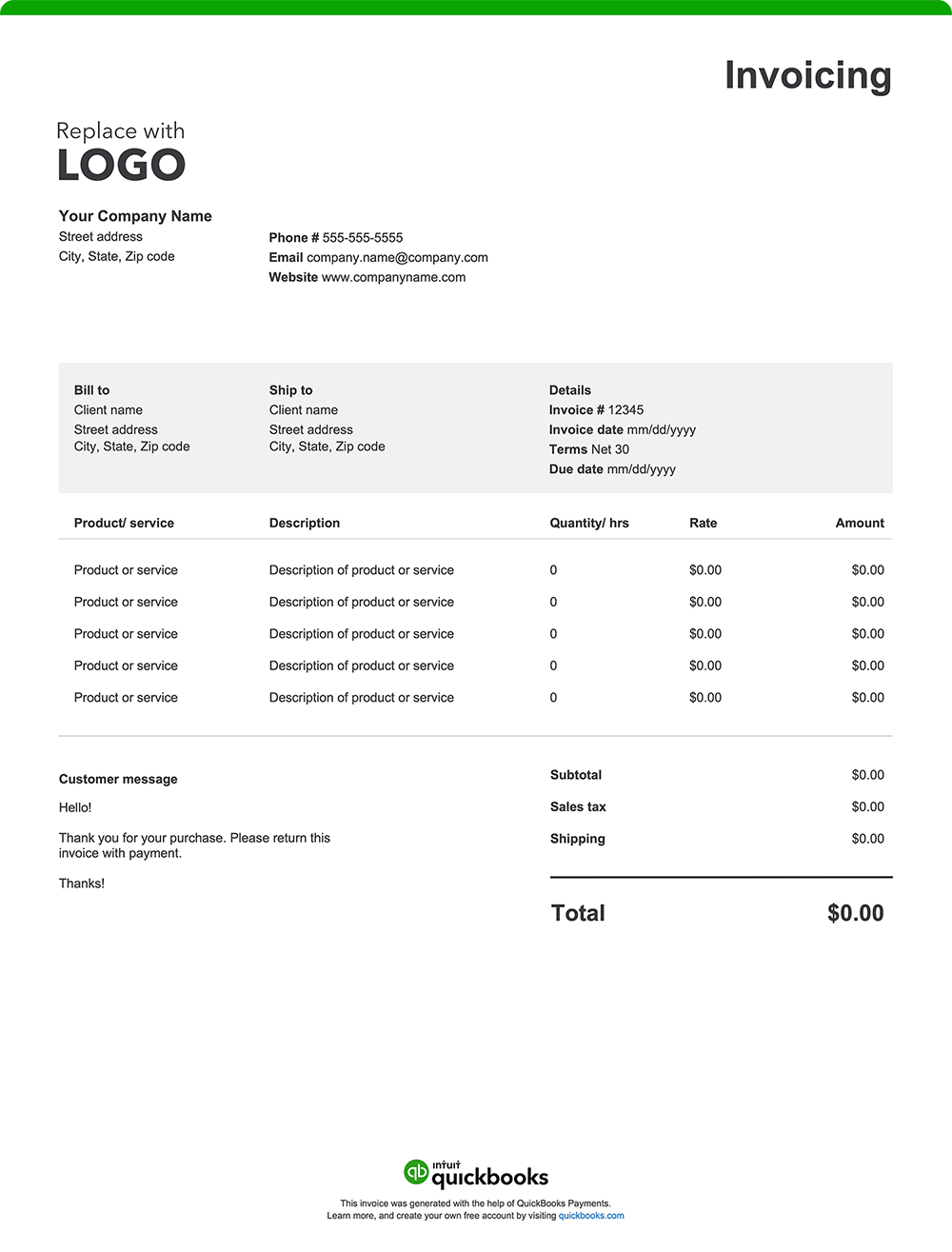
Whether you're a general contractor managing large-scale projects or a specialized tradesperson handling smaller jobs, you'll need an invoice that outlines services and deliverables to ensure smooth transactions. Here are eight essential elements every contractor invoice should include:
1. Business details
Your invoice should include your contracting company’s name, address, contact information, and any relevant licensing details. This makes it easy for clients to identify your business, while the licensing information provides reassurance that you’re a qualified professional. Enhance your brand recognition by adding a logo.
2. Date
Both contractors and customers rely on the invoice date for various purposes.
Contractors use it to track when services were provided, set payment terms, and support cash flow management. Customers look to the date to determine payment deadlines, manage budgets, and resolve disputes if necessary.
The invoice date also plays a role in tax compliance, determining the correct tax period for reporting income or claiming business expenses and ensuring adherence to legal and financial regulations.
3. List of the work completed
Describe your work in detail, such as installing flooring, upgrading an electrical panel, or repairing a roof.
An inclusive list helps the client fully understand the work completed, reducing the likelihood of disputes over charges.
4. Cost of labor breakdown
Break down your labor costs. How you do this can vary depending on how you bill, for example:
- Hourly rates
- Flat project rates
- Team labor rate, which might be calculated as a combined rate or listed per worker
- Additional charges such as overtime, specialty labor, rush fees, etc.
Be specific and itemize each task separately to ensure accurate pricing. Labor rates can differ significantly depending on the trade. For example, you might have different hourly rates for electricians, plumbers, carpenters, and other specialized technicians.
5. Cost of products and materials used
List the materials used for the project, such as lumber, paint, or tiles. Consider how you will specify pricing. A common method is to detail costs as follows:
- The type and quantity of products or materials used
- The price charged per unit
- The cumulative total of units
6. Any additional charges incurred
Be sure to include any supplemental charges. Some examples include costs related to:
- Permits
- Inspections
- Filing
- Delivery or disposal fees
- Specialized equipment rentals
7. The total amount due
The "Amount Due" section of your invoice should outline the final total, incorporating:
- The initial subtotal of materials used and services provided
- Applicable taxes based on local requirements
- Additional fees, such as delivery or handling charges
- Any discounts applied to the original cost
- Any other adjustments impacting the total amount owed
8. Payment terms and instructions
Your invoice should include straightforward payment terms and instructions that outline exactly how and when you expect to be paid. Be sure it lists the following:
- Payment timeframe: Specify the timeframe for payment, such as "Net 30" (payment due within 30 days of the invoice date), "Due on Receipt," or any other agreed-upon terms.
- Accepted payment method: List the payment types you accept, such as checks, credit cards, online payments, or cash.
- Payment details: Include all required information for each payment method, like your check mailing address or online payment portal link.
- Late payment penalties: If you charge penalties for late payments, state the penalty amount or percentage.
- Early payment discount: Mention any discount available for early payment and eligibility criteria.
How often should contractor invoices be sent to clients?
The frequency with which you should send an invoice varies greatly depending on the project type and the agreement you have set with your client. For smaller or one-time jobs, you may want to send the invoice upon project completion. For ongoing or larger projects, contractors often bill on a weekly, biweekly, or monthly basis, depending on the project's milestones or payment schedule.
Do contractors give itemized invoices?
Yes, contractors often provide itemized invoices. Breaking down labor and material costs provides a record for both you and your customers. Itemization can be helpful for budgeting, accounting purposes, and future project planning and scoping.