QuickBooks Blog
A person looking at a laptop while holding a tablet.
payments

Stop chasing payments: How to get paid automatically with autopay on recurring invoices

If you bill clients the same amount on a regular schedule (for example: monthly retainers, weekly maintenance, ongoing lessons), you've probably spent more time than you'd like sending reminders, following up on late payments, and wondering when the money will actually land in your account.

Autopay changes that. It's a new capability built directly into the recurring invoice flow in QuickBooks Online. With one toggle, your customers are set up to pay on schedule for every future invoice in the series. No chasing. No reminders.

What is Autopay?

Autopay is a new feature built into recurring invoices in QuickBooks Online. It lets you require customers to set up automatic payments as part of your recurring invoice series, so once they pay the first invoice, every future one is handled automatically.

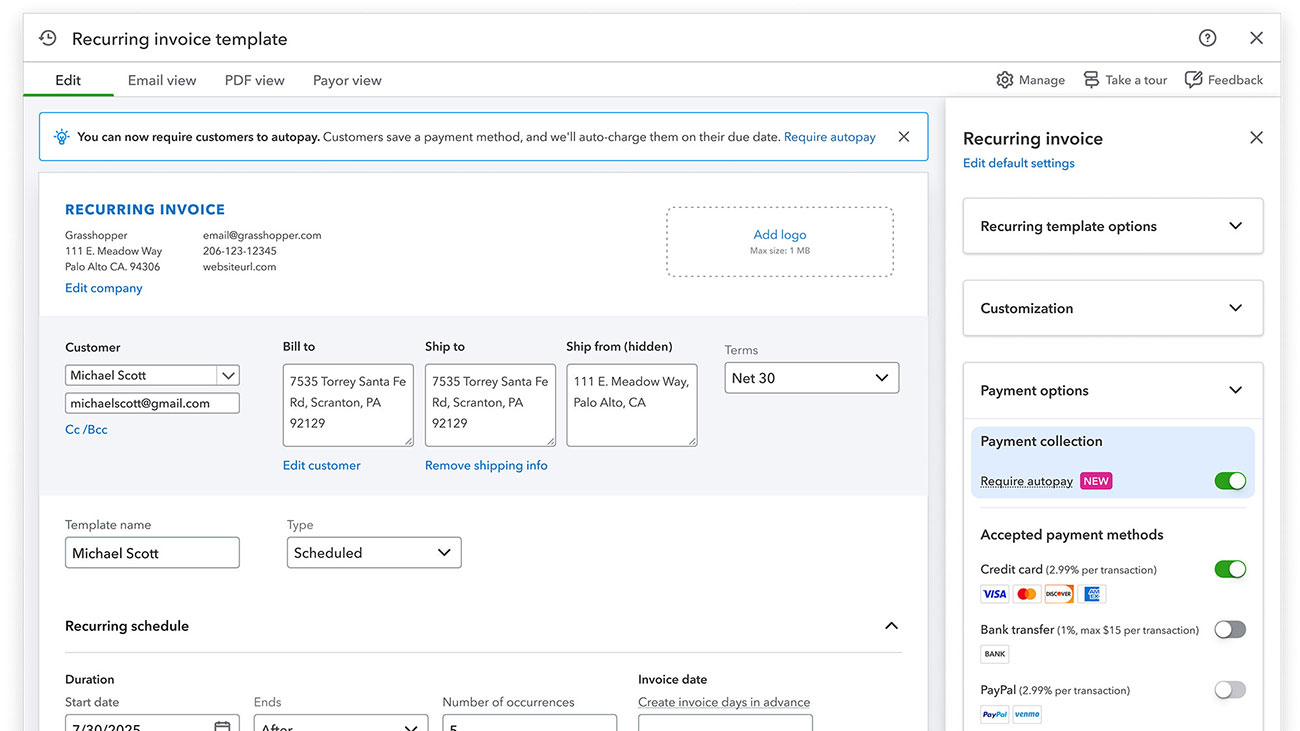
Here's how it works: When you create or edit a recurring invoice, you'll see a "Require autopay" toggle in your Payment Options. Turn it on, and the next time your customer receives an invoice from that series, they'll enroll in Autopay as part of paying it. They enter their payment details through a secure portal, confirm the schedule, and from that point forward their saved payment method is charged on each due date—with every payment flowing straight into your books.

In short: recurring invoices become a simple subscription-like experience inside QuickBooks, and it starts with a single toggle.

Why Autopay matters for businesses

If you're a service provider — whether you run a landscaping company, a daycare, a tutoring business, or a consulting firm — you likely bill your clients on a consistent schedule. But the way you actually collect might still live outside QuickBooks: bank bill pay, standing orders, a separate subscription app, calendar reminders, manual charges. That means payments slip – and when they do come in, you're stuck reconciling everything back into your books by hand.

Data from Intuit QuickBooks Small Business Insights shows that small businesses carry an average of $27,000 in unpaid invoices.* That's money already earned, sitting in limbo.

Autopay is built to fix exactly this: removing the collection uncertainty that makes recurring billing feel like anything but automatic. 

Here's what that looks like in practice:

Predictable cash flow. When payments run automatically on a set schedule, you can plan around a steady cadence instead of guessing when money will come in. Fewer late payments mean fewer surprises and more confidence in your financial picture.

Less time on admin. No more sending reminders or following up on overdue balances. Transactions are automatically updated with each payment, reducing the time you spend on matching by 60%.**

A better experience for your clients. Your customers enter their payment details once through a secure online portal and get confirmation when each payment goes through. They don't have to remember to pay each invoice, and they can manage or cancel their enrollment at any time.

Everything stays in one place. Autopay lives right inside the invoicing tab you already use. Toggle it on for a recurring invoice series, and you can see the payment status directly on each invoice. Your books update automatically with every charge. No switching between apps, no manual reconciliation.

Competitive, transparent pricing. There are no setup costs or hidden fees - just standard QuickBooks Payments processing rates. Autopay supports credit, debit, and ACH payments.

Image Alt Text

How to set up Autopay in QuickBooks

Getting started takes just a few minutes.

Step 1: Set up a recurring invoice. Create an invoice in QuickBooks Online, then select "Make recurring" (or create a new recurring template). Choose how often the invoice should recur — weekly, biweekly, monthly, or yearly — and set your start and end dates. Save the template. If you already have recurring invoices set up, you're ahead of the game — just move on to the next step.

Step 2: Turn on Autopay. On the invoice, go to Payment Options and toggle on "Require autopay." That's it. The next time your customer receives an invoice from that series, they will see the requirement to enroll in Autopay for that series.

Step 3: Your customer enrolls. When your customer pays the invoice, they sign in with their Intuit account, save their payment method, and confirm the schedule. They'll receive a confirmation email, and all future invoices in the series will be paid automatically — no additional action needed from either side.

Step 4: Track it all from QuickBooks. Once your customer is enrolled, you'll see an "Autopay Scheduled" status under the Invoice activity section. When a payment processes, the transaction updates in your books automatically.

A few things to keep in mind

Autopay works best for invoices where the amount stays the same each cycle. You can however change the amount within 150% of the original amount, but if frequency or terms change, the customer will need to re-approve. 

Here are the key prerequisites:

  • You'll need QuickBooks Payments enabled on your account 
  • Autopay is available for pay-enabled recurring invoices totaling $5,000 or less.
  • Your customers will need an Intuit account to enroll (they can create one for free)

Payments are processed 3 days before the invoice due date. If the due date is less than 3 days away, or if the invoice is due on receipt, the payment processes immediately.

If a payment is ever declined, your customer gets an email notification so they can update their payment method. Once updated, the payment is taken right away, and they can choose to re-enroll in Autopay with the new information.

Stop chasing. Start collecting.

Whether you're the business owner, the office manager handling billing, or the bookkeeper keeping everything reconciled, Autopay takes the most tedious part of recurring billing off your plate. Instead of spending hours every month tracking down payments, you get something simple: confidence that invoices will be paid on time.

It's built right into QuickBooks, it's secure for your customers, and it keeps your books up to date without any extra effort.

Ready to get started? Set up QuickBooks Payments and turn on Autopay for your recurring invoices today.

Simplify payments, delight your customers

Accept all payment types. Get paid faster and easier.

Disclaimers:

*Data from Intuit QuickBooks Small Business Index, April 2024. 

**Calculation based on a comparison of total monthly QuickBooks Payments transactions with those that were automatically categorized. 

Money movement services are provided by Intuit Payments Inc., licensed as a Money Transmitter by the New York State Department of Financial Services. Get more information about Intuit Payments' money transmission licenses.

*QuickBooks Payments: QuickBooks Payments account subject to eligibility criteria, credit, and application approval. Subscription to QuickBooks Online required. Not available in US territories or outside the US


Recommended for you

Mail icon
Get the latest to your inbox
No Thanks

Looking for something else?

QuickBooks

From big jobs to small tasks, we've got your business covered.

Firm of the Future

Topical articles and news from top pros and Intuit product experts.

QuickBooks Support

Get help with QuickBooks. Find articles, video tutorials, and more.