







QuickBooks Blog
An image of a small business owner evaluating the impact of tariffs on business taxes.
taxes

How to report tariffs on your tax return: A step-by-step guide

Table of contents

Table of contents


Key tax updates for filing taxes in 2026: 

  • As of December 2025, average effective tariffs in the U.S. rose to 17.6% in 2025. 
  • This means your landed costs are now a lot higher if you import goods into the country.
  • Packages under $800 used to enter duty-free (de minimis). That stopped on August 29, 2025, so every shipment of your order now must be tariff-tracked.
  • You can’t expense tariff costs straight away, which could result in lower profit and tighter cash flow for your business.

Tariffs are taxes you pay when you bring in products from another country. Unlike most taxes, you generally can only deduct them when you sell those products, not in the year you pay them.

The QuickBooks Small Business Insights survey revealed that more than 2 in 5 businesses (44%) are already reporting cash flow problems. When tariff costs are tied up in inventory until you sell the goods, that delay in getting tax relief can add even more pressure onto your cash flow.

In this article, find out more about tariffs, including how to report tariffs on your tax return, and how to use your accounting software to track and manage tariff costs.


How do tariffs work for small businesses?

A tariff is a tax on goods you import from another country. In the U.S., tariffs are also known as import duties. You pay these duties to the U.S. Customs and Border Protection (CBP) agency before your goods can enter the country.

For small businesses, the issue is timing. When you import goods for resale, tariff costs are added to the cost of that inventory. That means you generally don’t get the related tax benefit until you sell the products.

Because you pay tariffs upfront and don’t get that benefit right away, they can tie up your cash flow and impact your profitability.

For example, if you pay $5,000 in tariffs on a shipment this year but don’t sell those products until next year, you may not see the related benefit until those products are sold.

Here’s a simple side-by-side comparison:

An image showing the differences between an example standard type of tax (in this case state property tax) and a tariff.

The cost of goods sold (COGS) principle

When you import inventory, the tariff is not a separate expense. You add (capitalize) it to the cost of the item so the cost includes the purchase price, freight, insurance, and other “landed costs.” That total then becomes the inventory value that moves into the cost of goods sold (COGS) when you sell the product.

You only claim the tax deduction when you sell that inventory and recognize the revenue.

Example: You buy a $100 product from abroad and pay a $10 tariff. Your total inventory cost is $110 and it sits on your balance sheet as an asset. If you sell the product next year, that $110 moves to COGS in that year. That’s when you get the deduction for both the purchase price and the tariff.


note icon You can include customs duties, shipping, and insurance in the inventory’s value, but you can’t deduct any of it until the item is sold. Only then does it reduce your taxable income.

How to report tariffs on federal tax forms

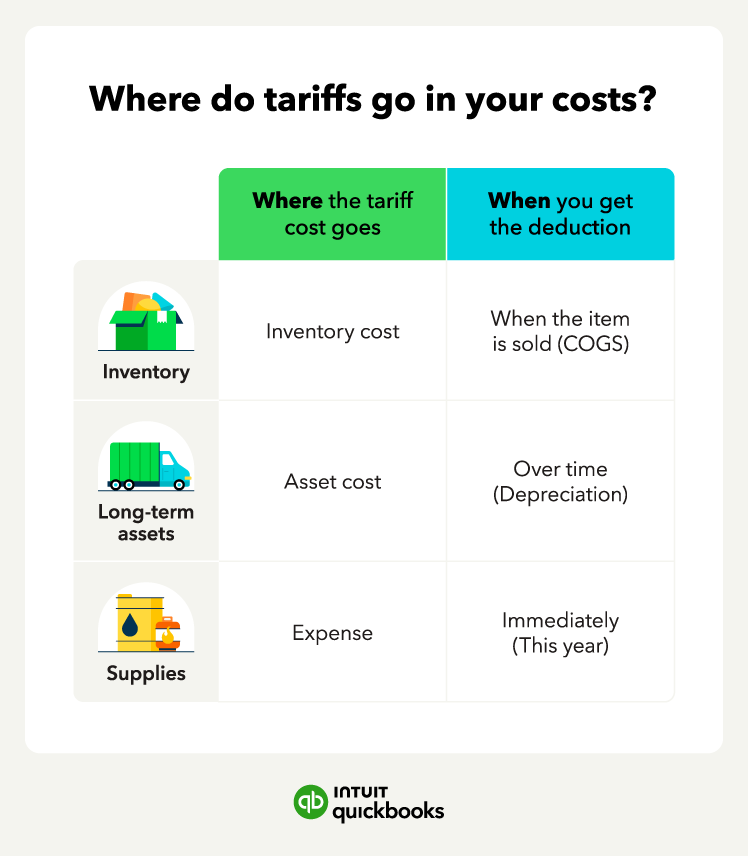
The way you report tariffs depends on your business structure. That is because the forms differ, although the rules below for tariffs are identical:

  • For inventory, you bundle them into your cost of goods sold (COGS) along with the item’s price, shipping, insurance, and other costs. There is no separate “taxes and licenses” deduction for this inventory.
  • For equipment like machinery and tools, you add the tariff to the total value of the assets. You then write it off over time through depreciation (straight-line or Section 179 if qualified), rather than deducting it all at once.

If you’re not sure which tax return you need to file, the QuickBooks guide to small business tax forms walks through the common options for sole proprietors, partnerships, corporations, and S-corps.

An image showing the different types of items that might incur tariffs and how to report them on your business taxes.

Schedule C reporting for sole proprietors

If you’re a sole proprietor or single-member LLC, you report your profit or loss on a Schedule C (Form 1040). On the 2025 Schedule C, the correct place for tariffs is Part III: Cost of Goods Sold, not the expense list in Part II.

Here’s how it works in practice on the current form:

  • In Part III (lines 33–42), you work out your COGS for the year.
  • Lines 35 to 39 detail your beginning inventory, purchases, labor, materials and supplies, and other costs which can include tariffs and freight fee before you adjust for ending inventory.
  • Tariffs are part of that COGS calculation, usually on the “Other costs” line in Part III (currently line 39), along with freight and other landed costs connected with getting a product ready for sale.
  • Line 40 adds those costs together, line 41 shows your ending inventory, and line 42 is your COGS figure. Line 42 then moves up to line 4 on page 1 as your COGS figure. This is what reduces your gross receipts so you arrive at your gross profit.

Be careful not to list tariffs again in Part II under “Taxes and licenses” or “Other expenses.” That would mean you were counting the deduction twice and breaking the rule that tariff costs actually belong in COGS.

Please note that line references are based on the 2025 Schedule C and may change in future tax years.


note icon Who pays the tariff tax? Businesses importing goods into the U.S. are responsible for paying the tariff. These costs may be passed on in part or in whole to the consumers and businesses that purchase these goods.




Forms 1120 and 1120-S reporting for corporations

C corporations and S corporations also treat import tariffs as a part of COGS and not as a separate tax expense.

Both Form 1120 (for C-corps) and Form 1120-S (for S-corps) report COGS on line 2. Behind that line, there is a Form 1125-A (or a spreadsheet) that your accountant normally fills in.

  • They bundle up all COGS here, including your purchase costs, freight, tariffs, and other inventory-related expenses. It’s still listed under COGS, not “taxes and licenses”.

To make this work, you have to build tariffs into your inventory costs before calculating the COGS total. Set your accounting software to:

  • Record tariffs in a way that ties them to the inventory you specifically bought.
  • Capture and reflect all tariffs in your item costs in your year-end inventory and COGS reports.

Do that and you can pull in your COGS total straight onto your Form 1120 or Form 1120-S without needing to calculate it.


note icon For help with your bookkeeping and accounting, connect directly with QuickBooks Live Tax experts. As a QuickBooks customer, they can review your bookkeeping straight away from your data and spot any tariff-related issues before you file.


What’s the common misclassification error?

A common mistake many importers make is expensing tariffs as regular business taxes or fees.

For example, a business might code a customs broker bill that includes $5,000 of tariffs to:

  • Taxes and licenses
  • Miscellaneous expenses
  • Other expenses (line 27b on Schedule C)

That means the tariff never gets included in the cost of that inventory. In the year they pay the bill, expenses are too high and COGS is too low. Then, when they sell the goods the next year, COGS is missing that $5,000, so gross profit looks higher than it really is.

This kind of mismatch breaks the IRS’s “matching rule.” The matching rule requires you to deduct costs in the same period as the income they relate to. It can also distort your qualified business income for the 199A deduction. That’s because your taxable income (and therefore your QBI deduction) bounces around more than it should.

Your accounting, your taxes. All in one place.

Save time by seamlessly moving from books to taxes in QuickBooks, then file your return with unlimited expert help and your maximum refund.*

Best practices for tariff tracking and documentation

To stay compliant with reporting tariffs, you need discipline and integrated accounting tools. Treat tariff tricks like any other part of keeping your books accurate: just as routine as payroll or invoicing. Here’s how:

1. Gather all essential documentation

For every imported shipment, you’ll need:

  • CBP Form 7501 (Entry Summary): Confirms what you imported and the duties, taxes, and fees that were charged. This serves as your main proof of how much you paid in tariffs and how you calculated them.
  • Vendor invoices: Documents the original cost of the goods you ordered from suppliers and links each tariff to specific purchase orders.
  • Customs broker and freight invoices: Itemizes your duties, brokerage fees, and freight charges to support your landed cost calculations.
  • Proof of payment: Shows you paid the duties and fees, using entries on bank statements, card statements, or wire confirmation to back up your records.

Attaching these documents directly to your bills in your accounting software simplifies your internal auditing, COGS reporting, and depreciation deduction calculations.

Set up a monthly small business tax prep checklist to make sure you stay ahead and avoid a growing backlog of paperwork. You could do that with import duties, for example.

Put aside one or two hours each month to bring your import information up to date. Enter all your open customs bills, attach the correct CBP Form 7501s to them, and allocate the tariffs to the inventory account.


note icon How are tariffs calculated? Tariffs are usually a percentage of the value of the goods you’re importing, sometimes including shipping and insurance. So, if the value of the consignment you’re bringing in is $10,000 and the tariff on that product or country is 15%, you’ll have to pay $1,500 on top of the $10,000 to access the goods.


2. Leverage accounting software

Tracking tariffs manually on a spreadsheet becomes prone to human error once you’re handling more than a few SKUs, shipments, or suppliers. This makes it much harder to understand your true gross profit levels because the true landed cost, tariff included, is not in your inventory report.

Use accounting software to act as a central source of truth and handle the math. The platform should allow you to:

  • Record the base purchase price when you receive goods.
  • Add extra costs like tariffs and freight as “other landed costs” so your per-unit cost is correct.
  • Update inventory valuation automatically, so your COGS is complete when you run reports for your return.

If you sell abroad and/or via multiple marketplaces, all with their own fees and sales taxes, choose one system to manage everything. You save time, minimize errors, and increase your visibility over profitability and cash flow.

3. Utilize QuickBooks Online

While many platforms handle basic expenses, QuickBooks Online offers advanced inventory features that specifically handle landed costs. The platform rolls tariffs directly into your item costs, so they flow through your inventory and COGS automatically without manual year-end adjustments.

Here’s how to do it:

  • Turn on inventory tracking: This allows you to use stock items for imported products. Go to ‘Settings’, ‘Account and settings’, ‘Sales’, ‘Products and services’, and then switch on ‘Track quantity and price/rate’ and ‘Track inventory quantity on hand’. Save, then close.
  • Add your inventory items: Add each imported product as a stock/inventory item so QuickBooks tracks their quantity and value into an Inventory Asset account.
  • Set up a tariffs account: Create a dedicated account for tariffs and import duties so they don’t get lost under general “taxes” or “miscellaneous.” You can also add other landed costs accounts at this time, too.
  • Create a tariffs item: Add a non-stock or service item called “Tariffs/Import duties” and point it to the dedicated tariffs account.
  • Record the inventory bill: When goods arrive, record a bill (or expense) using those inventory items at the price you paid for them—don’t add tariffs or other landed costs just yet.
  • Record the customs bill: When the customs broker invoice arrives, enter a separate Bill for the broker and use your “Tariffs/Import duties” item on the detail line. That posts the duty into your tariffs/duties account instead of “Taxes & licenses” or some random expense.
  • Fold tariff into items costs: Once both bills are in, you “link” the customs bill to the inventory item cost by moving the duty amount out of the tariffs account and into Inventory Asset. Decide how to spread the duty and edit the original inventory bill, increasing each item’s cost by its share of the duty. You can do the same for other landed costs to their subsequent accounts.
  • Apply landed cost rules: Landed costs are the product price plus shipping, customs fees, tariffs, and similar charges. Handling the non-product costs in this way means you’re following the same principle, meaning your books reflect the true cost of your inventory.

note icon Small business tax tip: Importing from different countries? Set up separate landed costs for each supplier or country. A shipment from Vietnam, for example, has different duty rates than imports from China or Mexico. Tracking each separately will simplify working out the best true landed cost per item, helping you make better sourcing choices.


Find peace of mind come tax time

Tax is complicated, and it gets harder every year. As a small business owner, you're already dealing with internet sales taxes, state filing rules, and other compliance responsibilities.

The right accounting software makes a difference. QuickBooks lets you attach your customs documents to bills and track your inventory in one place if you regularly import. That way, you spend more time growing your business, confident your tax affairs are in order.

Ask about discounts

You could save up to 25% on transaction costs².

Speak with us now to see if you qualify.

Talk to sales 1-800-515-8366

Monday - Friday, 6 AM to 4 PM PT

More about payments

Recommended for you

Mail icon
Get the latest to your inbox
No Thanks

Looking for something else?

QuickBooks

From big jobs to small tasks, we've got your business covered.

Firm of the Future

Topical articles and news from top pros and Intuit product experts.

QuickBooks Support

Get help with QuickBooks. Find articles, video tutorials, and more.