




QuickBooks Blog
An illustration of a calendar and recurring invoice.
Invoicing

How to schedule recurring invoices in QuickBooks Online


Key takeaways

  • Key recurring invoice takeaways: Recurring invoices automatically send bills to customers on a set schedule, reducing manual entry and administrative errors.
  • Predictable cash flow is the primary benefit of automation, helping you confirm that funds are available for expenses such as payroll or inventory.
  • Invoicing software like QuickBooks allows you to set up and manage these templates in one place, ensuring your billing runs in the background while you focus on your business.


Table of contents

Table of contents

Ask about discounts

You could save up to 25% on transaction costs².

Speak with us now to see if you qualify.

Talk to sales 1-800-515-8366

Monday - Friday, 6 AM to 4 PM PT

More about payments

As a small business owner, sending invoices is one of those tasks that's easy to let slip. But late or missed invoices have a real cost. And according to a 2025 QuickBooks survey, 43% of small business owners say cash flow is a problem for their business.

Recurring invoices are one of the simplest ways to stabilize the cycle. Automate your billing and invoices go out on time, every time, without relying on manual entry or memory.

Below, we'll cover what recurring invoices are, when to use them, and how to set them up in QuickBooks Online.

What are recurring invoices?

Recurring invoices automatically create and send bills to your customers on a set schedule. Instead of manually drafting a new invoice every billing cycle, you define your payment terms, set the frequency (weekly, monthly, or quarterly), and let the software handle the rest.

For example, if you run a landscaping company with 15 residential clients each paying a $200 monthly maintenance fee, that's 15 invoices you'd otherwise create and send by hand. With recurring invoices, the billing happens automatically while you're out in the field.
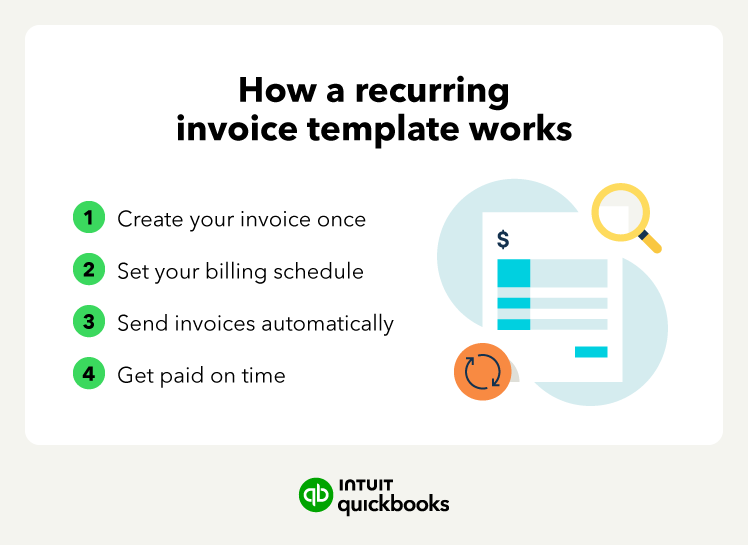
How a recurring invoice template works.

What are recurring invoices used for?

Recurring invoices are best used when you're billing the same customer the same amount on a consistent schedule. If the scope of work and price stay the same from one billing period to the next, there's no need to rebuild the invoice each time.

Common recurring invoices scenarios include:

  • Retainer agreements: Charging a fixed monthly fee for ongoing services like bookkeeping, legal counsel, or marketing support.
  • Service contracts: Billing on a set schedule for recurring work like landscaping, commercial cleaning, or IT maintenance.
  • Rent and lease payments: Collecting regular payments for office space or equipment rentals.
  • Memberships and subscriptions: Automatically bill customers for access to a program or service.
  • Installment payments: Breaking a large project into fixed increments rather than billing the full amount upfront.

Set these up correctly, and you won’t need to remember to "send the bill" at the start of the month again.

How to schedule recurring invoices in QuickBooks Online

Setting up a recurring invoice in QuickBooks Online takes a few minutes and only needs to be done once per customer. To try recurring transactions using sample data, you can use the QuickBooks Online test drive.

Here's how it’s done:

Step 1: Create a recurring invoice template

Start by creating the invoice template that QuickBooks will reuse each billing cycle.

  • Select Gear icon > Recurring transactions
  • Click New
  • For Transaction Type, select Invoice, then click OK
  • Under Type, choose Scheduled
  • Select Automatically send emails if you want invoices delivered without manual review

Step 2: Add your invoice details and set your schedule

Next, define what the invoice includes and when it should go out. To do this:

1. Enter the customer name, products or services, and pricing

2. Set the billing frequency (weekly, monthly, quarterly, etc.)

3. Choose a start date and, if needed, an end date

4. Confirm payment terms and due dates

5. Click Save template


note icon

Make sure everything is accurate before saving, as any errors here will repeat every billing cycle.


Step 3: Turn on email confirmations

As a safeguard, set QuickBooks Online to automatically email you a copy of all sent invoices:

  • Go to Gear > Account & Settings
  • Select Sales > Messages
  • Turn on Email me a copy

Get paid on time, every time

Create a recurring payment and put your payments on auto pilot. Simply set the schedule and amount and share with your customer.

Step 4: Confirm your recurring invoices are working

After your first billing cycle, check that everything is running as expected. You can:

  • Check your inbox: If email copies are enabled, you'll have a copy of each invoice
  • View recurring templates: Go to Reports > search Recurring Template List
  • Check customer activity: Open a customer profile and look for Open (Sent) in the Status column and a Last Delivery timestamp on the invoice
quote image
The recurring payments option is nice because it automatically matches items, so I’m not having to manually put in the fees. This saves me time and has made my accounting flawless. Recurring payments have made the accounting side of my business so much easier.
Jen Hasseloff, Owner of Sweet ‘n Simple (Specialty Food Producer/Retail and Wholesale Products)

When should you schedule recurring invoices?

The right time to set up a recurring invoice is as soon as you and your customer agree on a fixed amount and a repeating schedule. But they're not always the right fit for every engagement. Using them in the wrong situation can lead to billing errors that are harder to fix after the fact.

Setting up a recurring invoice is ideal when:

  • The price is fixed: If you bill hourly or adjust fees based on scope, stick to manual invoicing. Automating a variable amount can lead to over- or under-billing your customer.
  • The schedule is predictable: You know exactly when the customer expects the bill (e.g., the 1st or 15th).
  • You have a long-term agreement: Recurring invoices are built for long-term agreements. For one-off projects, a standard invoice is faster and cleaner.

Benefits of scheduling recurring invoices

Scheduling recurring invoices does more than eliminate a repetitive task. Done right, it changes how predictably your business gets paid.
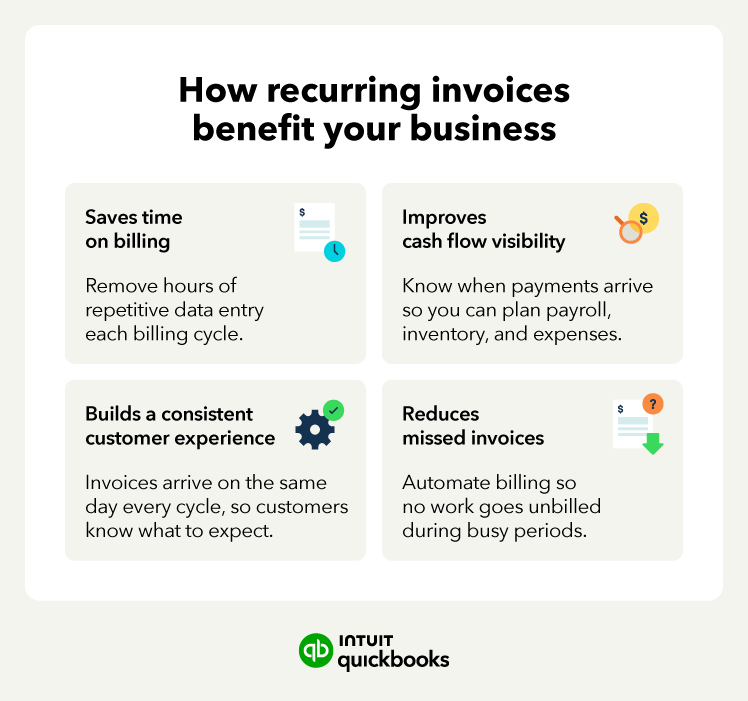
Infographic on benefits of recurring invoices

Save time on billing

Manually creating and sending the same invoice every month takes time, and that time adds up fast. For a business with 20 recurring clients, that could mean hours of administrative work every month. Recurring invoices eliminate that entirely by handling the generation and delivery on your behalf.


note icon

Mobile invoicing tools can help you manage these templates on the go. You can check the status of automated sends or update your terms right from your phone.


Improve cash flow visibility

When you know exactly when invoices go out and when payments are expected, forecasting your cash flow can become much more straightforward.

That predictability has a downstream effect on everything else, including:

  • Payroll planning: You know when cash is coming in, so you can confirm funds are available before you set up payroll or run your next cycle.
  • Inventory timing: You can align bulk purchases with incoming customer payments instead of guessing.
  • Growth decisions: It's often easier to invest in new equipment or hire when you can clearly see your cash runway.

Tools like Payments AI take this a step further by identifying inconsistent invoice patterns and suggesting recurring payments. Understanding how and when customers typically pay can help turn unpredictable income into more reliable cash flow.

Create a more consistent customer experience

When invoices arrive on the same day every billing cycle, customers know what to expect. That consistency signals reliability and can reduce the back-and-forth that comes with irregular billing.

Consider the difference from a customer's perspective. An invoice that arrives on the 1st of every month is easy to budget for and quick to approve. One that shows up at random may feel like an interruption, and those invoices tend to sit longer in payment queues.

Reduce missed or delayed invoices

Relying on memory to send bills often leads to delays, especially during busy seasons. If an invoice goes out late, the payment is usually received late, which can tighten your cash reserves. Scheduling these in advance ensures no work goes unbilled.

Tips for managing recurring invoices effectively

Automation handles the sending, but a clean billing system still requires occasional upkeep:

  • Invoicing software like QuickBooks lets you set up and manage recurring invoices in one place.
  • That way, the billing side of your business stays consistent without adding extra manual work.
  • Review your templates periodically: Prices change, scopes shift, and tax rates get updated. Set a reminder every few months to ensure your recurring invoice templates reflect current billing terms.
  • Keep customer contact information up to date: A recurring invoice is only useful if it reaches the right person. If a customer changes their billing email or contact, update it in your system right away to avoid payment delays.
  • Set clear payment terms: Every recurring invoice should include a due date and accepted payment methods. The clearer the expectations, the faster you get paid.
  • Know when to pause or cancel: If a contract ends or a customer relationship changes, cancel or pause the recurring invoice immediately. Sending an invoice for inactive work creates confusion and damages trust.
  • Follow up on missed payments promptly: Automation handles the sending, but it doesn't chase late payments. Build a habit of checking for outstanding invoices and quickly following up on past-due invoices when a payment is overdue.

Get paid with less back-and-forth

Recurring invoices do more than cut down on admin work. When your billing runs on a consistent schedule, your cash flow becomes easier to predict, and you spend less time chasing payments.

Invoicing software like QuickBooks lets you set up and manage recurring invoices in one place. That way, the billing side of your business stays consistent without adding extra manual work.

Run and grow your business, unlock deeper insights, and work like you have a larger team behind you

Recommended for you

Mail icon
Get the latest to your inbox
No Thanks

Looking for something else?

QuickBooks

From big jobs to small tasks, we've got your business covered.

Firm of the Future

Topical articles and news from top pros and Intuit product experts.

QuickBooks Support

Get help with QuickBooks. Find articles, video tutorials, and more.