QuickBooks Blog
A person at a desk is smiling and looking at a laptop computer screen.
bookkeeping

What is a data field? Definition, types, and practical examples in 2026

From invoices and customer records to expense tracking and financial statements, data fields help keep everything clean, consistent, and easy to manage. Let’s break down what a data field is, the different types you’ll come across, and how to use them.

Jump to:

Data field definition

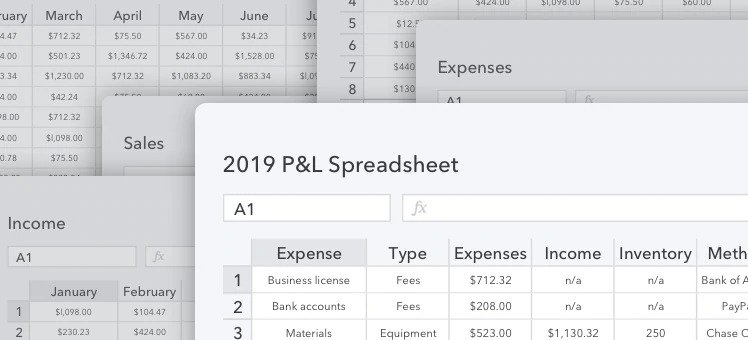
A data field is a single piece of information that’s stored in a structured system, such as a spreadsheet, database, form, or accounting software. Each field holds a specific type of data, like a name, date, dollar amount, or category label, and is typically organized in rows and columns.

Run and grow your business on one platform

Your books are just the beginning. Grow your business, unlock insights, and work like you have a larger team behind you—all in QuickBooks.

A full breakdown of data fields

In bookkeeping and business tools, data fields give structure to records. They make it possible to enter, sort, search, and report on important information accurately.

The table below shows how they work:

The purpose of data fields

The purpose of data fields is to make your life easier. With clearly labeled fields, you can:

  • Keep records consistent and reliable
  • Search, sort, and filter information quickly
  • Generate accurate reports and dashboards
  • Reduce mistakes (like typing words where a number should go)

Instead of entering data randomly or relying on memory, fields give everything a home. That way, when it’s time to review your finances, track expenses, or pull reports, all your information is in the right place.

Types of data fields

Each field type is designed to store a specific kind of information and helps keep your data consistent, accurate, and easy to analyze.

Here are some of the most common types:

Text fields

Text fields store letters, words, or full phrases—basically any string of characters. They’re ideal for names, descriptions, addresses, and other freeform text.

Examples:

  • *Customer name: John Smith*
  • *Product description: Premium wireless headset with noise cancellation*

Number fields

Number fields are made for digits, plain and simple. They’re perfect for quantities, totals, pricing, and other values that need to be calculated, sorted, or filtered.

Examples:

  • *Quantity purchased: 5*
  • *Inventory count: 120*

Date and time fields

These fields store structured information about dates, times, or both. They’re commonly used in transaction tracking, scheduling, and compliance reporting.

Examples:

  • *Invoice date: 08/01/2025*
  • *Employee start time: 9:00 AM*

Boolean fields

Boolean fields store simple true/false or yes/no values. They’re great for toggles, checkboxes, and binary options where only one of two answers applies.

Examples:

  • *Is this expense recurring? Yes*
  • *Is the customer active? No*

Dropdown or list fields

These fields let you pick from a preset list of options instead of typing something in. That means fewer typos and more consistent data.

Examples:

  • *Payment method: Credit Card, Bank Transfer, PayPal*
  • *Status: Lead, Prospect, Customer, Closed*

Currency fields

Currency fields are made for money. They format numbers as dollar amounts (or whatever currency you’re using) and make calculations much easier.

Examples:

  • *Invoice total: $275.50*
  • *Shipping cost: $12.95*

Email and phone fields

Email and phone number fields are designed to validate contact info. They enforce proper formatting so users don’t accidentally enter broken or incomplete details.

Examples:

  • *Email: info@yourcompany.com*
  • *Phone: (555) 123-4567*

Percentage fields

Percentage fields store ratios or rate-based values, which are useful in any scenario where a percent calculation is needed, like sales tax calculations or discount fields

Examples:

  • *Sales tax: 8.25%*
  • *Employee commission: 5%*

Formula or custom fields

These fields do the math for you. They pull information from other fields and calculate values based on those inputs, like figuring out the total cost with tax or calculating a profit margin.

Example:

  • *Total with tax: $100 × 1.0825 = $108.25*

Example data fields

Let’s take a look at a few examples of how data fields show up in real business tools.

Example 1: Invoice template

When you generate an invoice, each section you fill out is tied to a specific data field. Common invoice data fields include:

  • Invoice number: A unique ID for tracking
  • Invoice date: When the invoice was issued
  • Due date: When payment is expected
  • Client name: Who the invoice is for
  • Item description: What was sold or provided
  • Quantity: Number of units or hours
  • Unit price: Cost per item or service
  • Total amount: Auto-calculated based on quantity × price
  • Payment terms: Net 15, Net 30, etc.


Example 2: CRM or customer database

In a CRM (customer relationship management) system, data fields are what keep your contact list structured and searchable. Every customer or lead is stored as a record made up of fields like:

  • First and last name
  • Email address
  • Phone number
  • Company name
  • Industry
  • Status (e.g., lead, prospect, active, inactive)
  • Notes or Last contact date

Example 3: Employee onboarding form

When bringing a new employee into your HR system, data fields help capture and store all the necessary information in a structured, compliant way. Some common employee onboarding data fields include:

  • First and last name
  • Start date
  • Job title
  • Department
  • Manager or supervisor name
  • Work email address
  • Phone number
  • Employee ID (system-generated or manually assigned)
  • Emergency contact info
  • Bank details (for direct deposit)

Optional vs. required fields

When you're entering information into any system (e.g., accounting software, a CRM, or an online form), you may come across required and optional fields.

What are required fields?

Required fields are fields you have to fill in before you can save or submit a record. These fields usually capture key pieces of information that a system needs in order to function properly. If you leave a required field blank, you’ll typically see an error message or prompt asking you to complete it.

Examples of required fields might include:

  • Customer name (so the system knows who the record is for)
  • Invoice date (to track when the transaction occurred)
  • Total amount (needed for billing, tax, or reporting)
  • Bank account info (for direct deposit setup)

What are optional fields?

Optional fields are additional fields that provide helpful context but aren’t mandatory. They’re there to give you extra space to include useful details, organize your data better, or make information easier to find later.

Examples of optional fields include:

  • Notes or memos (to explain a transaction in more detail)
  • Phone numbers (if email is already provided)
  • Tags or custom labels (used for filtering later)

Overall, required fields make sure you’re not missing anything important, while optional fields let you customize and expand when it makes sense.


Best practices for data fields

Whether you’re setting up a customer database, building a form, or organizing financial records in QuickBooks, how you structure and use your data fields can either help or hinder your workflow. Here are some best practices to consider:

Use clear, consistent field names

Your field names should be easy to understand at a glance. Stick to simple, descriptive labels like “Customer Name,” “Due Date,” or “Invoice Amount.” Avoid vague or overly technical terms that could confuse others.

Choose the right field type for the data

Don’t use a text field when you need a number, or vice versa. Choosing the right type (text, number, currency, date, dropdown, etc.) helps your system validate entries, prevents formatting issues, and keeps reports accurate.

Minimize required fields (but don’t skip the essentials)

Only mark a field as required if the data is truly necessary. Too many required fields can slow people down or cause them to enter placeholder data just to move forward.

Avoid duplicate fields

Avoid using multiple fields for the same information. For example, if you already have a field called “Customer Name,” don’t add another that’s labeled “Client Name.” It just creates unnecessary confusion.

Use dropdowns or lists when possible

If users need to choose from a short list, like payment methods or expense categories, use a dropdown. It saves time and keeps entries consistent.

Keep formatting consistent

For fields like phone numbers, dates, or dollar amounts, follow a standard format across the board. For example, use the same date format (MM/DD/YYYY) in all systems or apply automatic formatting to phone numbers.

Don’t forget about privacy

If you’re collecting sensitive data (e.g., bank info or Social Security numbers), make sure those fields are secure and stored in a compliant way. Only collect personal data when necessary, and protect it according to your local laws and regulations (like GDPR or CCPA).

Conclusion

Well-structured data fields can help reduce errors and save time for your small business. If you want to streamline your bookkeeping, simplify invoicing, and keep every detail organized, try QuickBooks Online. Its intuitive forms, customizable fields, and powerful reporting tools make it easier than ever to manage your business data—all in one place.


Recommended for you

Mail icon
Get the latest to your inbox
No Thanks

Get the latest to your inbox

Relevant resources to help start, run, and grow your business.

By clicking “Submit,” you agree to permit Intuit to contact you regarding QuickBooks and have read and acknowledge our Privacy Statement.

Thanks for subscribing.

Fresh business resources are headed your way!

Looking for something else?

QuickBooks

From big jobs to small tasks, we've got your business covered.

Firm of the Future

Topical articles and news from top pros and Intuit product experts.

QuickBooks Support

Get help with QuickBooks. Find articles, video tutorials, and more.