Get 50% OFF QuickBooks for 3 months*

Buy now
Switch to QuickBooks and 70% off for 3 Months
October 29, 2019
Solved

VAT Report Nominal codes

  • October 29, 2019
  • 1 reply
  • 0 views

i'm trying to get a report for the VAT that shows the actual nominal codes items have been posted to. the current VAT Detail report shows the type of transaction it is but i'm wanting to see a report to know what expense codes items have actually been posted to so we can see where any changes have been made.


I am aware that the exception report will show the item if the nominal code is changed after filing but that still doesn't tell me what the transaction has been moved to/from. ideally if this is something that can be accessed by the "Reports" tab as this is for an company where we are a reports only user. 
Best answer by BettyJaneB

Thanks for keeping me updated about this, @Colin_Four_Ferry.


Running the Transaction Detail by Account will really post the Split amount since the transaction will repeatedly be posted to each of it's account affected.


In this case, you can pull up the Purchases by Supplier Detail then add a column for the account, VAT code, and tax amount. This way, all supplier's transaction includes the item and accounts affected will show up.


To do that:

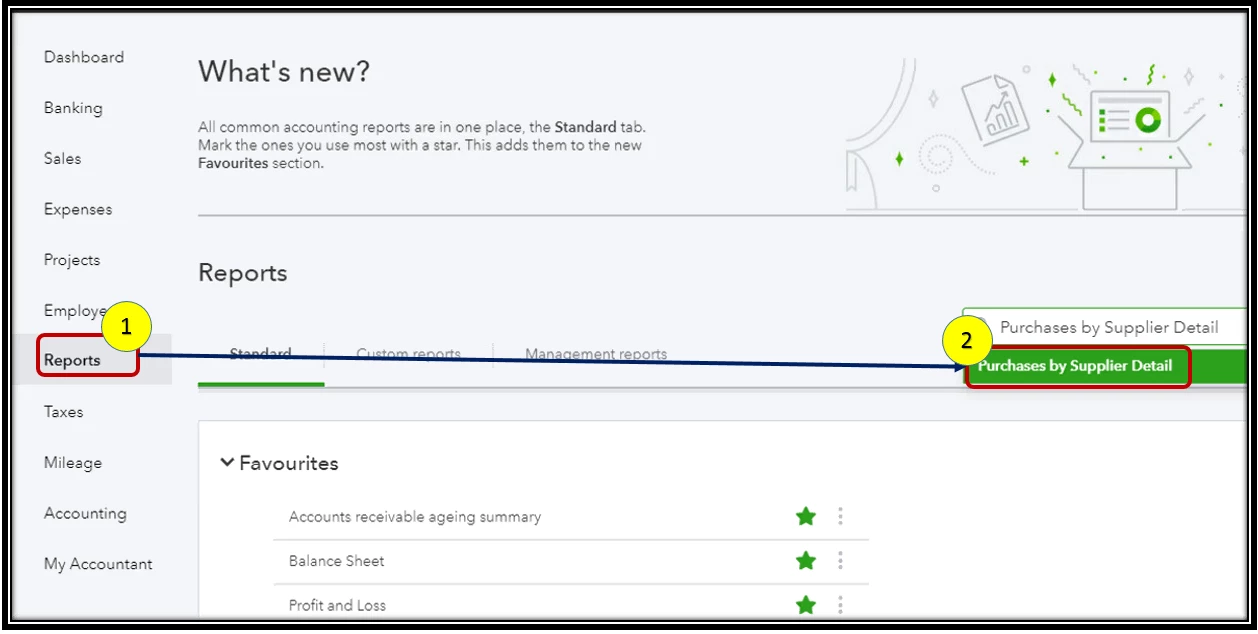
  1. Click on Report at the left pane.
  2. On the search box, key in Purchases by Supplier Detail.
  3. Make sure to choose the correct date range.
  4. Tap on the Customise button at the top.
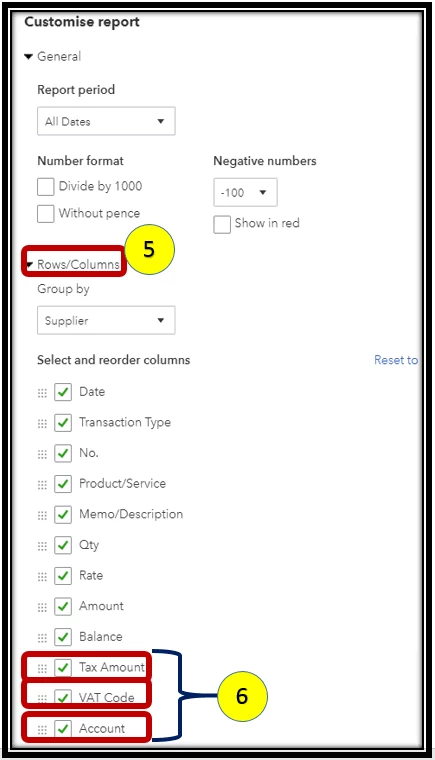
  5. Hit on the Rows/Columns field.
  6. Add the Tax Amount, VAT Code, and Account in the column by putting a checkmark on the box.
  7. Then run the report.

Please refer to the screenshots below, so you'll have a visual reference of the steps:

You can do the same thing for your customers transactions, just run the Sales by Customer Detail and add the given column above.


Reach back out to me if there's anything else that you need. Have a wonderful day!

1 reply

Level 10
October 29, 2019

Hi Colin


It is not possible to run a VAT report that includes the nominals/accounts that the transactions are posting to. When you run the exception report you could then select the particular transaction and select the more option and view audit log, this will inform you nominals have been changed within the transaction.

You could run a transaction by account detail report for the date range of the VAT period you require ensuring you customise it to include the tax amount, net amount and VAT code.

October 29, 2019

Thanks John


i have found two reports which "almost" work to show the information. Transaction list by account shows the tax amount and nominal code, but if the payment was for an invoice that had more than one nominal (i. e. purchase and postage on one invoice) then the nominal code only shows as "split".


the Transaction list with Splits shows me all the nominal accounts items are posted to but for some reason the tax amount isn't a column i can show in this report, so if i have a split between 20% and 0% the first report shows them as "split", even if both to the same nominal code, and the second report doesn't show which part is 0% and which is 20%


also running the exceptions report from the reports page only allows me to see the current quarter not look back at previous returns that have been filed so i can't use it to see what the exceptions were on previous returns without being in the taxes section, which i can't do as a report only user.


BettyJaneB
Level 9
October 29, 2019

Thanks for keeping me updated about this, @Colin_Four_Ferry.


Running the Transaction Detail by Account will really post the Split amount since the transaction will repeatedly be posted to each of it's account affected.


In this case, you can pull up the Purchases by Supplier Detail then add a column for the account, VAT code, and tax amount. This way, all supplier's transaction includes the item and accounts affected will show up.


To do that:

  1. Click on Report at the left pane.
  2. On the search box, key in Purchases by Supplier Detail.
  3. Make sure to choose the correct date range.
  4. Tap on the Customise button at the top.
  5. Hit on the Rows/Columns field.
  6. Add the Tax Amount, VAT Code, and Account in the column by putting a checkmark on the box.
  7. Then run the report.

Please refer to the screenshots below, so you'll have a visual reference of the steps:

You can do the same thing for your customers transactions, just run the Sales by Customer Detail and add the given column above.


Reach back out to me if there's anything else that you need. Have a wonderful day!