Turn on suggestions
Auto-suggest helps you quickly narrow down your search results by suggesting possible matches as you type.
Showing results for
Get 50% OFF QuickBooks for 3 months*
Buy now
Greetings, @bozzini.
Welcome to the Community. I'd be happy to help share some information about changing class on multiple transactions in batch.
If you're referring to the downloaded transactions from your bank, yes you can change the class assignment to multiple transactions in bulk. Please take note that the Class field is only available if you have set up classes on the Account Settings.
Here's how to change it on the banking page:
The specified information is applied to all of the selected transactions.
However, if they are already matched or added, or if there are existing entries that were manually created you'll have to go back to each transaction and change the class.
Also, I’ll be sure to share your thoughts about this option to our engineers. You might also want to send your suggestions straight to our Product Developers.
It will help us not only improve the product but also will help us know what works best for you. Just click on the Gear icon and choose Feedback. For additional help, feel free to reach out to our Phone Support. They have the tools that can help you get to a resolution quickly.
That should do it. Feel free to leave a comment below if you have any other questions about changing the class in QuickBooks Online. I'll be happy to help you out.
Currently, in QBO, there is no way to change the CLASS category on multiple transactions at once if they are already in the ledger. Unfortunately, you will need to change the class transaction one at a time.
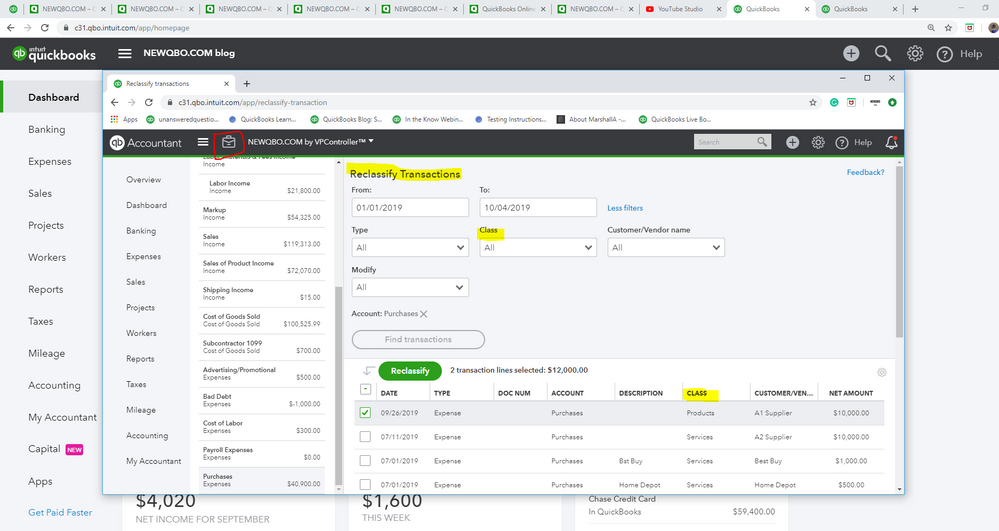
You may also want to check with your Accountant. With QBO Accountant version, it comes with Accountant Toolbox feature which can reclassify class for certain expense transactions in bulk.
I have QuickBooks Desktop Pro 2018. The only options available on the Batch Actions are Add/Approve and Ignore. The modify option doesn't seem to be there. Am I missing something?
Thanks for joining this thread, max123.
Allow me to chime in and point you in the right direction on how perform this process.
To help me get on the same page, are you trying to add a class for the downloaded transactions? If yes, you’ll have to select the Add More Details option to do this task.
Here's how:
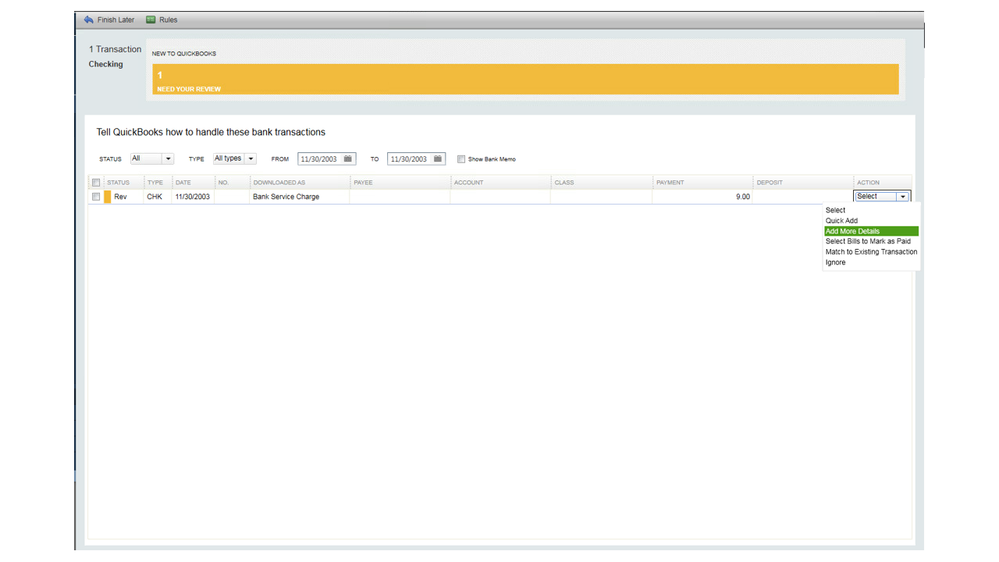
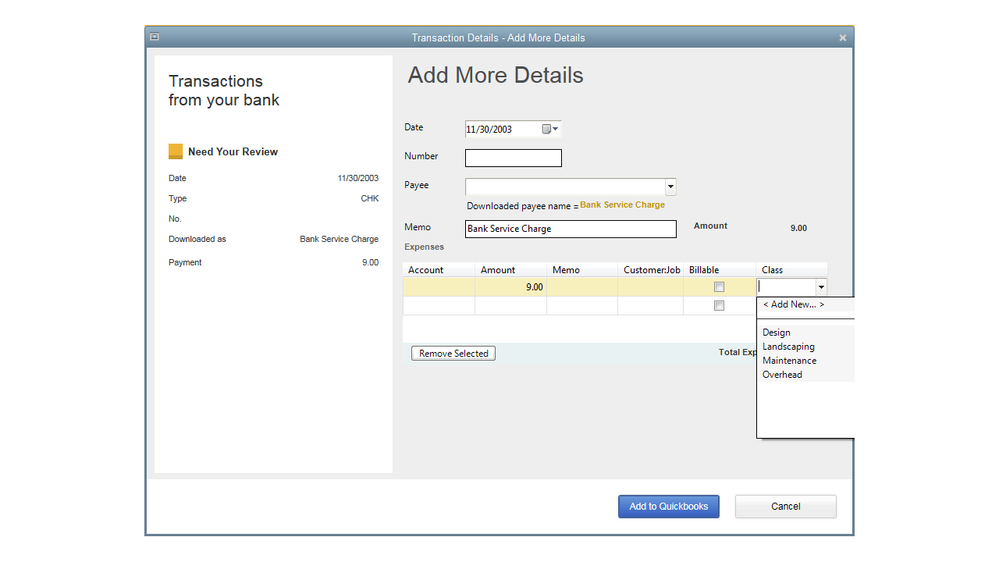
You’ll have to follow the same steps for the other data you want to classify. Just as a heads up, you can only add classes by batch if you’re using the QuickBooks Accountant and QuickBooks Enterprise Solutions versions.
This steps should get you pointed in the right direction.
If you’re referring to other processes, I appreciate any details you can provide to help me get on the same page. Thanks in advance. I’ll be on a look out for your response.
Can you add a class to a specific customer or job so the class carries through and associates with each transaction affiliated with that customer?
Hi accaccounting,
The option to add a class to a specific customer or job is currently unavailable in QuickBooks Online and Desktop. You can only add classes to transactions.
However, you could consider adding a customer type by following these steps:
For the Online version, refer to this article that will provide more information: Set up and assign customer type.
Please know that our product engineers are working continuously to improve the product's features. In the meantime, I suggest checking back to our websites for any enhancements and announcements through these links:
I'll be sure to update this thread if I hear any changes about the option that you're looking for.
Let me know if you have further questions. I'll do everything I can to answer them.
As you know technology advances quickly. Other companies will come out with a solution (or already have it) and customers may leave. It would take a long time for me to assign classes to transactions. I have used Quickbooks for years but now I need a solution that you don't currently offer.
This batch transactions Class Reclassify feature is already available in the QBO Accountant version. I don't understand why it's still not available in the Plus plan and Advanced plan.
nearly a year letter and it's still not fixed? this is a straightforward and important editing process and totally reasonable request. please hurry up and make it available.
Hi christopherjhoh,
Having the option to change a class on multiple transactions in QuickBooks Online (QBO) would be beneficial to your business. I'll take note of your suggestion and submit it directly to our product developers.
From there, they'll be able to review and may implement this in the future updates.
Know that we are constantly improving our product's feature to meet your needs. Everything we have developed within the program derives from listening to our customers.
As always, you can check regularly for product updates and feature enhancement through this link: QuickBooks Blog.
Though, you can reach out to accountant for help reclassifying multiple transactions, since they have the Reclassify tool as mentioned by vpcontroller.
If you have any follow-ups or other concerns, please leave a comment below. I'm here to help. Have a great day.
I believe the original poster and many others (including myself) are trying to assign multiple transactions at a time in DESKTOP. The Batch Actions in the desktop version only include: Add/Approve and Ignore. We don't have 'Modify Selected' that the online version apparently has. Just converting to Quickbooks Desktop and it has been very painful with having to assign thousands of transactions. Insane the software doesn't allow for a sleeker method of assignment during the transaction review process.
Good afternoon, @JLH_JAX.
Glad to have you back in the Community.
The option to change the class on multiple transactions isn't currently available in QuickBooks Desktop.
I'm happy to submit feedback for you to our product engineers for a possible change in future updates.
Thank you for reaching out! If you have any other questions, I'm only a reply away.
This is totally ridiculous. Freshbooks has this feature. If you import a CSV it allows you to add a category to multiple transactions. So in excel you can filter transactions then add a category and import it. The fact that you guys have this feature and are holding back is a terrible strategy. I am switching to Freshbooks unless you 1: lower your price, and 2: quit holding back on features so that we have to upgrade.
Hey there, @Kodjigger.
I can see how being able to batch add a category to multiple transactions is beneficial to your business. While it's unavailable, I can pass along another feature request on my end to ensure it'll reach our product engineers.
Your voice is important to us, and we take your suggestion as an opportunity to improve this area of the product. Our priority is to make the QuickBooks product the go-to software for business owners.
In the meantime, I suggest visiting the Firm of the Future website to stay updated with new features and options. It also contains product news about any changes.
Please leave a comment below if you have any other questions or concerns. I’m here ready to assist further. Have a good one.
Thanks for the product lead. I'm going to take a look at Freshbooks, now. As an accounting professional, I've shared the same frustrations for yeeeeeeears. The reply from Intuit is always the same; "we'll look into it." Meanwhile, subscription rates climb. Cheers.
I have the accounting 2019 desktop QB
I am able to assign some classes in bulk but entire accounts lack this feature
am I missing something\
Hi MeProActive,
Let's try resorting your account's list. This way, we'll be able to identify why you're unable to assign classs by batch on some accounts.
Let me guide you with these steps:
Afterward, let's try assigning classes again.
Once done, you can filter, sort, or total reports by class. Here's an article for more information: Filter, Sort, or Total Reports by Class.
Let me know if there's anything that I can help. Keep safe!
Still waiting for this feature. I need to change the class for 100+ transactions, but as-is I have to do it one by one, which is ludicrous. When will this very basic functionality become available????
Hi there, yjandali.
As of now, we don't have a specific time frame as to when this feature will be available in QuickBooks. I definitely understand how convenient to have this feature, though, especially if you've got a lot of transactions that need to be edited.
Please know that we roll out updates based on our customers' requests. Rest assured, we're taking note of your ideas and suggestions to improve your QuickBooks experience.
As we assess this opportunity, I encourage visiting our Firm of the Future page to stay current with all our news and product updates.
If there's anything else that I can help you with please don't hesitate to leave a comment below. I'll always have your back.
You may utilize a migration tool as a workaround. Export the data out to XLS, modify the class, import the data back.
https:// transactionpro.grsm.io/qbo
Also going to look into other software solutions as I find this feature (categorizing multiple transactions to a certain class at once) incredibly important and insanely tedious to have to do manually for hundreds of transactions.
I'm another user who wants to change multiple transactions. Brought in as a bookkeeper later in the game, the organization was not using classes and needs to. How is this such a difficult ask for Intuit?!
I too need to reclassify the classes. I cant believe there is no solution
Hi, BillyBon.
I can see how being able to batch add a category to multiple transactions is beneficial to your business. As mentioned by my colleague above this feature isn't available in QuckBooks Online.
Please know that we roll out updates based on our customer's request. Rest assured, we're taking note of your ideas and suggestions to improve your QuickBooks experience.
In the meantime, I suggest visiting the Firm of the Future website to stay updated with new features and options. It also contains product news about any changes.
If you have any follow-ups or other concerns, please leave a comment below. I'm here to help. Have a great day.


You have clicked a link to a site outside of the QuickBooks or ProFile Communities. By clicking "Continue", you will leave the community and be taken to that site instead.
For more information visit our Security Center or to report suspicious websites you can contact us here