Hi there, @Hogwild3. With the help of this information, you'll be a QuickBooks master in no time.
When you write a check to yourself, that is an owner's draw. It is when a business owner takes funds out of their business for personal use. You may use a draw for compensation versus paying yourself a salary. They're usually taken from your Owner's Drawing account.
You can write a check to withdraw cash from your day earnings before depositing them. When you take this for yourself, you'll need some sort of name for the payee. You can enter yours as a vendor.
To enter a new vendor:
- Go to the Expenses menu and select Vendors.
- Click New vendor.
- Enter your name and fill in all the necessary information.
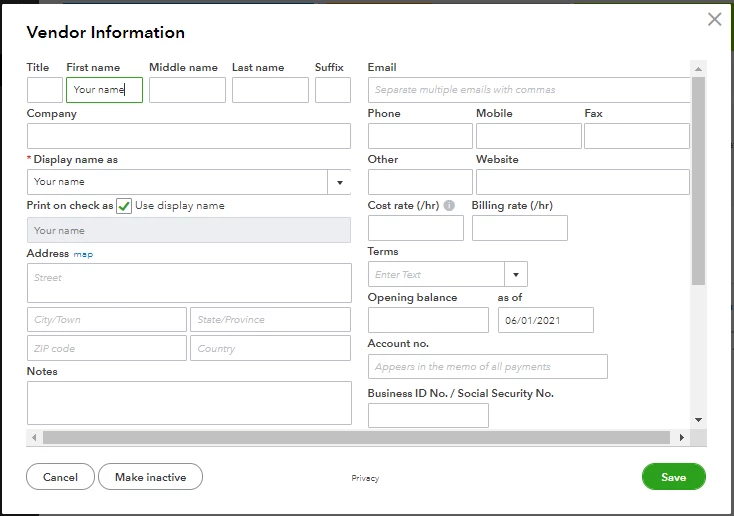
- Click Save.
To write a check:
- Click the +New menu.
- Select Check.
- Select your name in the Payee's drop-down.
- Enter the payment date.
- Under Category details, select Owner's Drawing.
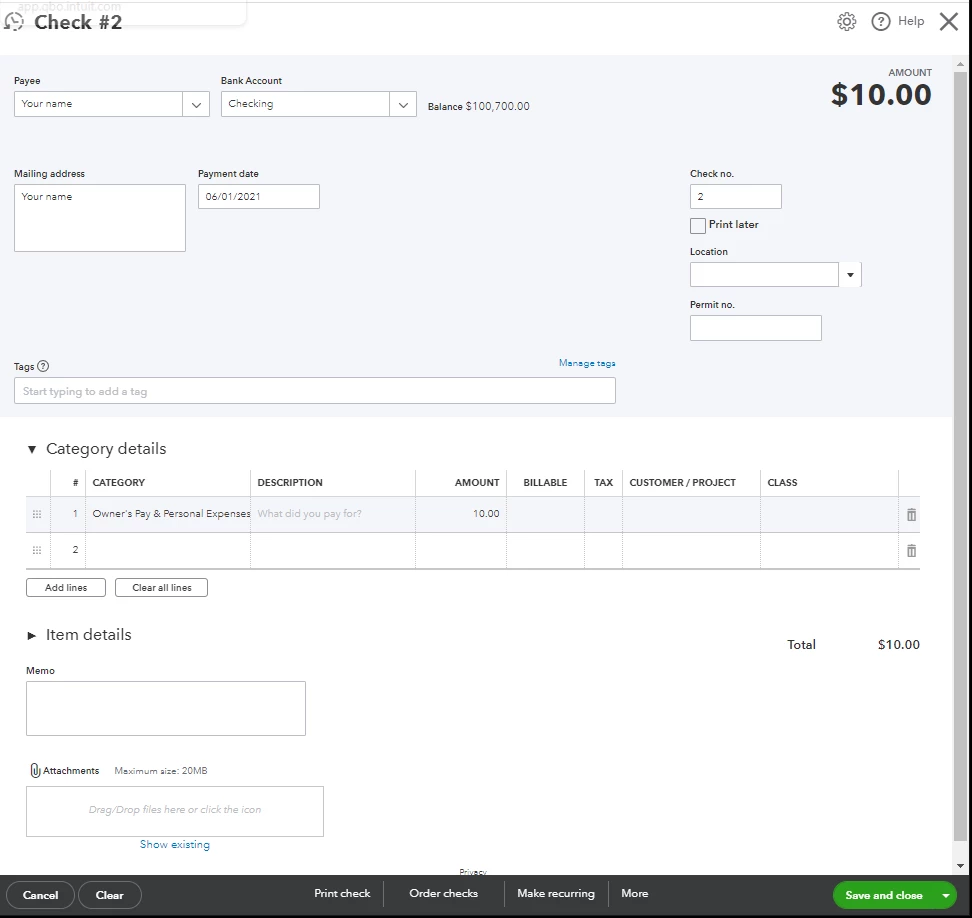
- Enter the amount and other info.
- Click Save and close.
Refer to this article on how to put your money into your bank account: Record bank deposits.
You can also write a check or expense to record your purchases. Make sure to activate the Item details table on the expense and purchase forms.
- Go to the Gear icon and select Accounts and settings.
- Select the Expenses tab.
- Turn on the Show Items table on the expense and purchase forms option.
- Click Save and Done.
To enter expense:
- Select + New. Then select Expense.
- In the Payee field, select the vendor.
- In the Payment account field, select the account you used to pay for the expense.
- In the Payment date field, enter the date for the expense.
- In the Payment method field, select how you paid for the expense.
- Enter all the necessary information.
- In the Category details section, enter the expense info. In the Category dropdown, select the expense account you use to track expense transactions. Then enter a description. You can also enter specific products and services in the Item details section to itemize the expense.
- Enter the Amount and Tax.
- If you plan to bill a customer for the expense, select the Billable checkbox and enter their name in the Customer field. Learn more about billable expenses.
- When you're done, select Save and close.
You can check out this article that tackles the complete list of standard accounts: Chart of Accounts.
Additionally, you can visit our Community Help website that shares helpful articles to read on topics like account management, banking, reports, and more. Just select a subject from the Topics drop-down menu.
Visit us again should you need further assistance with navigating QuickBooks tools. We're always here to help you.
