
SUMMER SAVINGS 90% OFF QuickBooks for 3 months* Ends 8/27

Buy now
Switch to QuickBooks and 70% off for 3 Months
October 25, 2018
Solved

Accounts Receivable by Class

  • October 25, 2018
  • 25 replies
  • 157 views

Is there a way to run the A/R Aging by Class?  I am using QB online for Contractors.

Best answer by vpcontroller

Currently, such an option to run the A/R Aging by Class report is not available in QBO yet.
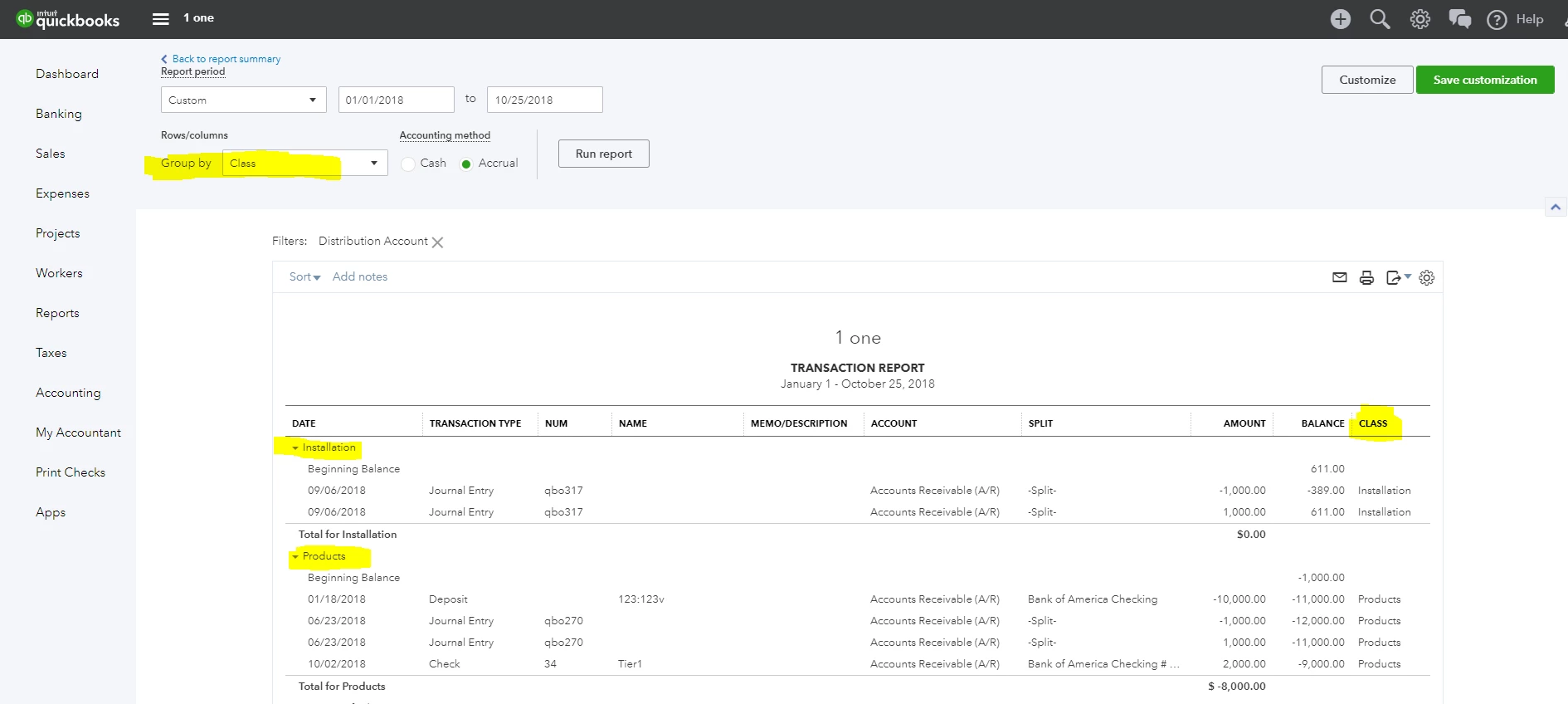
The workaround is to run the Account Receivable transaction report from the Balance Sheet (Run the Balance Sheet report and click the Account Receivable balance amount link). You can Group this report by Class. You can also customize and add a Class column to the report. But it will in AR detail format, not AR Aging format. See screenshot below for reference.

.
25 replies

vpcontroller
Level 7
October 25, 2018

Currently, such an option to run the A/R Aging by Class report is not available in QBO yet.
The workaround is to run the Account Receivable transaction report from the Balance Sheet (Run the Balance Sheet report and click the Account Receivable balance amount link). You can Group this report by Class. You can also customize and add a Class column to the report. But it will in AR detail format, not AR Aging format. See screenshot below for reference.

.

November 7, 2018

Thanks for this response.  I cannot figure out why "class" isn't available in my group by menu.  Can you advise?  I assign classes in AR and AP.  Thanks!

MariaSoledadG
QuickBooks Team
August 5, 2022

This does not come close to working.

Every line is posted to Unspecified.


@MichaelDL wrote:

I've got you covered, @arianna118.


The information here will help you customize that transaction report like a pro. The Class option isn't available in the Group by menu until the column has been added to the report. I'll guide you through doing this below:


Add Class to the A/R Transaction Report

  1. From QuickBooks Online, navigate to the Reports tab. Select Balance Sheet from the Business overview section.
  2. On the line for Accounts Receivable, click the amount. Inside the Transaction Report, set your desired date range.
  3. Click the tiny Gear icon (⚙) in the top-right of the report, select (▼) Show more and check the box for Class.
  4. Now the Group by drop-down will display Class as an option, allowing you to further organize the report.

Here's a brief video demonstrating the process:


This will enable you to group your report with whichever column data you'd like. We also offer a guide on sorting reports by Class for your convenience. Please let me know if there's anything else I can do to help you succeed with QuickBooks. Thanks for reaching out, wishing you a wonderful rest of your day.


Let me provide some information as to why line item is showing as unspecified when running a report, corneroffice.


When you see amounts in the Unspecified column on your reports, these are line items or transactions which doesn't have class or payee assignments. In other words, QuickBooks is unable to identify the correct classes for some transactions. QuickBooks Online (QBO) uses information from the headers or details depending on the type of report you run. The balance sheet uses data from headers, while profit and loss uses data from the details.

If you assign classes and locations to your transactions, you can customize your balance sheet and profit and loss to show data for a specific division.

  • Classes are only linked to details.
  • Locations are linked to both headers and details.


Also, This unspecified category will only show when you run a report by Class or Location. You'll want to drill down the report to see which transactions that don't have a class. You'll also want to filter the report to make sure it's not showing the Unspecified column, Todo this, follow the steps below:

  1. Go to Reports, then search for the Balance Sheet report. 
  2. Select the correct Report Period.
  3. Click Customize.
  4. Click Filter, then tick the Class box.
  5. Hit Run report.


Furthermore, we also have different kinds of reports that you can pull up that could cater your business needs. Reports Included In Your QuickBooks Online Subscription.


Feel free to get back to us if you have some additional questions. Remember we're here to help.