Yes, you got it correct, Marufa.
I'd be delighted to walk you through the steps in how to account for your supplier refund in QuickBooks Online (QBO). Here's how:
- Go to the + New menu.
- Select Vendor credit or Receive vendor credit.
- Choose a vendor from the Vendor drop-down menu.
- Fill in the needed details then click Save and close.
- Go back to the + New menu.
- Select Bank deposit.
- Choose an account from the Account drop-down menu.
- Fill in the needed details from the Add funds to this deposit section and select Accounts Payable (A/P) from the ACCOUNT column.
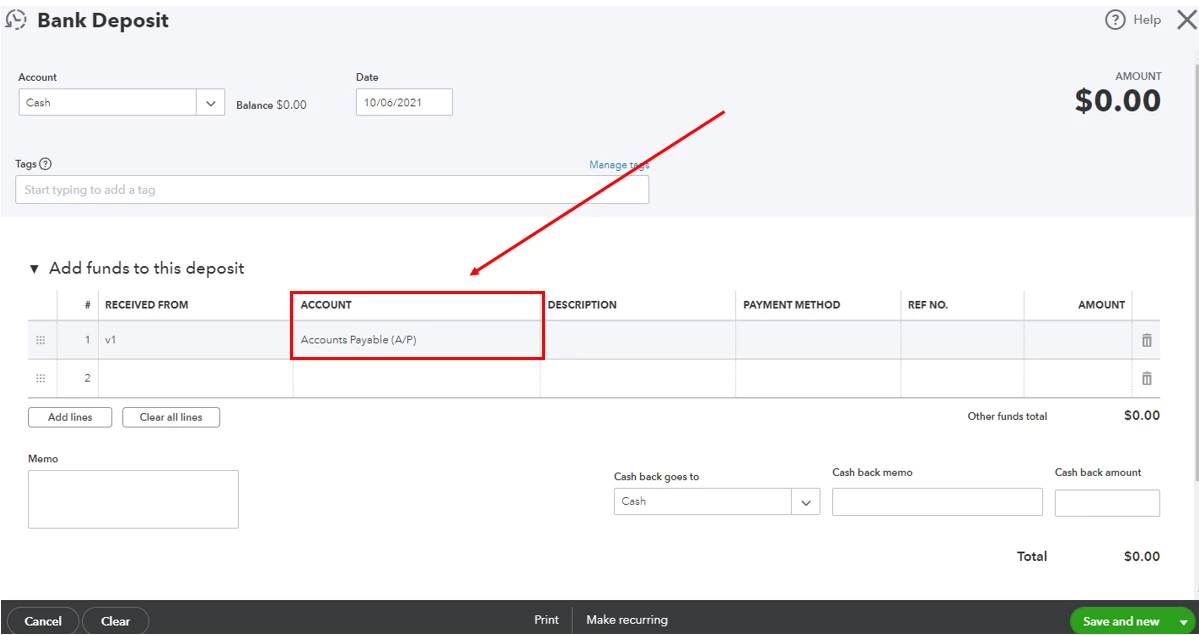
- Then click Save and close or Save and new.
Once done, use Pay bills to link the deposit to the vendor credit. You can utilize this link for more details about this process: Enter a refund from a vendor.
Then to account for the overpayment of $.52, you can record it as a credit and link it to your supplier's future bills. To be guided, feel free to check this article: Enter a credit from a vendor.
Furthermore, I'd suggest working with your account or visit our ProAdvisor page to prevent messing up your books. They can guide you on other ways to record this in QBO.
Once you're all set, you might want to read these resources for future reference. These contain details on how to pay your vendors online and match your account flawlessly:
In case you need more help supervising your vendor refund or with your payables, you're always welcome to tag me in your reply. I'll be here to back you up!