If you're entering a new customer and need to associate job-specific information, there are a few ways to handle it depending on how yo want to track jobs, Car-2.
While QBO doesn’t have a direct job feature like QuickBooks Desktop, you can still organize jobs under customers or use additional features to manage job-level details like creating sub-customers and projects.
You can track jobs by creating sub-customers under the primary customer. Here's how:
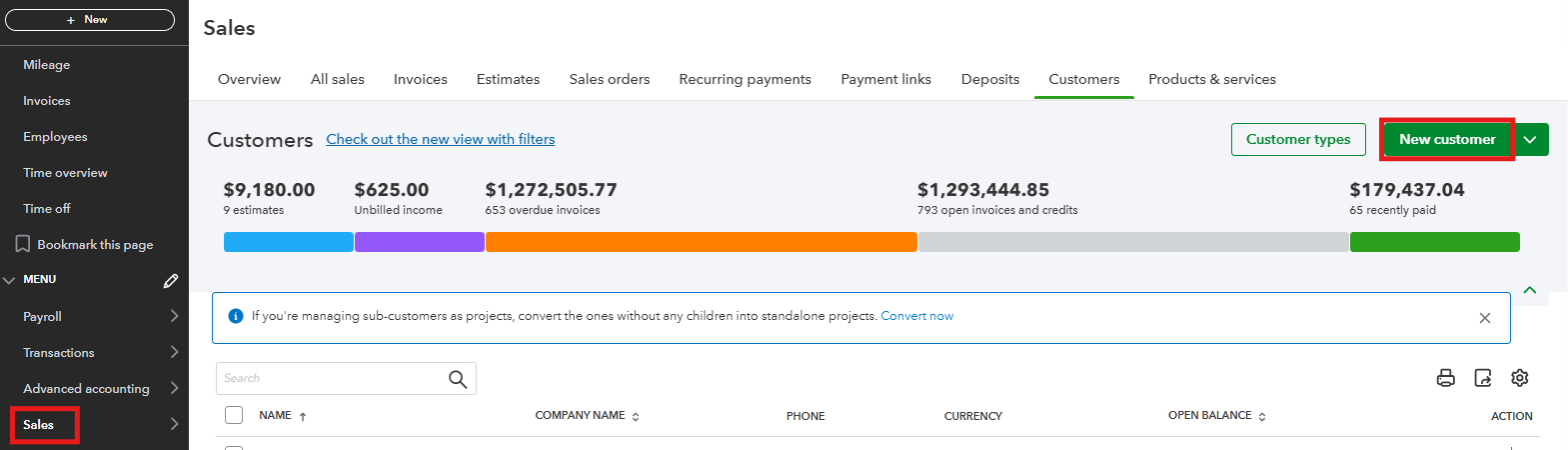
- Go to the Sales menu.
- Select New customer.
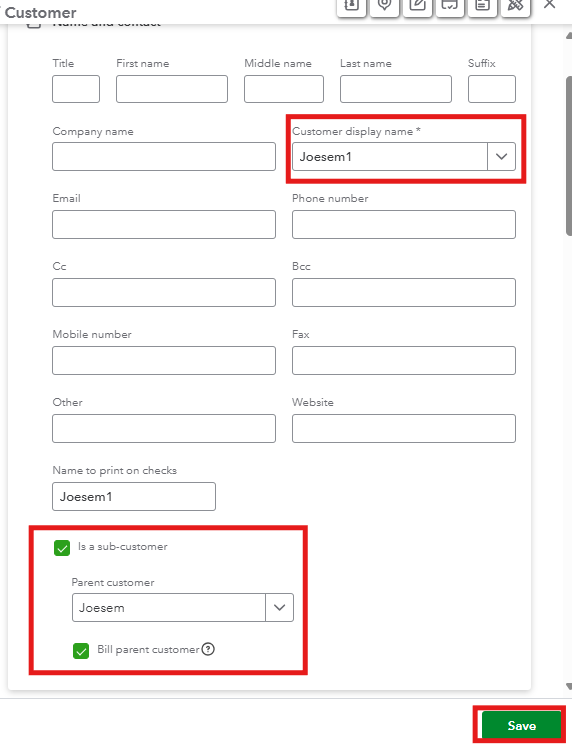
- In the Customer display name field, enter what you want to display for the customer.
- Click the Is a sub-customer checkbox. This action will display a parent customer dropdown menu.
- In the Parent customer ▼ dropdown, select the parent account.
- Select Save.
If you're subscribed to QuickBooks Online Plus and Advanced, you can use Projects to track job-specific details. This feature allows you to link transactions, view profitability, and manage job costs effectively.
In case you didn't subscribe to these plans, you'll want to upgrade your current plan to have this feature. To create a project, here's how:
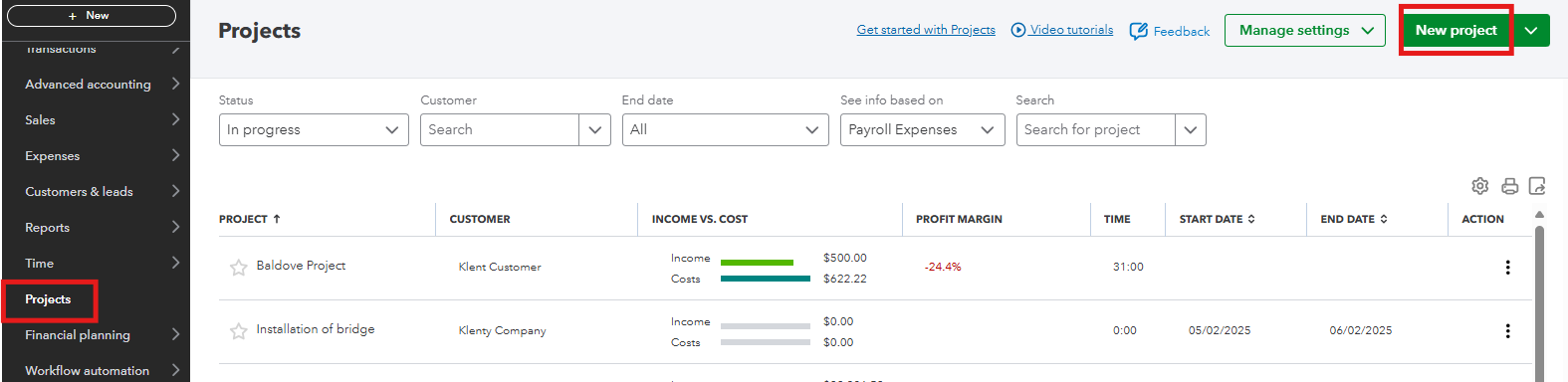
- Go to the Projects menu.
- Select New Project.
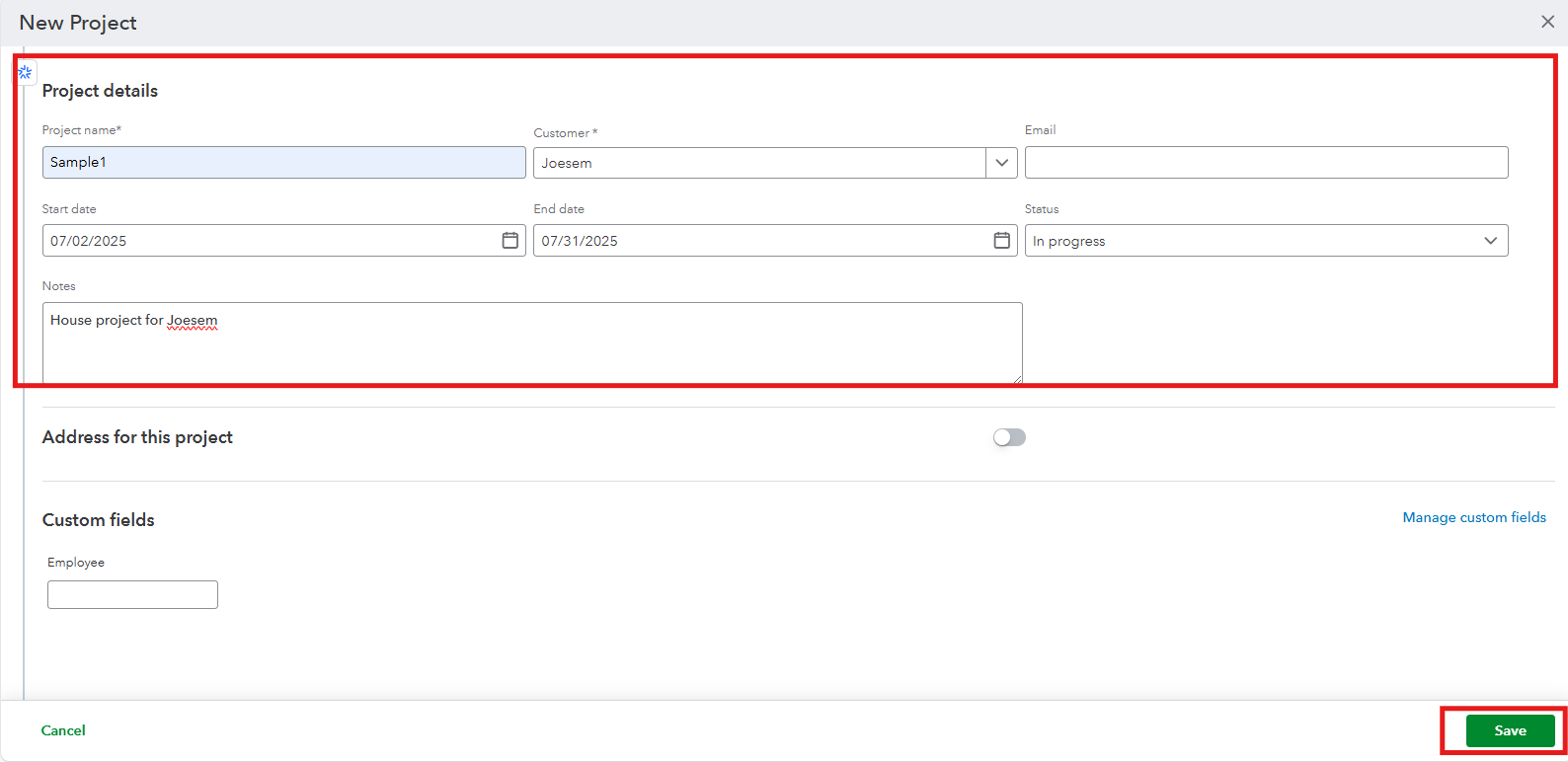
- Give your project a name.
- Select the customer you’re working for from the drop-down menu.
- Add any notes or details about the project.
- Click Save.
For more information about the process above, you can read these articles:
Also, you can open this link on how to track labor expenses for your project in QuickBooks: Track hourly labor costs and profitability by project in QuickBooks Online.
On top of that, you can use QuickBooks Live Bookkeeping to improve your accounting. This service helps you keep your financial records accurate and gives you access to professional support. It also makes your bookkeeping process easier and saves you time, allowing you to focus on your customers and grow your business.
You can always get back to us if you have additional concerns about managing customers/jobs in QuickBooks. I'm here to help.