SUMMER SAVINGS 90% OFF QuickBooks for 3 months* Ends 8/27

Buy now
Switch to QuickBooks and 70% off for 3 Months
New Member
June 4, 2020
Solved

How do I mark an invoice as Sent when printing and mailing?

  • June 4, 2020
  • 6 replies
  • 226 views
No text available
Best answer by AileneA

Hi there, @happyleelawncare. 


Thank you for choosing QuickBooks as your accounting tools. I can walk you through how to mark an invoice as sent in QuickBooks Online.


You would need to send the invoice to a dummy email or to yourself in order to change the status to Sent. This is the workaround we can use to get the outcome you wanted.


Here’s how: 
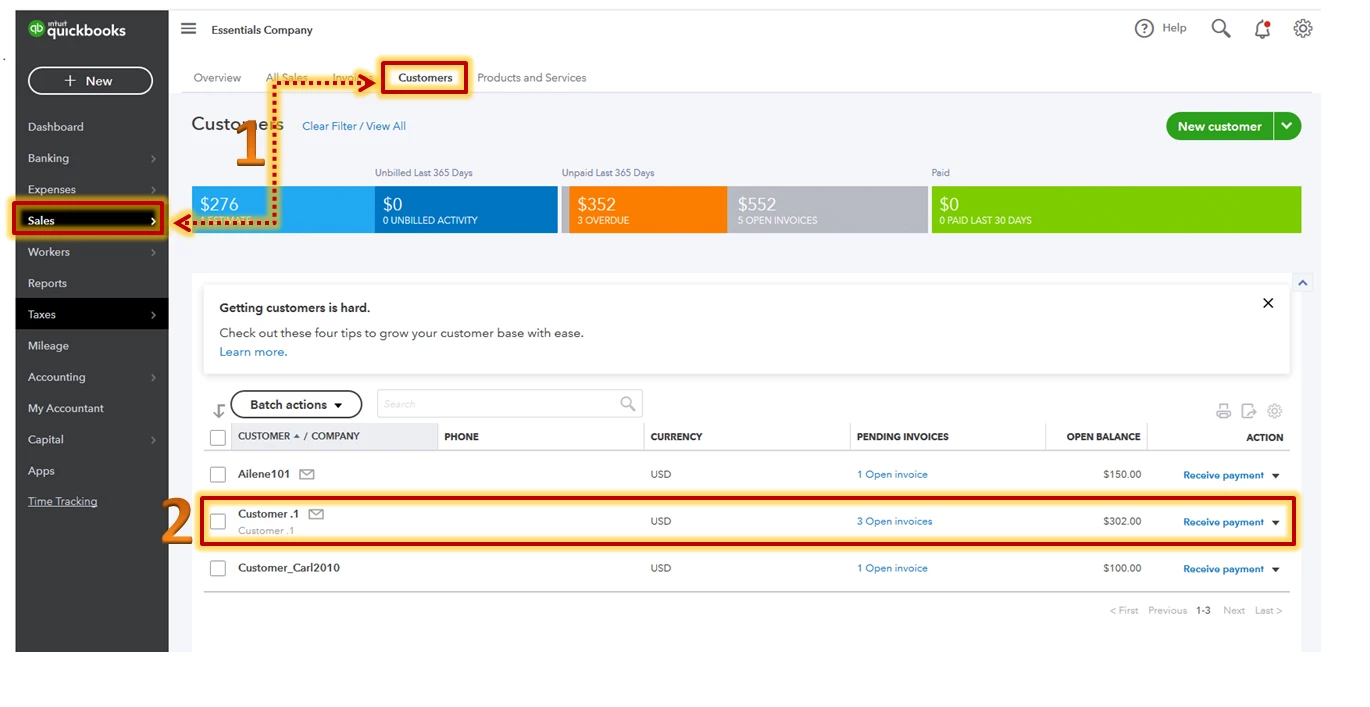
 

  1. Go to Sales from the left menu and select Customers.
  2. Tap the customer name. Then locate and open the invoice.
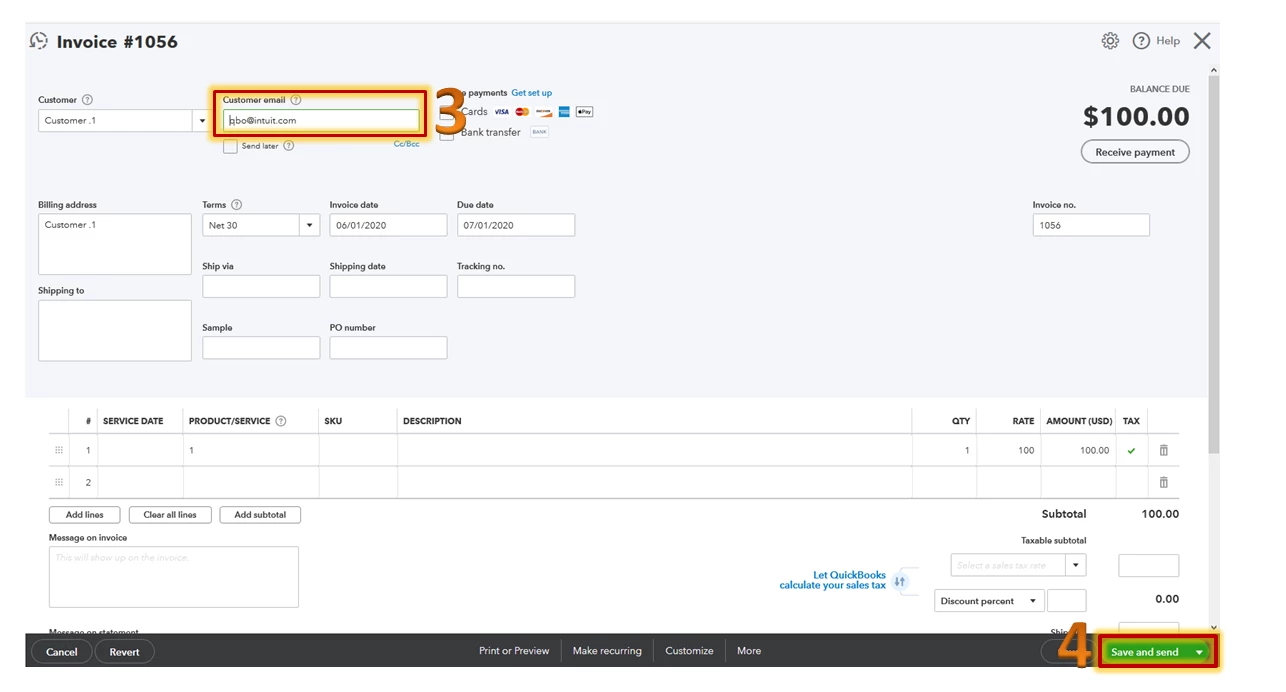
  3. Enter your email address on the right side of the customer name.
  4. Click Save and send.
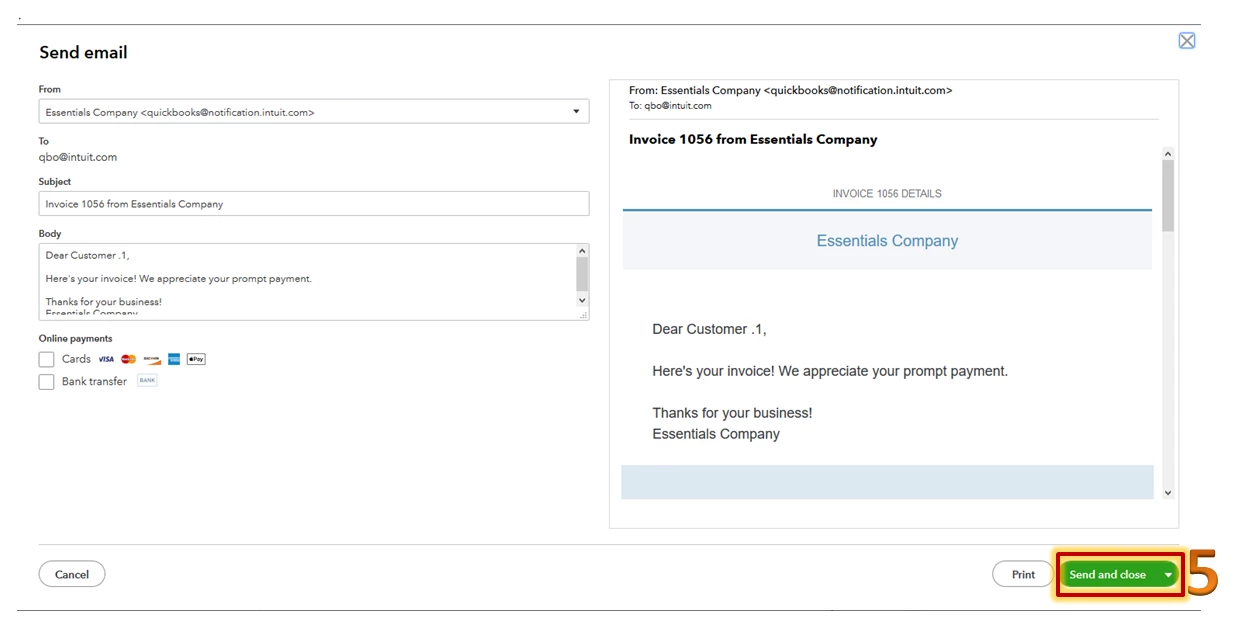
  5. Press Save and close. 


Once done, you’ll find the invoice marked as Sent. You may check out this article for your reference: Send an invoice. 


Just in case you need some helpful references in the future, you can always visit our site: Help articles for QuickBooks Online.


This should get you on your way to marking the invoices as sent. Let me know if you have other questions about invoice transactions. I'm always here to help. Have a great day!

6 replies

AileneAModeratorAnswer
Moderator
June 4, 2020

Hi there, @happyleelawncare. 


Thank you for choosing QuickBooks as your accounting tools. I can walk you through how to mark an invoice as sent in QuickBooks Online.


You would need to send the invoice to a dummy email or to yourself in order to change the status to Sent. This is the workaround we can use to get the outcome you wanted.


Here’s how: 
 

  1. Go to Sales from the left menu and select Customers.
  2. Tap the customer name. Then locate and open the invoice.
  3. Enter your email address on the right side of the customer name.
  4. Click Save and send.
  5. Press Save and close. 


Once done, you’ll find the invoice marked as Sent. You may check out this article for your reference: Send an invoice. 



Just in case you need some helpful references in the future, you can always visit our site: Help articles for QuickBooks Online.


This should get you on your way to marking the invoices as sent. Let me know if you have other questions about invoice transactions. I'm always here to help. Have a great day!

June 15, 2021

Oh, wow, another "workaround" for a simple feature

This seems to be a common thread with QB - neglect simple features, which existed previously in desktop, then shift the effort onto the end user with a "workaround"

We want our software to work, not to have to workaround it


QB Online is a mess

Absolutely ridiculous that a sent option only exists for email

January 28, 2026

I would like to note that this question has not been solved. 
A work around was provided, but not an actual solution. Has this feature been added to the works at this point? It's been years.