Get 50% OFF QuickBooks for 3 months*

Buy now
Switch to QuickBooks and 70% off for 3 Months
January 30, 2019
Solved

Electronically filing form 941

  • January 30, 2019
  • 7 replies
  • 66 views

How to set up form 941 for efile

Best answer by MaryLandT

Good day, @dg11,


I'm here for some clarifications about the 94X form.


The 94X stated in this thread refers to 941, 940, and 940 forms. QuickBooks generates these forms for you so you can file them to the IRS.


Let me guide you through on how to set up 941 for e-filing:
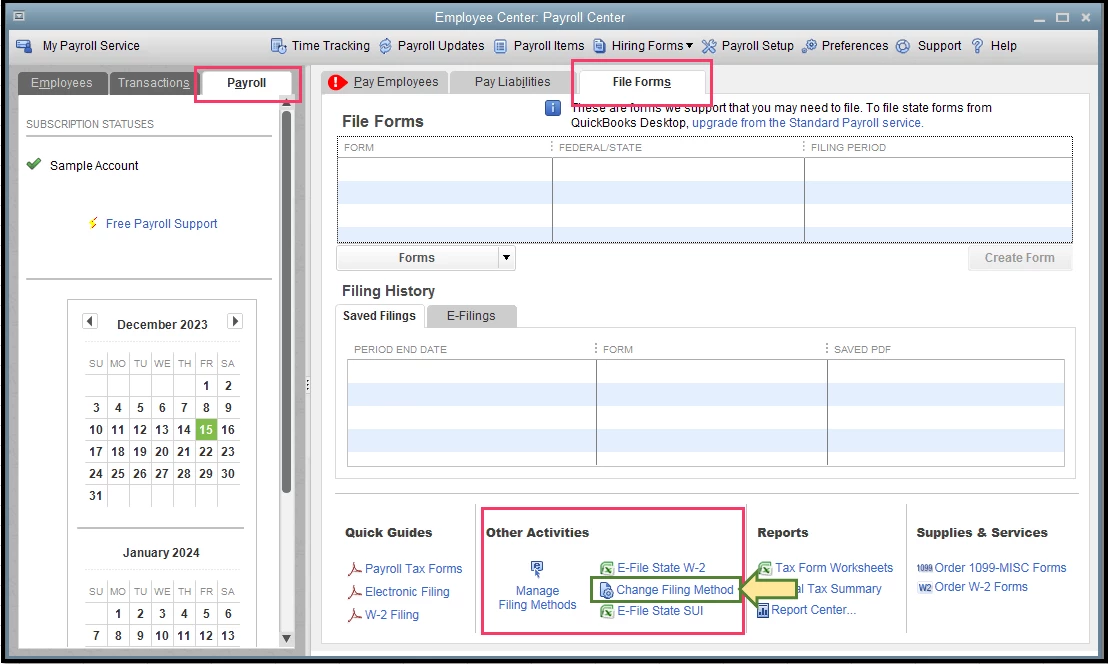
  1. Go to the Employees menu, then select Payroll Center.
  2. Select the Payroll tab, the File forms.
  3. Click Change Filing Method at the bottom under the Other Activities section. 
  4. Select Federal Form 941 from the list, then click Edit.
  5. Select E-file, then click Finish.

Once done, here's how to e-file the form:
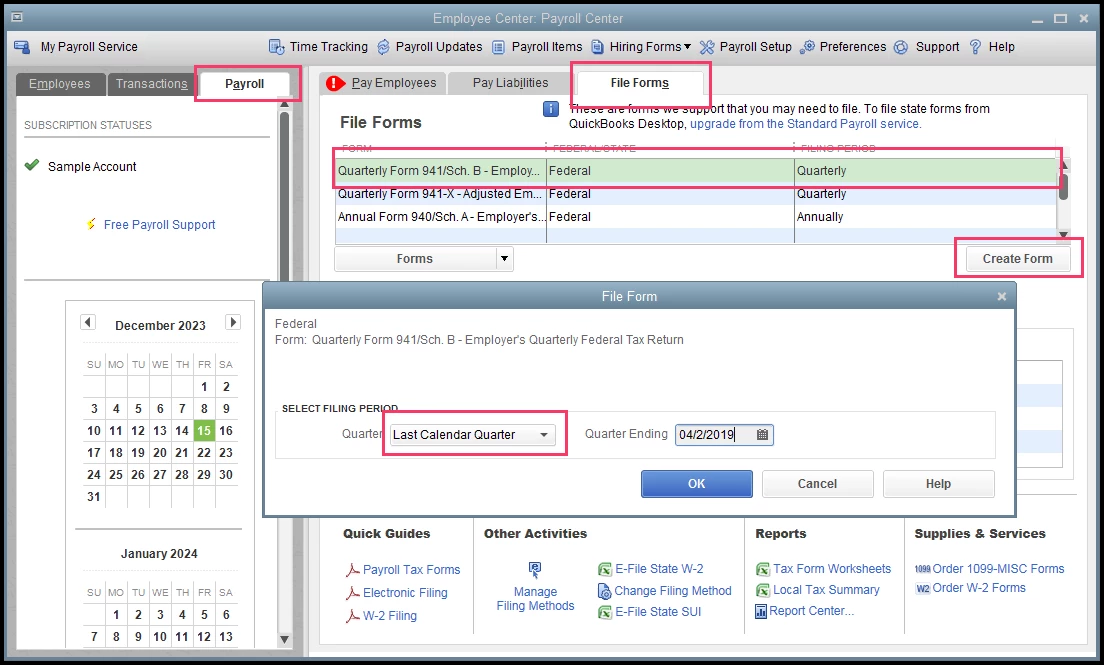
  1. Click the Employees menu.
  2. Select Payroll Tax Forms & W-2s, then Process Payroll Forms.
  3. Click the Payroll tab, then File forms.
  4. Select the 941 form from the list.
  5. Click Create Form.
  6. Select the form filing period, then click OK
  7. Review the form, then correct any errors when necessary.
  8. Click the Submit Form button.
  9. Click E-file and follow on-screen instructions.

To learn more about e-filing in QuickBooks Desktop, check out to this link: E-file 940, 941, and 944 tax forms.


I also recommend downloading the latest tax table update every time you pay your employees, or at least every 45 days. This is to ensure your payroll has accurate information.


Keep me posted if there's anything I can help you with filing your returns. I'm always here whenever you need help.

7 replies

January 30, 2019

Welcome, @Vwindle and thank you for coming to the QuickBooks Community for assistance. I have some insight on filing your 941 to pass along.


When you submit your Form 940/941/944 (Form 94X) enrollment information, the following occurs:

  1. You send the enrollment information electronically.
  2. The secure filing system forwards the information to the IRS agency.
  3. The filing system sends you an e-mail that indicates the IRS has received your e-file enrollment request.
  4. The IRS will verify that your EIN, legal name, and the officer or employee of the company's contact information match their records.
  5.  If everything matches, the agency sends a unique 10-digit PIN through to your company legal address.  You'll need your PIN every time you submit Form 94X.  Store the PIN in a secure place.
    NOTE: It can take up to 45 days to receive your 10-digit PIN in the mail from the IRS.  If you have not received your 10-digit PIN after the 45-day timeframe has elapsed, you can check with the IRS at 1-866-255-0654.
  6. Please be sure you sign and return the PIN acknowledgment to the agency in a timely manner.  If they do not receive it, your PIN may be disabled.
  7. If your enrollment is not accepted by the agency, you will be notified via mail by the IRS and provided with information on how to correct the enrollment.  You may re-enroll.


For more information on filing your 941 and other tax forms, click here.


Please remember, I'm always here for any other questions or concerns.

April 2, 2019

@SterlingD wrote:

Welcome, @Vwindle and thank you for coming to the QuickBooks Community for assistance. I have some insight on filing your 941 to pass along.


When you submit your Form 940/941/944 (Form 94X) enrollment information, the following occurs:

  1. You send the enrollment information electronically.
  2. The secure filing system forwards the information to the IRS agency.
  3. The filing system sends you an e-mail that indicates the IRS has received your e-file enrollment request.
  4. The IRS will verify that your EIN, legal name, and the officer or employee of the company's contact information match their records.
  5.  If everything matches, the agency sends a unique 10-digit PIN through to your company legal address.  You'll need your PIN every time you submit Form 94X.  Store the PIN in a secure place.
    NOTE: It can take up to 45 days to receive your 10-digit PIN in the mail from the IRS.  If you have not received your 10-digit PIN after the 45-day timeframe has elapsed, you can check with the IRS at [removed].
  6. Please be sure you sign and return the PIN acknowledgment to the agency in a timely manner.  If they do not receive it, your PIN may be disabled.
  7. If your enrollment is not accepted by the agency, you will be notified via mail by the IRS and provided with information on how to correct the enrollment.  You may re-enroll.


For more information on filing your 941 and other tax forms, click here.


Please remember, I'm always here for any other questions or concerns.


April 2, 2019

@Vwindle wrote:

How to set up form 941 for efile Get 94X form


MaryLandT
MaryLandTAnswer
Level 10
April 2, 2019

Good day, @dg11,


I'm here for some clarifications about the 94X form.


The 94X stated in this thread refers to 941, 940, and 940 forms. QuickBooks generates these forms for you so you can file them to the IRS.


Let me guide you through on how to set up 941 for e-filing:

  1. Go to the Employees menu, then select Payroll Center.
  2. Select the Payroll tab, the File forms.
  3. Click Change Filing Method at the bottom under the Other Activities section. 
  4. Select Federal Form 941 from the list, then click Edit.
  5. Select E-file, then click Finish.

Once done, here's how to e-file the form:

  1. Click the Employees menu.
  2. Select Payroll Tax Forms & W-2s, then Process Payroll Forms.
  3. Click the Payroll tab, then File forms.
  4. Select the 941 form from the list.
  5. Click Create Form.
  6. Select the form filing period, then click OK
  7. Review the form, then correct any errors when necessary.
  8. Click the Submit Form button.
  9. Click E-file and follow on-screen instructions.

To learn more about e-filing in QuickBooks Desktop, check out to this link: E-file 940, 941, and 944 tax forms.


I also recommend downloading the latest tax table update every time you pay your employees, or at least every 45 days. This is to ensure your payroll has accurate information.


Keep me posted if there's anything I can help you with filing your returns. I'm always here whenever you need help.

April 27, 2022

Hello,


I applied for and received a PIN from the on-line electronic filing people.  I failed to notice that I needed to confirm receipt of the PIN within 10 days, so according to the letter I received, my PIN has been dis-abled and I need to re-submit the application.  I signed on to EFTPS and they say that the application should be made through the software, which is QuickBooks.  I cannot find where, in QuickBooks, to re-apply for the PIN.  When I did the initial application, there were clear instructions and a window for the application in QuickBooks but now I cannot find them anywhere.


Please help.

May 10, 2022

Im having problems with e filing my 941 with QB online, it dont have the option for me to file electronically, only manually. Im stumped. 

January 23, 2023

How do you attach a statement which was required on the 941 and then e-file through QBDT?

April 22, 2023

Hi 

Your screen shots are good and very educative. But when one goes through the process, it asks for a ten digit pin....where does one get that? is there a link in thr IRS.gov, that one apply for and get the pin especially when filing 941 or 940 etc ?

[PII removed]

Angelyn_T
Moderator
April 22, 2023

I appreciate you following up with us while trying to go through the process provided, @TexasCovers. Allow me to join the thread and share insights about the 10-digit PIN while activating e-filing services in QuickBooks Desktop (QBDT).


Yes, you have to input your 10-digit IRS Efile pin when you opt to file your forms electronically. Usually, it's given by the IRS after enrolling in our E-file service. If you haven't enrolled in the IRS e-file program yet, you can follow these steps:


  1. Go to the Employees menu, and select Payroll Tax Forms & W-2s.
  2. Tap on Process Payroll Forms.
  3. From the Other Activities list, select Manage Filing Methods.
  4. Under the Filing Methods screen, select Enrollments.
  5. Select IRS, then select Edit.
  6. Follow the on-screen instructions, verify your EIN, and enter your company’s legal name and address. Then select Next.
  7. Enter the name, job title, email address, and phone number of the person the IRS can contact about your enrollment and your payroll tax forms. Select Next. This person must be associated with your company and not be a third-party provider or accountant. 
  8. Tap on Send Information.


Your enrollment will show Accepted when the agency receives your enrollment, and you’ll get a 10-digit e-file PIN by mail. If the application is rejected, you can resend your request


However, if didn’t get a 10-digit e-file pin, contact IRS for further help. You may dial the number provided in this link under the Lost 10-digit E-file PIN/Rejected Enrollment section: Set up state e-file and e-pay in QuickBooks Desktop Payroll Enhanced. The same materials will give you detailed information about setting up for e-file and e-pay in QBDT Payroll.


After that, you're now ready to file your taxes electronically. If you decide to do it manually, see the resources from this article as your reference: Pay and file payroll taxes and forms manually in QuickBooks Desktop Payroll.


Please let me know if you have other questions while acquiring the 10-digit PIN while managing your taxes in QuickBooks. I'm always here to help. Have a good one!

June 22, 2026

I am at a stand off. I have requested to file payroll reports electrically. I have not received a pin number to do so. I have requested to file electronically again to be refused because I have already sent a request. How do I and who do I contact to get a pin and move forward with this?

M Davis

QuickBooks Team
June 22, 2026

The IRS controls the electronic filing PIN for payroll tax forms. Once your initial application is submitted, duplicate requests will be blocked until the IRS processes it. The IRS sends your 10-digit PIN by mail after you apply to file payroll reports electronically (Form 941, 940, etc.) through the IRS e-Services portal.


If you haven't received your PIN and already submitted a request, you can call the IRS e-Help Desk directly to check the status and request a reissue. Only the IRS can provide or resend your PIN if your online request is locked.


To proceed:


  1. Call the IRS e-Help Desk.
  2. Have your EIN and application details ready for identity verification.
  3. Request a status update and, if needed, ask them to mail a new PIN.


For full details, see IRS guidance here: IRS – How to Apply for an e-file PIN.


Feel free to reply if you need more help with payroll e-filing. We're here to help you.