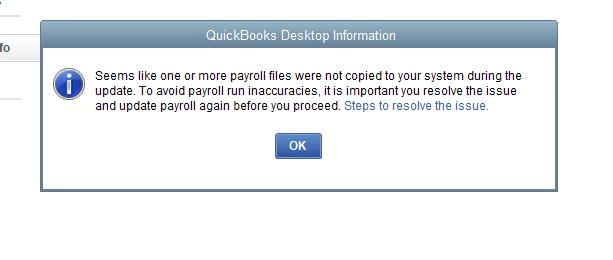
To get started, try clicking the hyperlink directly inside the error message. If that doesn't work or isn't available, follow these steps to reset your service key and refresh your updates.
Restart your computer and open QuickBooks.
Go to Employees, select My Payroll Service, then select Manage Service Key.
Confirm that your service status displays as Active.
Highlight your service key, click Edit, and verify the key number. If it is incorrect, re-enter the right key.
Click Next, uncheck the Open Payroll Setup box, then select Finish.
This will download the entire payroll update. If resetting the service key does not resolve the issue, Windows permissions may be blocking the files.
Close QuickBooks Desktop entirely.
Right-click on the QuickBooks Desktop icon, then select Run as Administrator.
Select Yes on the message that says, "Do you want to allow this program to make changes to your computer?"