
SUMMER SAVINGS 90% OFF QuickBooks for 3 months* Ends 8/27

Buy now
Switch to QuickBooks and 70% off for 3 Months
March 26, 2020
Question

System Theme settings pop up on RDS

  • March 26, 2020
  • 13 replies
  • 119 views

Hi, You have helped me  in the past (here) so I really appreciate any guidance with this issue I´m getting reports from my users.


Quick recap: I migrated an on-premises QB Enterprise accountant 2020 to a Windows RDS 2019 server. I have QB enabled as Remote App, for the users who were previously using QB from their laptops are now centralized on an RDS server.

Today I got a report from an user that she got this pop up:
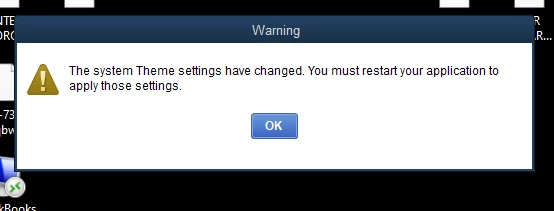
 

She clicks on OK, the remote session is terminated and if she relaunch Quickbooks as a remote app, she's prompted again with the same pop up.


I had to kill her Windows RDS session manually to get rid of this pop up, and she's back available to work normally.


Is there any QB setting I can disable to avoid this from reoccurring?


Thanks,

13 replies

Level 9
March 26, 2020

Hi @FCQ,


You can turn off the pop-up messages for products and services from the settings. Let me walk you through how.


  1. Go to Edit, then Preferences.
  2. Choose General. Then, the My Preferences tab.
  3. Mark the box next to Turn off pop-up messages for products and services.
  4. Click OK. You'll need to do these steps on your main server.

Once done, restart your computer to refresh your file. You can also visit our QuickBooks page for more references.


Stay in touch if you have other questions or concerns. The Community is always here to help. Thanks for taking the time to post and have a wonderful day ahead.

FCQAuthor
March 28, 2020

HI ShiellaGraceA,


I followed your steps but this is still ocurring:


Any thoughts on what might be causing this?

Lily_Kristine
Moderator
March 28, 2020

Thanks for getting back in the thread, @FCQ.


Let's attempt another troubleshooting to get past this warning prompt in QuickBooks. 


I've come across other users who tried using the compatibility administrator utility in Windows. This provides an easy fix to a program that isn't running correctly under Windows. 


The outlined instructions to disable visual themes were mentioned on the last thread of this forum. Before performing the troubleshooting steps, I'd recommend consulting an IT expert for assistance.


If the issue persists, please send a message to our Desktop Support so they can investigate this further.


Know that I'm always here to help if you have other questions. Your success is my priority. Have a nice weekend.

October 18, 2021

Disable the Theme service from services. Works pretty well so far....

October 27, 2021

How did you disable theme service?

June 30, 2022

Here is something to try:

https://social.technet.microsoft.com/Forums/ie/en-US/b49de36e-d36f-4f7c-a63e-b70c49c86efd/compatibility-administrator-and-the-old-setting-quotdisable-visual-themesquot?forum=w8itproappcompat 

These are the instructions I came up with for QB2020 Enterprise. You might have to adjust the directory being used.

Run Regedit

Go to HKEY_LOCAL_MACHINE\SOFTWARE\Microsoft\Windows NT\CurrentVersion\AppCompatFlags\Layers 

See if you have a QBW32.exe entry there.

If not, open a file browser and go to C:\Program Files (x86)\Intuit\QuickBooks Enterprise Solutions 20.0 Scroll down to the QBW32.exe program, right click and select properties Go to the Compatibility Tab and check the Compatibility mode box and Select Apply. 

Flip back to Regedit and do an F5 (to refresh the screen).

You should now see an entry for C:\Program Files (x86)\Intuit\QuickBooks Enterprise Solutions 20.0\QBW32.EXE 

Edit that data entry and add DISABLETHEMES behind the ~ WIN8RTM.

So, it should look like this when you are finished:

Value Data: ~ WIN8RTM DISABLETHEMES 

Now Flip back over to the QBW32.exe properties and uncheck the compatibility box.

Go back to Regedit and do an F5 again and it should just have "~ DISABLETHEMES" now as an entry