
Get 50% OFF QuickBooks for 3 months*

Buy now
Switch to QuickBooks and 70% off for 3 Months
April 30, 2019
Solved

duplicate payroll item

  • April 30, 2019
  • 1 reply
  • 41 views

Last week, my state withholding payroll item appeared multiple times (4) for one employee only. I was able to get rid of two of them, but the one extra kept reappearing every time I deleted it. I made a manual adjustment to his net check for that week only, but the problem is not solved. As I will have to manually adjust the payroll liability every week as well. Who can help with resetting this payroll item for this one employee?

Best answer by PreciousB

Thanks for sharing the complete details of your concern, SherrylB.


I can help make sure the state withholding payroll item won't show multiple times on the paycheck.


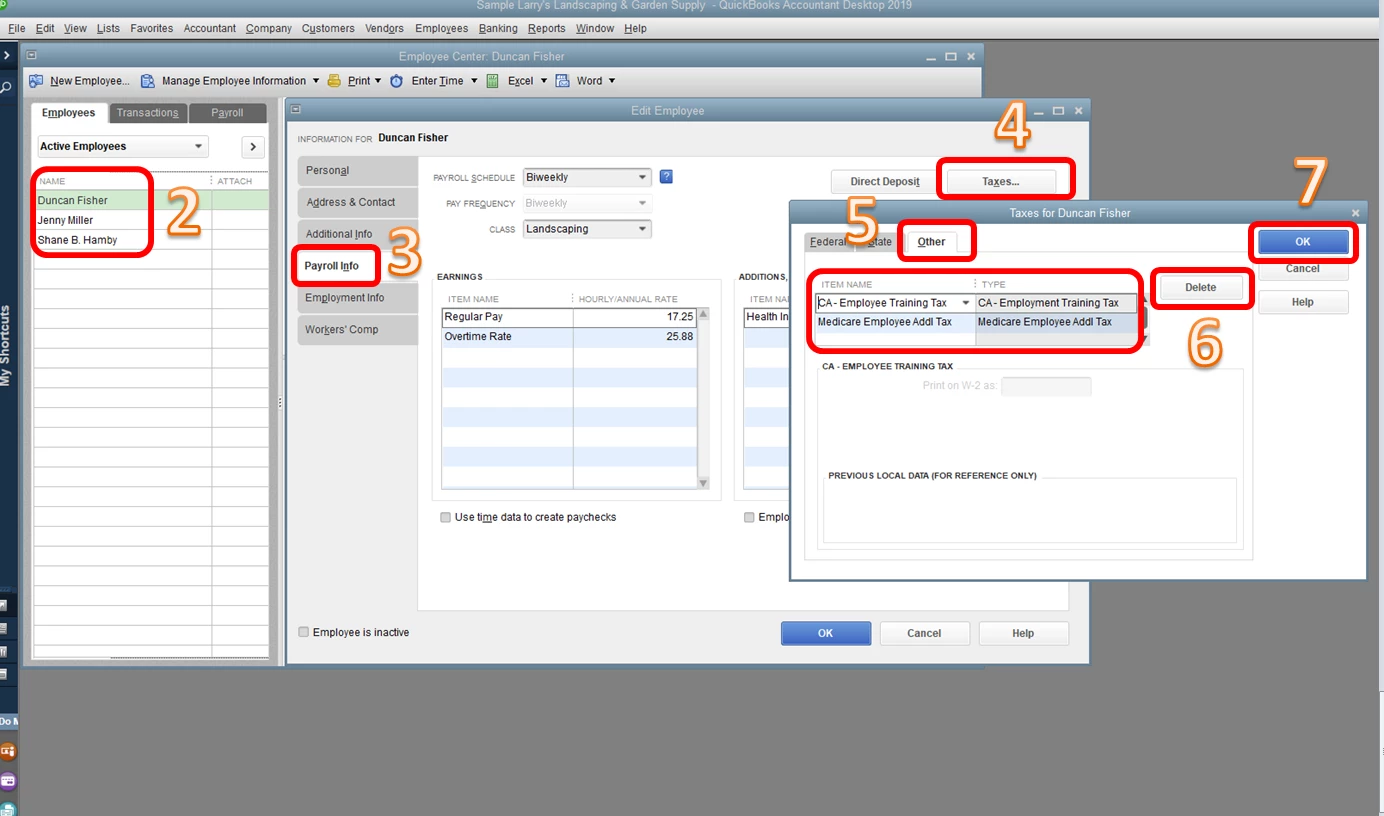
This happens when the duplicate tax item is added on the Other tab of the employee's profile. Let's delete it to fix the issue.


Here's how:

  1. Go to the Employees menu, then choose Employee Center.
  2. Double-click the employee's name.
  3. Choose the Payroll Info tab.
  4. Click Taxes.
  5. Select Other.
  6. Delete the duplicate tax item.
  7. Click OK.

Please check the screenshots below.


Once done, delete or void and recreate the paychecks if you haven't sent them as Direct Deposit or if you have not handed out the paycheck to the employee. Otherwise, you're right that we have to enter an employee liability adjustment to correct the tax amount.


This should get you moving forward again. Let me know how it goes or if you have follow-up questions about this. I'll be here and ready to help anytime. Have a good one.

1 reply

PreciousB
PreciousBAnswer
Level 6
April 30, 2019

Thanks for sharing the complete details of your concern, SherrylB.


I can help make sure the state withholding payroll item won't show multiple times on the paycheck.


This happens when the duplicate tax item is added on the Other tab of the employee's profile. Let's delete it to fix the issue.


Here's how:

  1. Go to the Employees menu, then choose Employee Center.
  2. Double-click the employee's name.
  3. Choose the Payroll Info tab.
  4. Click Taxes.
  5. Select Other.
  6. Delete the duplicate tax item.
  7. Click OK.

Please check the screenshots below.


Once done, delete or void and recreate the paychecks if you haven't sent them as Direct Deposit or if you have not handed out the paycheck to the employee. Otherwise, you're right that we have to enter an employee liability adjustment to correct the tax amount.


This should get you moving forward again. Let me know how it goes or if you have follow-up questions about this. I'll be here and ready to help anytime. Have a good one.

January 26, 2021

I have the duplicate social security employee under the summary of the employee for only a few employees.  I checked the payroll information for taxes and did find under other tax an item name Social Security Employee with type -select other tax.  


My question is how did it get there in the first place?  We did not adjust any of the 4 employees out of 100 tax information.  For one employee it showed up and then went away in the next PR and then came back again.


Any thoughts?


Thanks!

RenjolynC
Level 9
January 26, 2021

Thanks for joining this thread, IowaGirl.


There's a possibility that the payroll item was mistakenly added under the other tax upon setting up the employee's profile. You'll want to run the Audit Trail report by going to Reports > Accountant & Taxes > Audit Trail to see any changes.


If there's none, we can do the Verify and Rebuild Data to ensure that the company file is not damaged. Before doing so, let's make sure to create a create a backup copy of your company file. Then, update your QuickBooks Desktop and get the payroll tax table to the latest release.


Once done, you can open this article to view the Verify and Rebuild Data steps: Verify and Rebuild Data in QuickBooks Desktop. If you're still seeing the duplicate social security employee, you can adjust the payroll liabilities.


Otherwise, contact our Payroll Support Team. They can investigate more of what's causing this issue.


Here are the steps:


  1. In your QuickBooks Desktop program, go to Help QuickBooks Desktop Help.
  2. In the Have a Question window, click the Contact Us link at the bottom.
  3. From the Contact Us page, select any topics.
  4. Under Here's how to connect with a QuickBooks expert section, click the Start a Message or Get Phone Number button.

Please keep me posted for any follow-up questions you have. I'll be around to help. Take care!