

Get 50% OFF QuickBooks for 3 months*

Buy now
Switch to QuickBooks and 70% off for 3 Months
LisaNullar
Level 1
April 19, 2018
Solved

Importing Custom Invoice Templates into QuickBooks Online

  • April 19, 2018
  • 19 replies
  • 243 views

Now you can spice up your brand with your own custom invoice template. In just a few steps, you will be able to import styles that bring enhanced flexibility to your invoices and let your brand shine!


Step 1 – Make sure you have enabled Import Styles in QuickBooks Labs

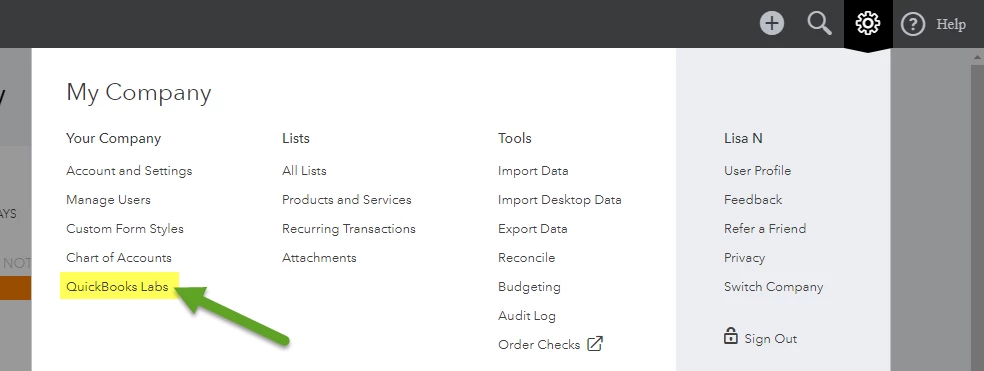
       1.  Click on the Gear icon in the upper right corner and select QuickBooks Labs 


       2. Scroll down the screen and toggle the switch for Import Styles to On.
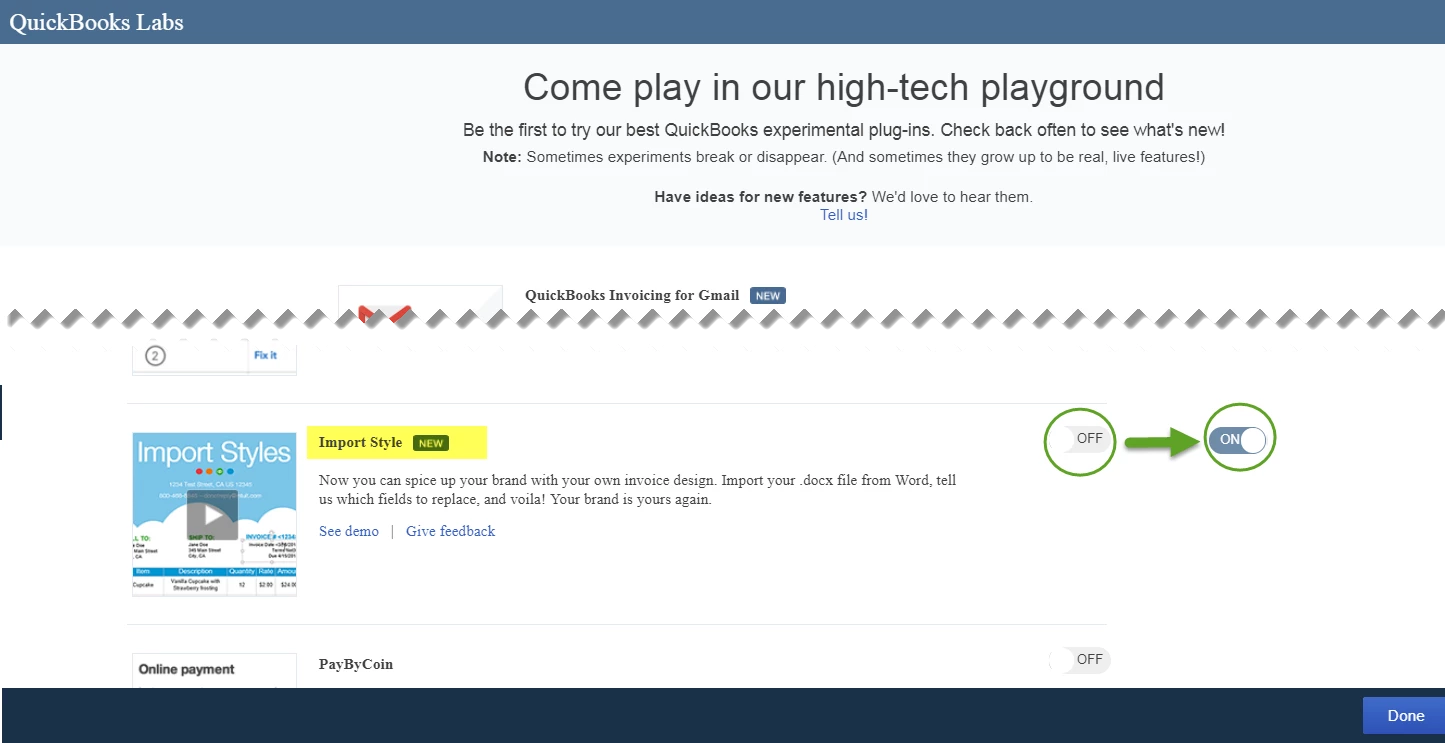


       3. Click the blue Done button.


Step 2 – Create your template in Word


Following these tips will make sure that your forms look their best when you import them into QuickBooks Online: 


  • Indicate which fields that you want QuickBooks to map data to by marking it with opening and closing angle brackets “<“and “>”  Refer to the EZ Map Field list below to find out which QuickBooks fields you can use in your imported templates.
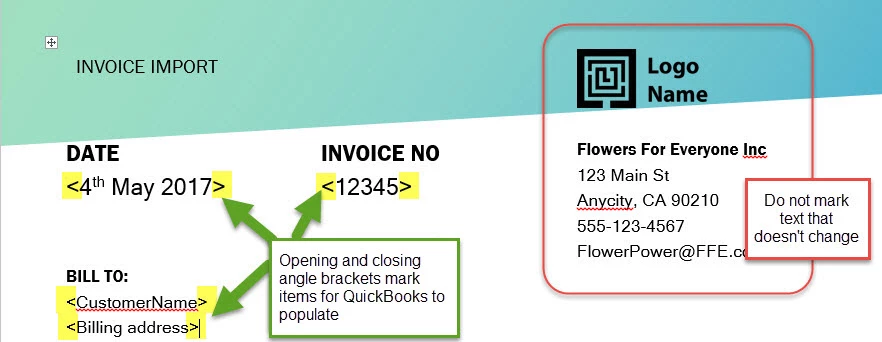
 

  • Don’t mark data that doesn’t change - information like your company name, address, and contact information stays the same, so there’s no need to mark them on your forms.
  • For us to upload your style successfully, you will need to use one of our supported fonts:
    o Arial Unicode MS
    o Courier, Courier Bold, Courier Oblique, Courier Bold-Oblique
    o Helvetica, Helvetica Bold, Helvetica Oblique, Helvetica Bold-Oblique
    o Times Roman, Times Bold, Times Italic, Times Bold-Italic
    o Symbol
    o Zapf Dingbats
  • Technical note: fields that are independent from each other and don’t repeat are known as Scalar Fields. Examples of Scalar Fields include invoice numbers, invoice due dates, and total invoice amount. In contrast, Table Fields are fields that go together as part of a larger objects and repeat, such as fields in the Activity Table or Account Summary on invoice.


  • In order to make Import Styles work for you, follow these best practices:
    Scalar Fields can be placed inside text boxes or tables. However, Scalar and Table fields should NOT be part of the same table.
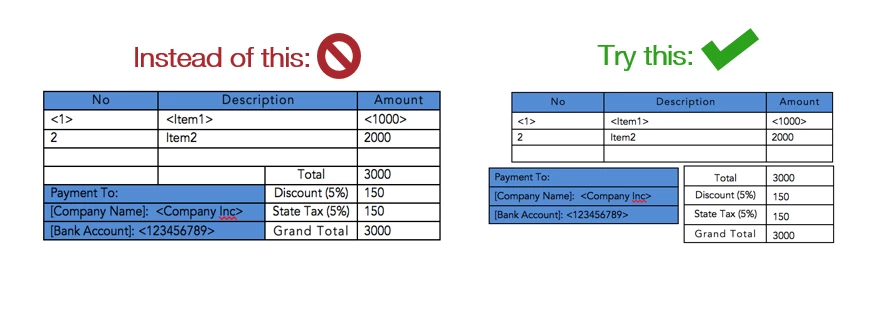
  • Table Fields must always be placed inside tables
  • Table Fields in the first non-header row of a table are repeated until all rows in your invoice are rendered. All other rows are ignored
  • Formatting of the first non-header row repeats on all rows. Don’t be surprised by this
  • Avoid the following elements as they will not transfer correctly/cause issues with your import:

          o Audio

          o ClipArt, Word Art
          o Animated GIFS
          o Embedded files
          o Adding or updating hidden links or merging fields
          o Files over 2MB
          o Non .docx file types or older MS Word documents renamed as .docx files 


Step 3 – Import your template into QuickBooks Online


To import your customer template, follow these steps: 


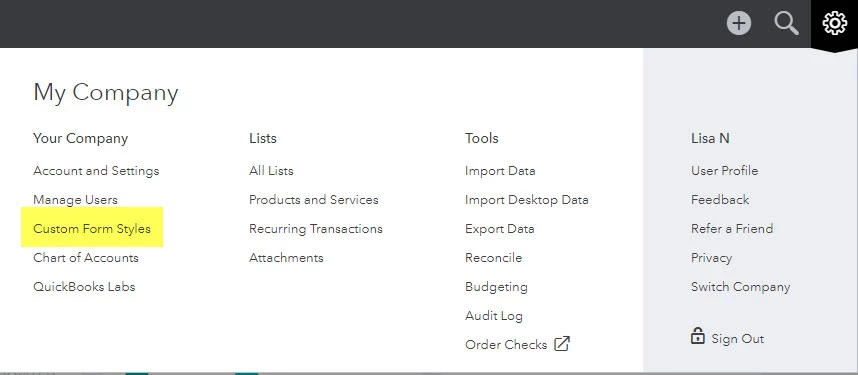
       1. Click on the Gear icon in the upper right corner and select Custom Form Styles
         

       2. Click the arrow next to New style and select Import style.

  

       3. Select a form type and click the upload field to select your template file. If you already have a design in docx (MS Word 2010+) format, you may directly proceed to the next step. If you want to start from scratch, we suggest that you download a sample template and modify it according to your needs.

       4. Click Next to upload your document. 


The uploaded document is analyzed and scanned for marked fields prior to mapping. 


 Received an error during uploading?  Don’t worry, here’s how to fix it:

Error code

What does it mean?

How can I fix it?

size_validation_error

Your file is too large to upload

Your document must be less than 2MB

extension_format_error

The file you selected isn’t of a type we support

Try uploading a Microsoft Office 2010 (*.docx) file


 Step 4 – Map marked areas in your document to QuickBooks data fields


Once the upload is complete, QuickBooks will make an initial pass at mapping fields using an algorithm that tries to predict the most applicable data with the marked areas on your template.


It’s important to review each field to make sure that the mapped fields from your template correspond to the correct fields in QuickBooks Online.


Each marked section on your document will have a number next to it, this corresponds with the number on your invoice preview. As an example, note the numbering and mapping of fields highlighted below:
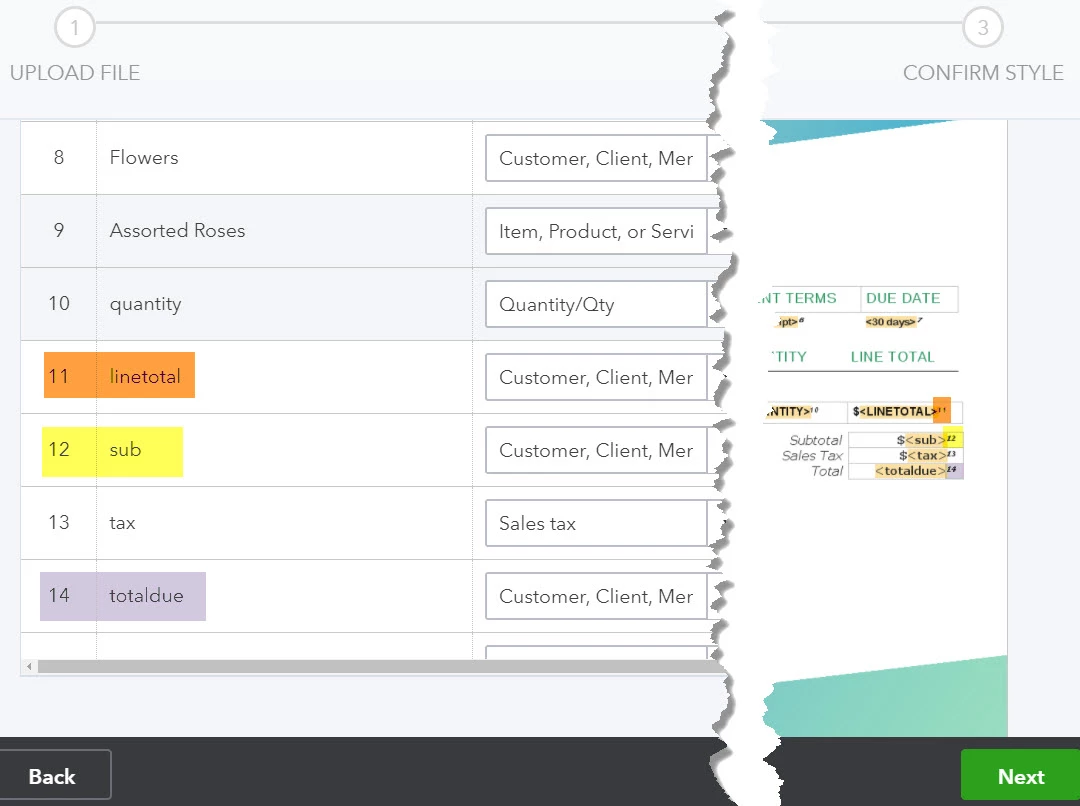


As you can see in the image, some of the fields are not correctly mapped.  To change the mapping you can either:

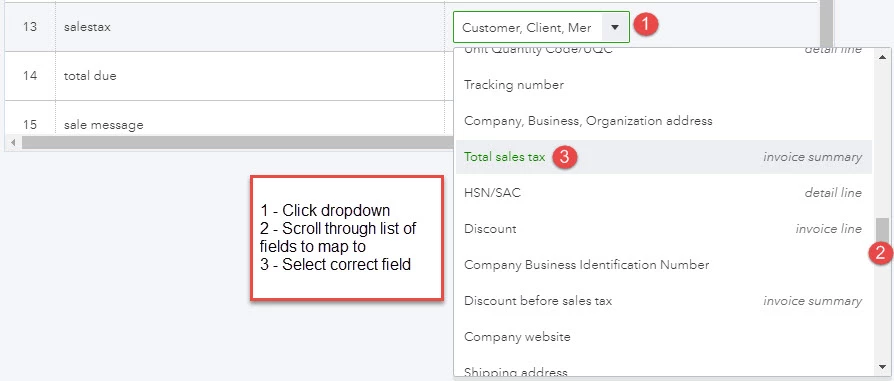
  • Click on the drop down for the line you want to change and scroll through until you find the mapping you want
 

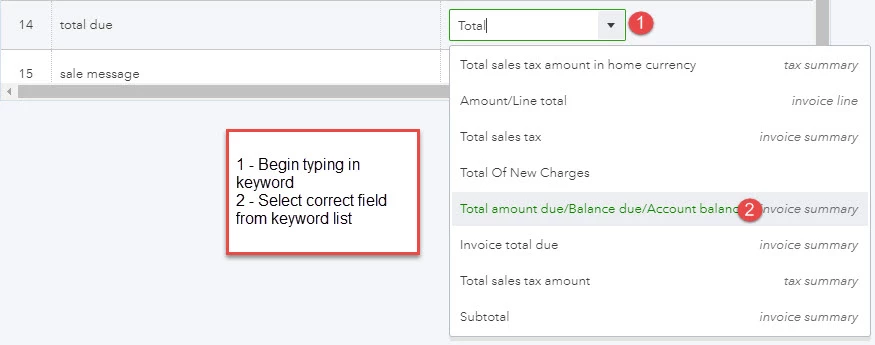
  •  Type the word that you know corresponds to the mapping in the drop down and select from the list – for example, type in “Total” and it will only show fields that contain the word in them.
 

 Once everything is linked correctly and looks good, go ahead and click the Next button at the bottom of the screen and you will be able to see a preview of your invoice. 


If you are happy with the way everything looks, simply click Save and type in a name for your new style. Your new style is now ready to use!


Errors during mapping? 

Error code

What does it mean?

How can I fix it?

Fetching preview failed

An attempt to create a preview of your style failed

Check for angle brackets applied in the wrong place or applied incorrectly. Try to reduce fields marked with angle brackets until Preview succeeds and then add them back in one at a time to isolate the mapping error.

Save Mapping failed

The selected mappings could not be saved

Please try again or contact support

No Mapping found

The mapping wizard could not find any field that required mapping

Please mark at least one data element on your template with chevrons in order for mapping to work

Multiple Page Document

The document uploaded has multiple pages

Please restrict the Style to a single page document


Step 5 – Use your custom style invoice

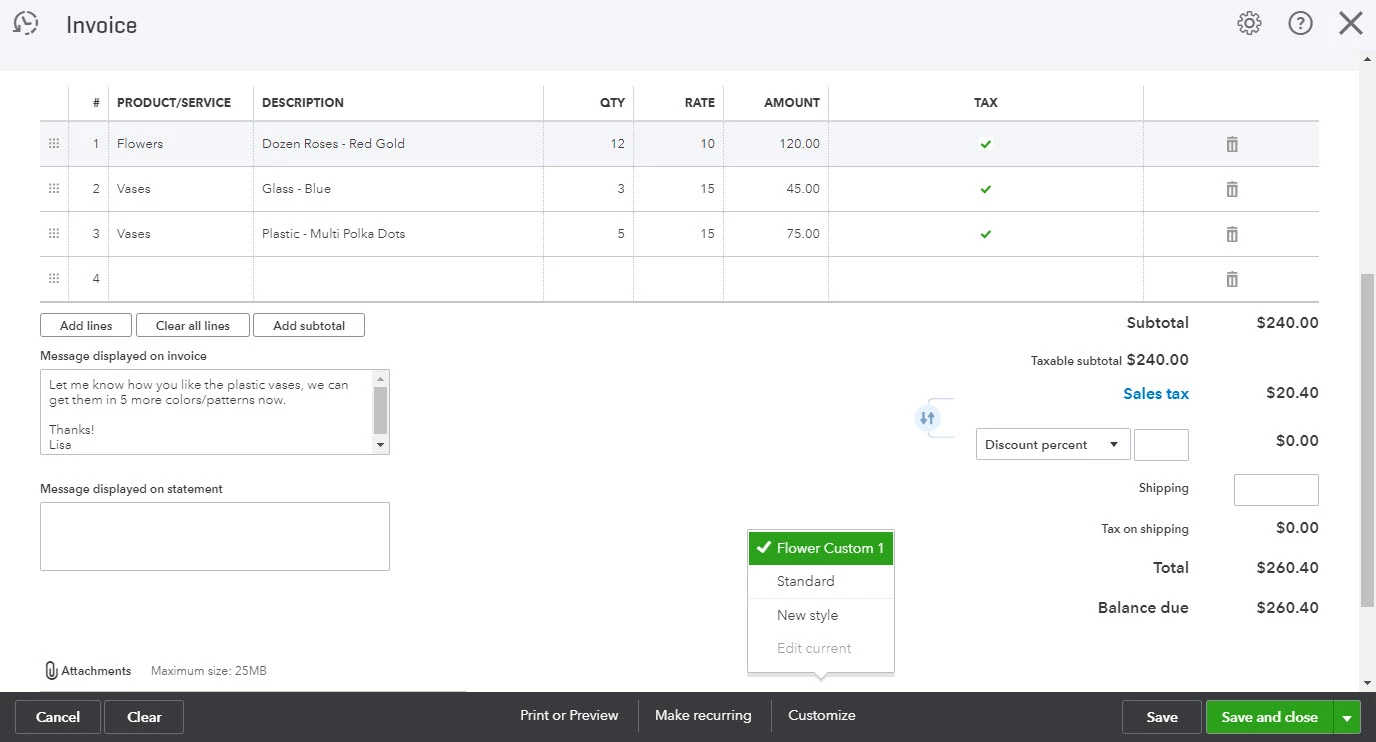
Using your new custom template is as easy as creating the invoice as normal, then clicking on Customize at the bottom of your screen and choosing the saved custom template. 
 

 FAQs


If you have any questions, we’re here to help! We’ve put together answers to some common questions to get you back to business quickly.


"We can't display a preview.  Please correct your mappings in the previous steps and try again" 

Certain fields are expected to be inside tables. For example line item information like Quantity, Product, and Price are tabular and should be inside tables. Please make sure while mapping that these fields are mapped to fields inside tables in style being imported.


Some data is not appearing in the printed or preview document.  Why?

We use settings in your Standard form style to decide how data is handled and presented in your imported templates. Please enable the desired settings in your standard style by following the steps below:


  1. Click the Gear Icon then select Custom Form Styles.
  2. Locate your Standard template, then click Edit.
  3. Enable your desired settings, and click Save.


Your data should now appear in your imported style.


It’s also important to note that if you do not add mappings to your style for your invoice field, that data will not be displayed on your forms later. For example, if you do not map a field for “Shipping Charge Value”, shipping costs will not appear on your form regardless of if you have entered them on your invoice


Are there any restrictions on what I can upload?

Only word (.docx) documents under 2MB can be uploaded to QuickBooks.


Can I upload a style with multiple pages?

Yes


Can I download my imported form style?

Currently, you cannot download the style that was imported. We recommend that you save a local copy of the template you imported, and take a quick note of the mappings you selected.


Do I have to have a field mapped to import a style?

Yes. The style you want to import should have at least one field that has to be mapped to data.


I see a blank screen after mapping
This situation can occur if the final output cannot be formed. This can happen due to any of the following reasons
* incorrect mapping
* Incorrect use of Table (ex. Some Table Fields are left empty)
* When EZ Map Keys for Tables are used they must always start after a table's header row
* Typos (ex. missing braces)


Why is my Table row tall?
Import Styles uses the properties of first non-header row of a table to format other rows in the same table. Please adjust your column widths and try again.

Do you support import for other form templates?
Currently, we only support import for Invoice & Estimates templates in US Region, but we’re exploring other form types to support as well.

I need more data fields to be mapped
EZ Map Field catalog lists all data that can be mapped from QBO. Fields not present in this catalog can't be mapped into Templates. Please provide feedback through help widget to request for more fields


Best answer by LisaNullar


Reference this list while mapping your fields to decide exactly what information you want in your style, and where you’d like to put it.


Standalone Fields – Company Information

These fields contain your company information and should not be placed inside of tables. Since this information doesn’t change often, we recommend that you enter this information directly into your template as static text.


QuickBooks Field

Field Description

Company Name

Your company name from settings

Company Address

Your company address from settings

Company Tax Identification Number

Your company Tax ID from settings

Company Business Identification Number

Your company Business Identification Number from settings

Company Email

Your company email

Company Phone

Your company phone number

Company Website

Your company website


Standalone Fields – Customer information

These fields contain information about your customers, and should not be placed inside of tables.


EZ Map Field

Description

Can be used for

<customername>

Customer name

Invoice & Estimates

<billingaddress>

Billing address

Invoice & Estimates

<duedate>

Due Date/Expiry Date

Invoice & Estimates

<billingtaxnumber>

Customer's Tax Registration number

Invoice & Estimates

<shippingaddress>

Shipping address

Invoice & Estimates

<shipdate>

Ship date

Invoice & Estimates

<shipvia>

Delivery/Ship via information

Invoice & Estimates

<trackingno>

Tracking number

Invoice & Estimates


Invoice Fields

Fields below are other common Scalar Fields (non-repeatable fields) which apply to Invoices

EZ Map Field

Description

Can be used for

<message>

Message displayed in invoice

Invoice & Estimates

<duedate>

Due Date

Invoice & Estimates

<invoiceno>

Invoice Number

Invoice & Estimates

<date>

Invoice Date

Invoice & Estimates

<terms>

Terms

Invoice & Estimates

<custom1>

Custom Field 1

Invoice & Estimates

<custom2>

Custom Field 2

Invoice & Estimates

<custom3>

Custom Field 3

Invoice & Estimates

<purchasesalelocation>

Place of Supply (POS)

Invoice & Estimates

<exchangerate>

Exchange Rate

Invoice & Estimates


Activity Table Fields

These fields are part of the activity table that make up the body of your invoice.


EZ Map Field

Description

Can be used for

<srno>

Row number

Invoice & Estimates

<item>

Item/Product/Service

Invoice & Estimates

<itemdescription>

Item, Product or Service Description

Invoice & Estimates

<amount>

Amount/Line total

Invoice & Estimates

<qty>

Quantity

Invoice & Estimates

<rate>

Rate/Price

Invoice & Estimates

<servicedate>

Service date

Invoice & Estimates

<lineitemdiscount>

Discount

Invoice & Estimates

<tax>

Tax/Taxes

Invoice & Estimates

<sku>

SKU

Invoice only

<uqc>

Unit Code/UQC

Invoice only

<itemclassificationcode>

HSN/SAC

Invoice only


Tax Summary Fields

If you display tax summary on your invoices, use these fields to map your template.


EZ Map Field

Description

Can be used for

<taxrate>

Tax rate

Invoice & Estimates

<taxamount>

Total tax amount

Invoice & Estimates

<taxhomeamount>

Total tax amount in home currency

Invoice & Estimates

<nethomeamount>

Net amount in home currency

Invoice & Estimates

<netamount>

Net Amount

Invoice & Estimates


Account Summary Fields

If you display account summary on your invoices, use these fields to map your template.


EZ Map Field

Description

Can be used for

<accountsummaryamount>

Account summary amount/balance

Invoice only

<accountsummarydate>

Account summary date

Invoice only

<accountsummarydescription>

Account summary description

Invoice only


Subtotal Fields

These fields make up the subtotal section of your invoice. It is important to note that these sections must be part of a separate table and cannot be placed in the same table as your Activity Table. It’s important to map these fields carefully to ensure the accuracy of your generated forms. 


EZ Map Field

Description

Can be used for

<amountdue>

Total amount due/Balance due /Account balance

Invoice only

<dueamountinwords>

Amount due in words

Invoice only

<subtotal>

Subtotal

Invoice only

<discountbeforetax>

Discount before tax

Invoice only

<discountaftertax>

Discount after tax

Invoice only

<totaltax>

Total tax/taxes

Invoice only

<shippingcharge>

Shipping charges

Invoice only

<total>

Invoice total due

Invoice only

<amountpaid>

Amount Paid/Payment

Invoice only

<deposit>

Deposit/Pre-payment/Down payment

Invoice only

<totalofnewcharges>

Total Of New Charges

Invoice only


19 replies

LisaNullar
LisaNullarAuthorAnswer
Level 1
April 19, 2018


Reference this list while mapping your fields to decide exactly what information you want in your style, and where you’d like to put it.


Standalone Fields – Company Information

These fields contain your company information and should not be placed inside of tables. Since this information doesn’t change often, we recommend that you enter this information directly into your template as static text.


QuickBooks Field

Field Description

Company Name

Your company name from settings

Company Address

Your company address from settings

Company Tax Identification Number

Your company Tax ID from settings

Company Business Identification Number

Your company Business Identification Number from settings

Company Email

Your company email

Company Phone

Your company phone number

Company Website

Your company website


Standalone Fields – Customer information

These fields contain information about your customers, and should not be placed inside of tables.


EZ Map Field

Description

Can be used for

<customername>

Customer name

Invoice & Estimates

<billingaddress>

Billing address

Invoice & Estimates

<duedate>

Due Date/Expiry Date

Invoice & Estimates

<billingtaxnumber>

Customer's Tax Registration number

Invoice & Estimates

<shippingaddress>

Shipping address

Invoice & Estimates

<shipdate>

Ship date

Invoice & Estimates

<shipvia>

Delivery/Ship via information

Invoice & Estimates

<trackingno>

Tracking number

Invoice & Estimates


Invoice Fields

Fields below are other common Scalar Fields (non-repeatable fields) which apply to Invoices

EZ Map Field

Description

Can be used for

<message>

Message displayed in invoice

Invoice & Estimates

<duedate>

Due Date

Invoice & Estimates

<invoiceno>

Invoice Number

Invoice & Estimates

<date>

Invoice Date

Invoice & Estimates

<terms>

Terms

Invoice & Estimates

<custom1>

Custom Field 1

Invoice & Estimates

<custom2>

Custom Field 2

Invoice & Estimates

<custom3>

Custom Field 3

Invoice & Estimates

<purchasesalelocation>

Place of Supply (POS)

Invoice & Estimates

<exchangerate>

Exchange Rate

Invoice & Estimates


Activity Table Fields

These fields are part of the activity table that make up the body of your invoice.


EZ Map Field

Description

Can be used for

<srno>

Row number

Invoice & Estimates

<item>

Item/Product/Service

Invoice & Estimates

<itemdescription>

Item, Product or Service Description

Invoice & Estimates

<amount>

Amount/Line total

Invoice & Estimates

<qty>

Quantity

Invoice & Estimates

<rate>

Rate/Price

Invoice & Estimates

<servicedate>

Service date

Invoice & Estimates

<lineitemdiscount>

Discount

Invoice & Estimates

<tax>

Tax/Taxes

Invoice & Estimates

<sku>

SKU

Invoice only

<uqc>

Unit Code/UQC

Invoice only

<itemclassificationcode>

HSN/SAC

Invoice only


Tax Summary Fields

If you display tax summary on your invoices, use these fields to map your template.


EZ Map Field

Description

Can be used for

<taxrate>

Tax rate

Invoice & Estimates

<taxamount>

Total tax amount

Invoice & Estimates

<taxhomeamount>

Total tax amount in home currency

Invoice & Estimates

<nethomeamount>

Net amount in home currency

Invoice & Estimates

<netamount>

Net Amount

Invoice & Estimates


Account Summary Fields

If you display account summary on your invoices, use these fields to map your template.


EZ Map Field

Description

Can be used for

<accountsummaryamount>

Account summary amount/balance

Invoice only

<accountsummarydate>

Account summary date

Invoice only

<accountsummarydescription>

Account summary description

Invoice only


Subtotal Fields

These fields make up the subtotal section of your invoice. It is important to note that these sections must be part of a separate table and cannot be placed in the same table as your Activity Table. It’s important to map these fields carefully to ensure the accuracy of your generated forms. 


EZ Map Field

Description

Can be used for

<amountdue>

Total amount due/Balance due /Account balance

Invoice only

<dueamountinwords>

Amount due in words

Invoice only

<subtotal>

Subtotal

Invoice only

<discountbeforetax>

Discount before tax

Invoice only

<discountaftertax>

Discount after tax

Invoice only

<totaltax>

Total tax/taxes

Invoice only

<shippingcharge>

Shipping charges

Invoice only

<total>

Invoice total due

Invoice only

<amountpaid>

Amount Paid/Payment

Invoice only

<deposit>

Deposit/Pre-payment/Down payment

Invoice only

<totalofnewcharges>

Total Of New Charges

Invoice only


May 11, 2018

We have been getting an error everytime we go to add our custom invoice.  Quickbooks said it was a known issue.  Are you able to add your custom invoices?

LisaNullar
Level 1
May 15, 2018

I just tested and was able to import a custom template.  What is the error message you are getting when you try to import into your QBO?  

June 5, 2018

I don't have an option to import a new style, how can I gain access to that option? I have followed the steps but this is where I get stuck. 


Thank you! 


Emilly

Level 6
July 10, 2018

Hello,


Are you still having this issue?


Have you gone to the QuickBooks Labs and enabled custom import?

July 18, 2018

I have included the following fields in the template (Subtotal.... Total of new charges).But I cannot see those fields when i add a new invoice.


August 9, 2018

The fields located on the bottom portion of my imported invoice template are not showing on the field list.  How do I make those fields active?

Level 6
August 10, 2018

you post a screenshot please?  It would greatly help if we could see the template.  Also which version of QuickBooks Online are you using?

August 14, 2018

We are using Quickbooks Online Accountant.


August 26, 2018
i am struggling too! i spent 4 hours on this yesterday and I STILL cannot get the info to populate on my table.... :( see attached word tags see attached preview after "mapping" see Mapping items 5-9 can anyone help me?? -Sincerely, desperate A/P clerk...
August 26, 2018

Field Mapping Screenshot

August 26, 2018

Word Docx Tags

September 6, 2018

I'm having difficulty with mapping issues or preview issues when uploading a custom invoice.  At the moment, I upload my invoice I've created in word and am only able to map 8 of the 10 input fields that show on the invoice in yellow.  In this instance, if I were to hit next and proceed to the next step without mapping the two missing fields, the preview works correctly.  If I tweak the invoice, I can get all 10 fields to display in the mapping section; however, should I hit next to proceed to the preview step, I get a blank/grayed out preview box and a file automatically downloads - this file type that downloads isn't recognized by any program on my computer.  


As of yet - I haven't been able to affirmatively ascertain what exact tweaks I can make to allow QB to view the 2 missing fields/preview correctly.  Any input is appreciated.

Thanks

MichaelDL
Level 4
September 6, 2018

Hello there, @harrison11.


I'll be happy to help you get to the bottom of these mapping and preview issues. Have you tried downloading the sample file that QuickBooks provides and comparing it to your custom template? This is a general example of how a template should be built and might offer clues as to what tweaks are needed to correct the issue.


To obtain the sample file

  1. From QuickBooks Online, click the Gear (⚙) icon and select Custom Form Styles.
  2. On the New Style menu, choose Import Style.
  3. Click Download a sample invoice.
     

Regarding the preview not working correctly, the guide suggests this may be the result of certain fields not being contained inside tables. Double-check that all of the fields you're importing are correctly mapped to the inside of a table in Word. To best determine the purpose for the automatically downloaded file, can you clarify what the file type is (i.e. .XLS, .JPG, .DOCX)?


In addition to this thread, the Import Styles guide is available at its own link for your convenience. Be sure to touch base with me here on your results with this, I want to make sure you're taken care of. Thanks for coming to the Community, I'll be standing by for your response.

September 24, 2018

Hi Michael,


I'm jumping in here with a similar problem importing my custom invoice template; hoping you can help me resolve this. I've just begun with a client and trying to make QBO work. 


I created the Word template as instructed, all dynamic data is in a table. (see attached, sans client details) While i do need some additional columns i've simplified dramatically to trying to get this to work. Even so, i'm still not getting any data at all from my primary item table, on my preview or in the printout. . That is to say, i get Invoice Number, Date, Terms and Customer Info...but no Item Description, Quantity, Rate, Subtotal and Amount Due...all the sales, on a separate table......and now i'm extremely frustrated! There must be something simple that i've forgotten??


Thank you in advance for any help you can offer.


Best,

A Powell


December 14, 2018

Can anyone help? I have tried to import my custom invoice into Quickbooks, I have put the right fields into tables but when I get to the part where it should show a preview, I just get a blank grey rectangle....no error messages, nothing.  Any ideas?


Thanks

Kristine Mae
Moderator
December 14, 2018

I can help you, Ruth73.


It looks like you're using Internet Explorer. This happens when you're trying to import an invoice template and you're using the browser. I suggest using Google Chrome for a smooth importing process. 


You can check this article for more information: How to import custom invoices.


Don't hesitate reaching out to us if you need further help. We're here for you. 


December 14, 2018

Hi, I am using Firefox, the data imports fine and the field matching works as well.  Why would moving to Google Chrome make any difference to the operation of Quickbooks?  I don't have Chrome as it doesn't work with the other software I use.

Level 7
December 18, 2018

Hi there, @wruggles.


Thanks for joining the thread. I can share some information about importing invoice template in QuickBooks Desktop (QBDT).


The ability to import Word templates is indeed a great idea if added to QBDT. I recommend sending feedback to our Developers for the inclusion of this option in future updates. Rest assured, I’ll do the same on my end.


Let me show you how:
1.    Go to the Help menu and select Send Feedback Online.
2.    Select Product Suggestion.
3.    On the QuickBooks Feedback window, fill out onscreen instructions.
4.    Click Send Feedback


You may want to check out some 3rd party apps available that would help in importing Word templates. Just head to the Apps for QuickBooks Desktop website and search for a keyword like Import Word template to get started. 


All the applications found on the marketplace were created to solve specific business needs for our QBDT customers. 


For more information about importing templates, check out this article: Use and customize form templates.


That’s it. Should you need anything else, don‘t hesitate to reach out to me. I’ll be here anytime you need help. Take care and have a great day!

December 19, 2018

Hello! I'm having two issues with my custom imported invoice. 


1.) My tables are in alignment in my word doc, but they spread out/mis-align after I import into QB.


2.) When I generate a preview of a test of the custom imported style, the "TOTAL" line doesn't shift down as new line items are added, and ends up overlapping with the line items.


Any help? Thank you!


HoneyLynn_G
Level 6
December 19, 2018

Welcome to the Community space, @LYLCStudio.


Thank you for giving me the opportunity to help you resolve your alignment issue with the imported invoice template.


I appreciate your expertise in importing the custom invoices.


Just a friendly reminder, please keep your table layouts separated to get the best preview and print results. Tables placed inside of tables, or merging and splitting cells can cause unexpected results.


You can try using tables with simple rows and columns to resolve the problem.


That should be it. Let me know if you have other questions about custom templates. I'd be happy to provide additional help.

codysartony
January 28, 2019

great information! :catmad: I did not have enough of this to work!

PreciousB
Level 6
January 28, 2019

Welcome to the Community, codysartony.


I'm delighted that the steps shared by my colleague @JamesDuanT have helped you with importing custom invoice templates.


The How to import custom invoices article will also give you more details about this.


I’d be glad to help some more if you have other questions about invoice templates or in QBO. Have a great day.

QuickBooks Team
February 8, 2019

Glad to have you here again in the Community, @zemboe


I appreciate you for providing detailed information and a screenshot to get a better picture of your concern. 


Let's get the print preview on the Confirm Style screen to appear so you'll be able to import the templates. 


Here are the possible reasons why the print files are downloaded on the "confirmation" screen:

  •     The browser’s cache is full
  •     The browser’s pop-ups are disabled

Since you're able to upload it once, let’s use a private/incognito browser since it doesn’t store data in the cache. This way, it helps to isolate the issue and determine if this is a browser-related issue or not. 

Here are the following keyboard shortcuts to open a private browser:

  •     Google Chrome: press Ctrl + Shift + N
  •     Safari: press Command + Shift +N
  •     Internet Explorer: press Ctrl + Shift + P
  •     Mozilla Firefox: press Ctrl + Shift + P

If the private browser works, let’s clear cache in your regular browser since it's a good way to get a clean slate for it. You can follow the steps on this article: Clear Browser Cache and Temporary Internet Files


Once done, enable the pop-ups for QBO since it helps the website to work properly. You can search online for the detailed steps depending on the browser you're using.


After that, you’ll have to log back in to your QBO account and let's re-import the templates to check if it works. 


Please update me on how things go after performing the steps above, @zemboe. I'll be on a lookout for your response. Take care always and enjoy your day!

February 11, 2019

Hi Raymond, I did everything you suggested but I keep having the same result, instead of receiving the screen preview a print file is downloaded. I'm attaching the image of  the docx file I'm trying to upload to see if someone can give me a clue of how can I do to import it.

Thank you!

February 11, 2019

Hello there, @zemboe.


Allow me to step in and help share some insights about importing custom template.


If there are issues with the mapping it will download instead of receiving the preview. You should be able to preview and confirm your style if it matches the QuickBooks field. Let's try uploading the sample file provided in QuickBooks to check if you keep having this issue.


However, if you still can't preview using the sample template, I'd suggest contacting our Online Care Support to check this further. We've recently updated our support experience and the best way to reach them is to select the Help icon on the top right of your account and click the Contact Us at the bottom of the panel. 


Please reach out to the Community again if you have other questions about importing custom template. I'm here to help however I can.