Get 50% OFF QuickBooks for 3 months*

Buy now
Switch to QuickBooks and 70% off for 3 Months
September 30, 2020
Solved

COGS account mapping

  • September 30, 2020
  • 1 reply
  • 5 views

I am not sure if this is the right place or not but I was looking for some help. I am not in accounting, I am more on the tech side and have been brought in to try and a problem. Our setup is that we sync order from Shopify to QB desktop with Connex.


We sell sku A that is bundled with 3 skus (B, C, D) and I could purchase skus B, C and/or D separately if I wanted. In QB, sku A has one COGS account while skus B, C, D have another COGS account. Is it possible for skus B, C, D to be mapped to one COGS account when they are bundled with sku A and another COGS account when they are not a part of the bundle?


Any input is appreciated.
Best answer by LieraMarie_A

This is just the place to get the answers you're looking for, @jbutler-lifefuels!


Yes, you can map a separate COGS account for SKUs B, C, and D that you've set up as a single item and as a bundle. All you have to do is choose the appropriate COGS account for each setup. I'll guide you how.


  1. Go to Lists and select Item List.
  2. Right-click on the item name and choose Edit Item.
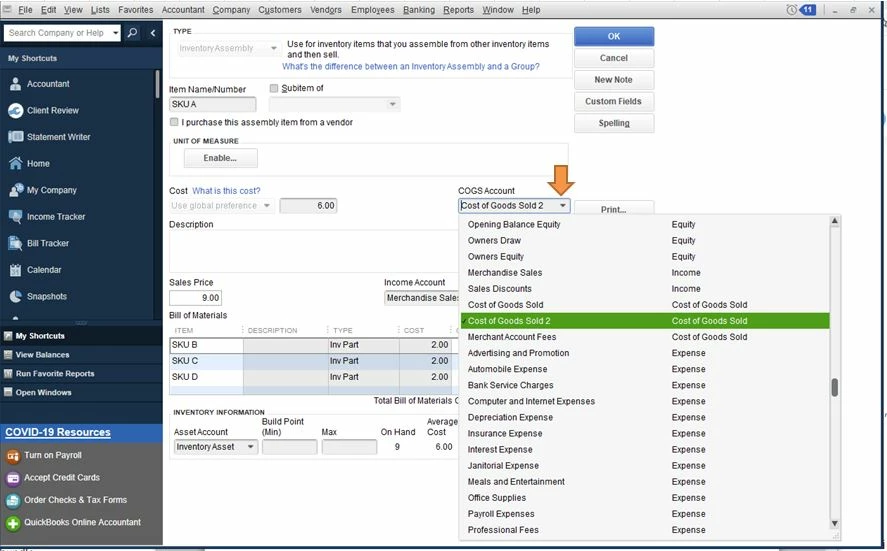
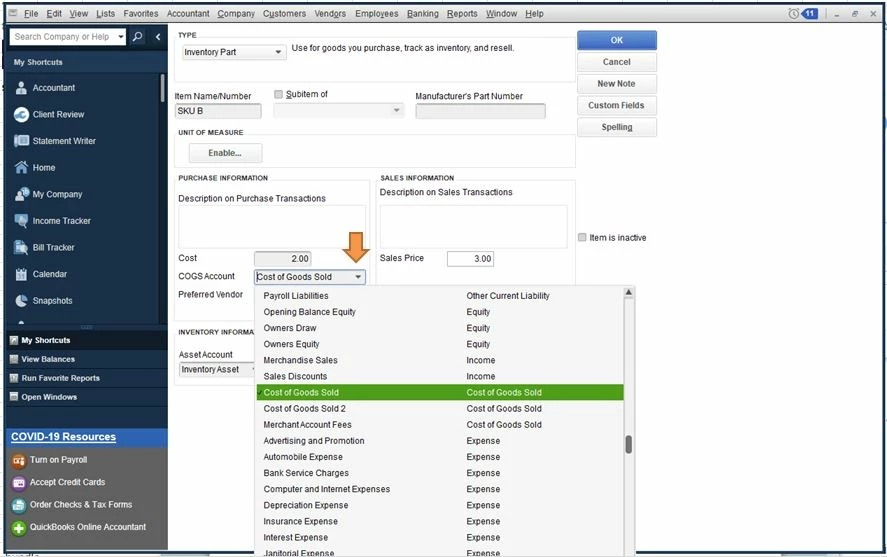
  3. Select the appropriate COGS account from the COGS Account drop-down. Refer to these screenshots.
    • For the Inventory Part item type:
       
    • For the Inventory Assembly (bundle) item type:
       
  4. Click OK.


Let me also add these articles to learn more about managing your items and cost of good sold in QuickBooks Desktop:

I'm always here if you have other questions. Have a wonderful day!

1 reply

LieraMarie_A
Level 8
September 30, 2020

This is just the place to get the answers you're looking for, @jbutler-lifefuels!


Yes, you can map a separate COGS account for SKUs B, C, and D that you've set up as a single item and as a bundle. All you have to do is choose the appropriate COGS account for each setup. I'll guide you how.


  1. Go to Lists and select Item List.
  2. Right-click on the item name and choose Edit Item.
  3. Select the appropriate COGS account from the COGS Account drop-down. Refer to these screenshots.
    • For the Inventory Part item type:
       
    • For the Inventory Assembly (bundle) item type:
       
  4. Click OK.


Let me also add these articles to learn more about managing your items and cost of good sold in QuickBooks Desktop:

I'm always here if you have other questions. Have a wonderful day!

October 7, 2020

Thank you, this was very helpful.