
Get 50% OFF QuickBooks for 3 months*

Buy now
Switch to QuickBooks and 70% off for 3 Months
March 14, 2020
Solved

Multi-currency - Empty list?

  • March 14, 2020
  • 2 replies
  • 2 views

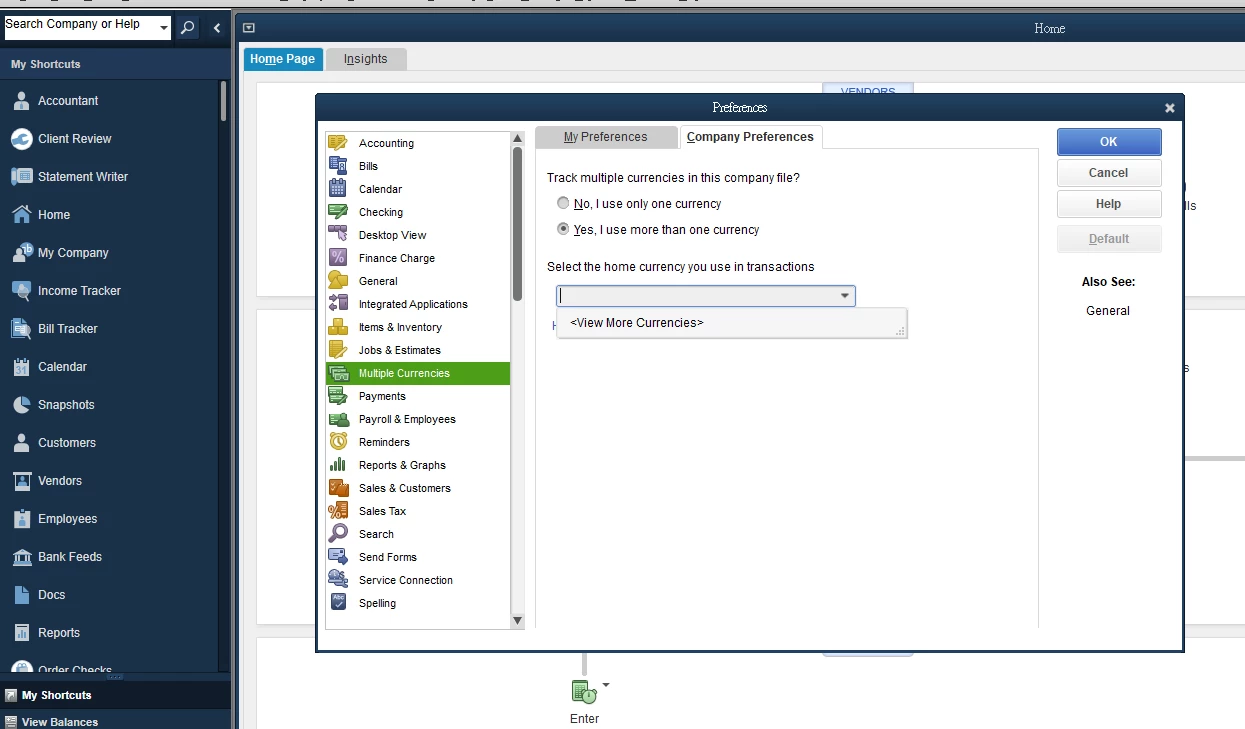
I try to enable multi-currency function but in vain – As shown in the picture the drag-down list is empty.  Clicked on <View More Currencies> but nothing seemed to be happened.  Can anyone please help? Thank you!
 

Best answer by Anna S

Thanks for the update, @KA117.


I've got your back. I'll make sure our Development Team knows about this bug so they can fix it. In the meantime, I recommend keeping the domicile set as the US if you need to use the multi-currency feature. 


I'm only a comment away if you have any other questions or concerns. Enjoy the weekend!

2 replies

QuickBooks Team
March 14, 2020

Yes, I'm here to help you resolve the missing currency list in the program, @KA117.


First, let's create a dummy company file to see if the currency list will appear. This helps us determine if the issue is program-related or not. I'll guide you how. 

  1. Close QuickBooks Desktop (QBDT). 
  2. Open QBDT again. 
  3. Select Create a new company in the No Company Open window. 
  4. Choose Express Start to get started right away. 
  5. Enter your sample Business Name
  6. Select your Industry and Business Type
  7. Hit Create Company
  8. Click Start Working


The screenshot below shows you the fifth to seventh steps. 


Once created, let's turn on the multi-currency feature. Then, select your home currency from the Company Preferences tab as seen in the screenshot below. 


If you're able to view the currency list, let's run the Verify and Rebuild Data utilities on your company file. The first tool self-identifies the most common data issues within a company file while the second one fixes them. For detailed steps, go through this article: Verify and Rebuild Data in QBDT


However, if you're still unable to see the list, let's run the repair tool on your company file. This resolves any program-related issues or errors. You'll first have to back up your company file and restart your computer. After that, proceed with the steps below. 

  1. Go to the Start or Windows menu.
  2. Select Control Panel.
  3. Choose Programs and Features
  4. Hit Uninstall a program.
  5. Select QuickBooks from the list, then click Uninstall/Change.
  6. Click Continue, then select Next.
  7. Choose Repair, then click Next.
  8. Wait for the repair to complete, then hit Finish.
  9. Restart your computer again. 


For detailed instructions, check out this article: Repair Your QuickBooks Desktop for Windows


Moreover, I recommend visiting this website: Multi-currency Overview. This link provides you with steps on how to add foreign-currency customers, vendors, and accounts. Also, it contains more information about updating your exchange rates and creating foreign-currency transactions. 


Just click the Reply button below if you need anything else. Enjoy the rest of your weekend, @KA117.

KA117Author
March 14, 2020

Thanks for your reply.   Followed all your instructions, repaired and open new company file in "No Company" screen, but the following messages popped up ...  Clicked "Yes" in both boxes, result still the same - empty list... 


Fiat Lux - ASIA
Level 14
March 14, 2020

Which Premier Accountant version (year) do you have? 

LieraMarie_A
Level 8
March 18, 2020

Hi @KA117,


I appreciate you performing all the steps provided by my colleagues. You can try a clean install of QuickBooks Desktop to fix this issue.


Doing this removes the current operating system and user files during the initial installation process. It then overwrites all other content on the hard drive and launches a brand new install folder.


To uninstall the program:

  1. Make sure to create a backup copy before uninstalling the software.
  2. From the Windows icon, search for “Control Panel,” then open the Control Panel settings
  3. Choose Programs and Features.
  4. Locate QuickBooks from the list of installed programs.
  5. Select Uninstall/Change.
  6. Click on Continue, then Next.
  7. Choose Uninstall, then click Next again.
  8. Hit Finish and restart your computer.


When you’re done, start the Clean Install process. Refer to this link for the complete steps: Clean install QuickBooks Desktop.


If you get the same result, I recommend contacting our technical support. Here’s how:


  1. Go to Help.
  2. Select QuickBooks Desktop Help.
  3. Click Contact us. Choose Message Us or Call me back.


Our representatives can perform further diagnosis and get this fixed.


KA117Author
April 3, 2020

Thanks for all your kind reply. Tried a clean installation but still in vain.


I took your advise and seek help from the technical support team.  After a few hours efforts, we found that when you select US as domicile the multi-currency function works very well, but when you select Other as domicile the multi-currency function didn't work.  Looks like a bug?

Anna S
Anna SAnswer
April 3, 2020

Thanks for the update, @KA117.


I've got your back. I'll make sure our Development Team knows about this bug so they can fix it. In the meantime, I recommend keeping the domicile set as the US if you need to use the multi-currency feature. 


I'm only a comment away if you have any other questions or concerns. Enjoy the weekend!
