
SUMMER SAVINGS 90% OFF QuickBooks for 3 months* Ends 8/27

Buy now
Switch to QuickBooks and 70% off for 3 Months
November 16, 2022
Solved

I am missing all transactions from 22February2022 through 18August2022. Why did this happen? And more importantly, how do I retrieve these missing transactions?

  • November 16, 2022
  • 6 replies
  • 45 views
No text available
Best answer by Rea_M

You're already on the right track in keeping your financial data accurate, @BCSGllc


Let's make sure to select the Include all transactions option when importing your CSV file so you can remove the error message you've encountered and retrieve your missing transactions in QuickBooks Self-Employed (QBSE).


The connection between your bank and QBSE may have been disconnected. That's why you have missing transactions from February to August of 2022. To successfully import your CSV file, all you need to do is select the Include all transactions option and continue with the process. Here's how:
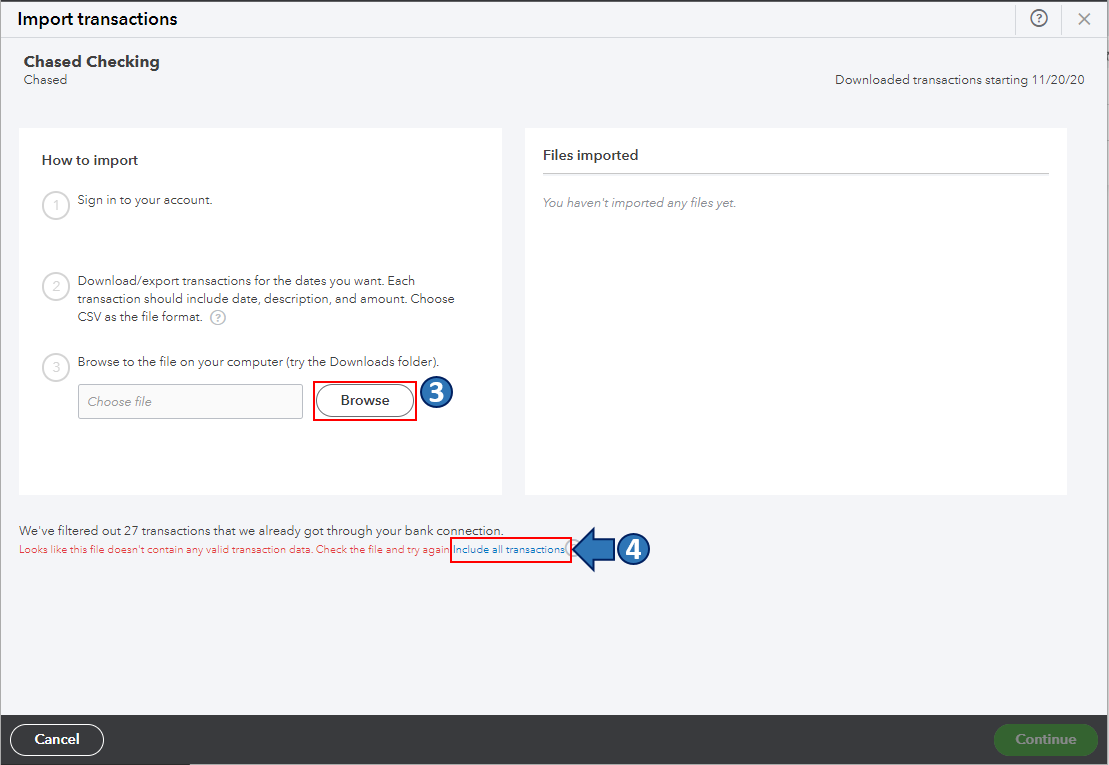
 

  1. Go to the Profile ⚙ icon and then select Import transactions.
  2. Find your bank account and select Import older transactions under the Action column.
  3. Click Browse and select the CSV file you want to import.
  4. You'll be routed back to the Import transactions window. From there, select the Include all transactions option.
  5. Follow the onscreen steps to upload the CSV file and click Continue.


You can read this article for more details about manually importing transactions in QBSE: Manually import transactions into QuickBooks Self-Employed.


Once you're done, go to the Transactions menu and categorize your imported transactions. This way, QuickBooks puts them on the correct line of your Schedule C.


Also, you may want to check out one of our Help pages as your reference to guide you in managing your bank transactions and connectivity in QBSE: Banking Help for QuickBooks Self-Employed.


I'm all ears if you have other banking concerns or questions about managing transactions in QBSE. Drop a comment below, and I'll gladly help. Take care, and have a great day, @BCSGllc

6 replies

BCSGllcAuthor
November 16, 2022

I need to add that when I try to import my CSV file with the transactions that are missing, I get a message that the transactions I receive the following message:  

We've filtered out 242 transactions that we already got through your bank connection.

Looks like this file doesn't contain any valid transaction data. Check the file and try again.
Rea_MAnswer
Level 10
November 16, 2022

You're already on the right track in keeping your financial data accurate, @BCSGllc


Let's make sure to select the Include all transactions option when importing your CSV file so you can remove the error message you've encountered and retrieve your missing transactions in QuickBooks Self-Employed (QBSE).


The connection between your bank and QBSE may have been disconnected. That's why you have missing transactions from February to August of 2022. To successfully import your CSV file, all you need to do is select the Include all transactions option and continue with the process. Here's how:


  1. Go to the Profile ⚙ icon and then select Import transactions.
  2. Find your bank account and select Import older transactions under the Action column.
  3. Click Browse and select the CSV file you want to import.
  4. You'll be routed back to the Import transactions window. From there, select the Include all transactions option.
  5. Follow the onscreen steps to upload the CSV file and click Continue.


You can read this article for more details about manually importing transactions in QBSE: Manually import transactions into QuickBooks Self-Employed.


Once you're done, go to the Transactions menu and categorize your imported transactions. This way, QuickBooks puts them on the correct line of your Schedule C.


Also, you may want to check out one of our Help pages as your reference to guide you in managing your bank transactions and connectivity in QBSE: Banking Help for QuickBooks Self-Employed.


I'm all ears if you have other banking concerns or questions about managing transactions in QBSE. Drop a comment below, and I'll gladly help. Take care, and have a great day, @BCSGllc

MaryLandT
Level 10
November 18, 2022

I appreciate the response.  I have not received any notices of updates from my bank.  I also did not have to reconnect the account.  Somehow, I was just missing the transactions from the end of February through the mid-end of August, and the rest of the year to date is there and new transactions are importing normally.  My account has been connected since 2019 without issue until this happened.  I would like to know why so that I can be at ease that I don't have much to worry over for the future.  Thanks.


Thanks for getting back to us, buckscountystain.


I can share one reason why transactions went missing. If your transactions aren't categorized and the bank connection was maybe interrupted, you'll loose them.


It's good to categorized transactions once downloaded to prevent from losing them. You may send feedback to aware our Product Team about this behavior.


Here's how:


  1. Click Assistant.
  2. Type the word 'Feedback'.
  3. Choose Add a feature.
  4. Type your feedback details, then select Yes.


The valuable feedback goes to our Product Development team to help improve your experience in QuickBooks.


Get back to me if you have other banking concerns. I'm always glad to help you.
