I know a way how you can upload your QuickBooks Desktop data to QuickBooks Online Advanced without doing it manually, BethR.
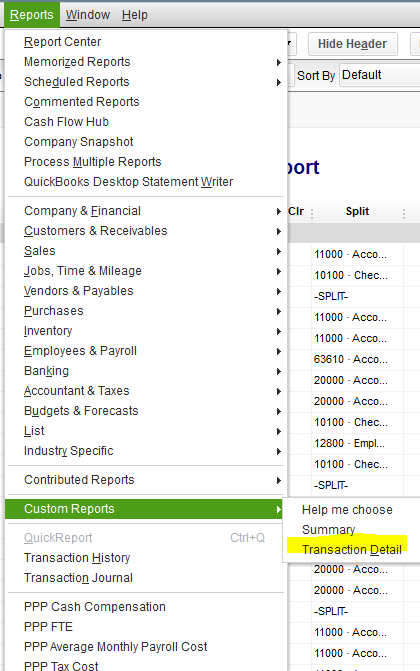
You can run the custom report to get a list of all your transactions. Then, customize it to display the memo field and the split detail. Here's how:
- Open the Reports menu.
- Go to Custom Reports.
- Select Transaction Detail.
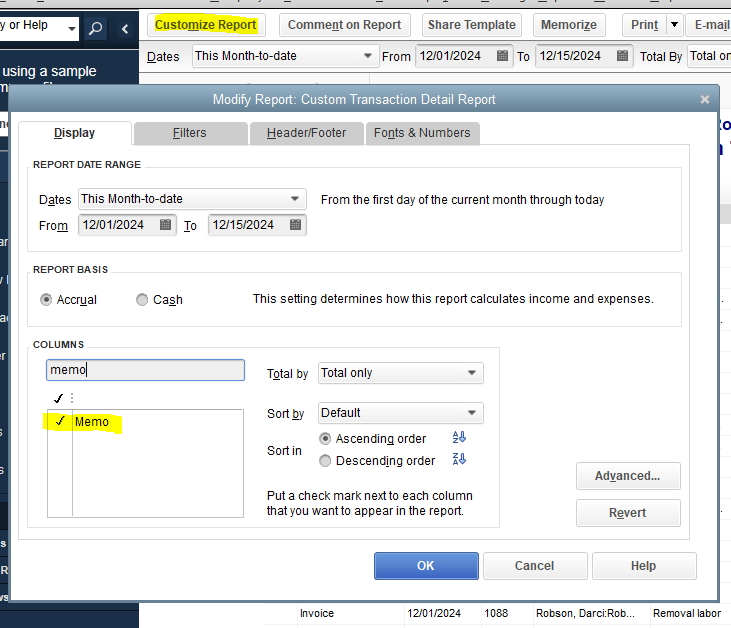
- Click on the Customize button.
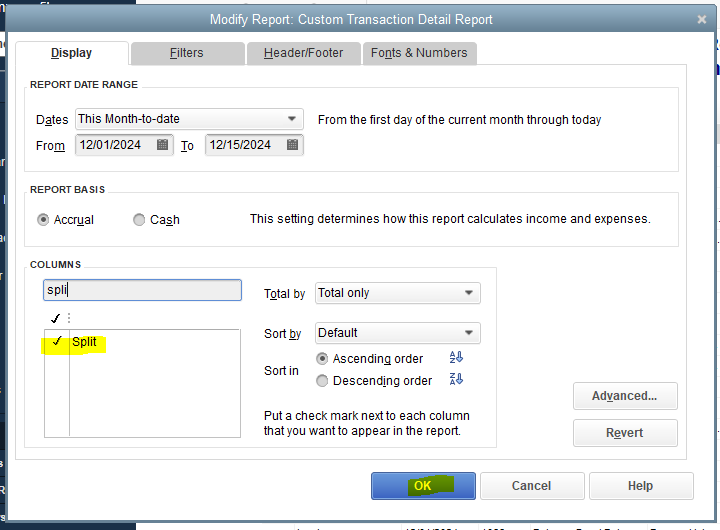
- In the Display tab, check the field for Split and Memo.
- Once done, click on OK.
As for the foreign currency information, it will be transferred to your QBO company as long as the Multi-currency feature is enabled and necessary accounts with the right currencies are created.
In addition, you have the option to export your QuickBooks Desktop transactions using an IIF file. Afterward, you can search for a third-party converter that can be integrated with QBDT, as this specific file format can't be directly imported into QBO. Here are the steps to follow:
For QuickBooks Desktop for Windows:
- Sign in to your company file as an admin.
- Note: If you’re in Multi-user mode, go to the File menu, then tap Switch to Single-user Mode.
- Go to the File menu, then choose Utilities.
- Select Export, then hit Lists to IIF Files.
- Pick the lists you want to export, then select OK.
- In the Save in dropdown, select a location to save your IIF file.
- Enter a file name, then select Save.
For QuickBooks Desktop for Mac:
- Log in to your company file as an admin.
- Open File, then select Export.
- Hit Lists to IIF File, then select the list you want to export.
- Click on OK, then enter a name for your IIF file.
- In the Where dropdown, select a location to save your IIF file, then select Save.
See this link for more information about the process: Export, import, and edit IIF files: Export, import, and edit IFF files.
If none of this works, you'll have to acquire a CSV of your bank transactions with their respective currencies and manually upload them to QBO. Here's a guide for the procedure: Manually upload transactions into QuickBooks Online.
Feel free also to read these extra modules to find out what features/data are transferred to QBO:
Comment back to get further assistance about this topic or QuickBooks in general. Keep safe!
