Solved
Why does QBO sometimes misinterpret the description field of uploaded bank transactions in a CSV file?
One of my QBO accounts is a “bank” account, for which I manually upload transactions (Banking module > “Upload from file” (in “Link account” pull-down list)).
To illustrate the problem, the following CSV file contains two bank transactions. Both transactions include the text string “Appl.” in their respective descriptions. (In this example, “Appl.” is an abbreviation for “Application.”)
Date,Amount,Description
02/14/2022,-600.00,Payment 2501 UTILITY ISSUE FEE Docket No. DR-1216 Appl. No. xxxxxxxxx Trans. ID E20222DB01144152
02/28/2022,-80.00,Payment 2051 SURCHARGE Docket No. 3898-1202 Appl. No. 16663814 Trans. ID E20222RL20094915
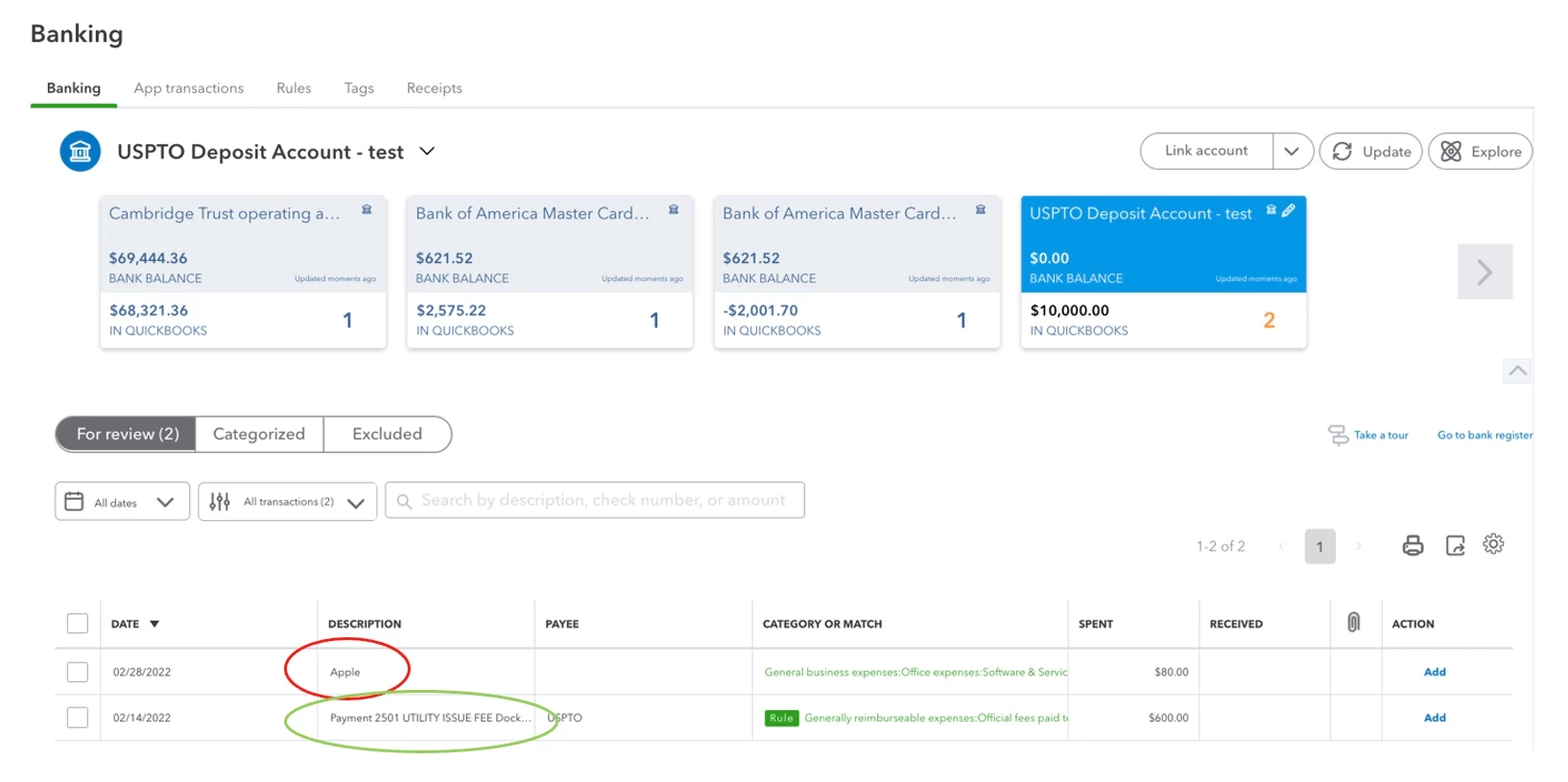
However, when this CSV file is uploaded into QBO (in the Banking module), only one of the instances of “Appl.” is properly handled. The other instance is misrecognized as “Apple,” which corrupts the Description field.
This poses several problems. For example, I have a rule for assigning a transaction type, category of expense, and a payee to these transactions. (The rule applies to transactions that are: “Money out” in “USPTO Deposit Account.” The rule sets the transaction type to “Expense,” category to “Generally reimbursable expense...” and payee to “USPTO.”)
However, as you can see in the red example, the rule does not fire, presumably because the Description has been corrupted. I must manually “patch up” these transactions. Sometimes the Description gets mangled by QBO into “decolar.”
Furthermore, after patching up several of these transactions, QBO asked me if I want to create a new rule (“Is decolar always Generally reimbursable expenses:Official fees paid to patent offices?”) “Decolar” is completely meaningless. I don’t know how QBO came up with this name!
To illustrate the problem, the following CSV file contains two bank transactions. Both transactions include the text string “Appl.” in their respective descriptions. (In this example, “Appl.” is an abbreviation for “Application.”)
Date,Amount,Description
02/14/2022,-600.00,Payment 2501 UTILITY ISSUE FEE Docket No. DR-1216 Appl. No. xxxxxxxxx Trans. ID E20222DB01144152
02/28/2022,-80.00,Payment 2051 SURCHARGE Docket No. 3898-1202 Appl. No. 16663814 Trans. ID E20222RL20094915
However, when this CSV file is uploaded into QBO (in the Banking module), only one of the instances of “Appl.” is properly handled. The other instance is misrecognized as “Apple,” which corrupts the Description field.
This poses several problems. For example, I have a rule for assigning a transaction type, category of expense, and a payee to these transactions. (The rule applies to transactions that are: “Money out” in “USPTO Deposit Account.” The rule sets the transaction type to “Expense,” category to “Generally reimbursable expense...” and payee to “USPTO.”)
However, as you can see in the red example, the rule does not fire, presumably because the Description has been corrupted. I must manually “patch up” these transactions. Sometimes the Description gets mangled by QBO into “decolar.”
Furthermore, after patching up several of these transactions, QBO asked me if I want to create a new rule (“Is decolar always Generally reimbursable expenses:Official fees paid to patent offices?”) “Decolar” is completely meaningless. I don’t know how QBO came up with this name!